


Edit WeChat Sharing Page
Feature Description
The WeChat sharing page editing feature for on-demand videos allows you to personalize the WeChat sharing page, enhancing its marketing and promotional effectiveness.
In the video list, select a video, then find [Share to WeChat] in the right sidebar. Click "Edit WeChat Sharing Page" to enter the editing page.
Video Information
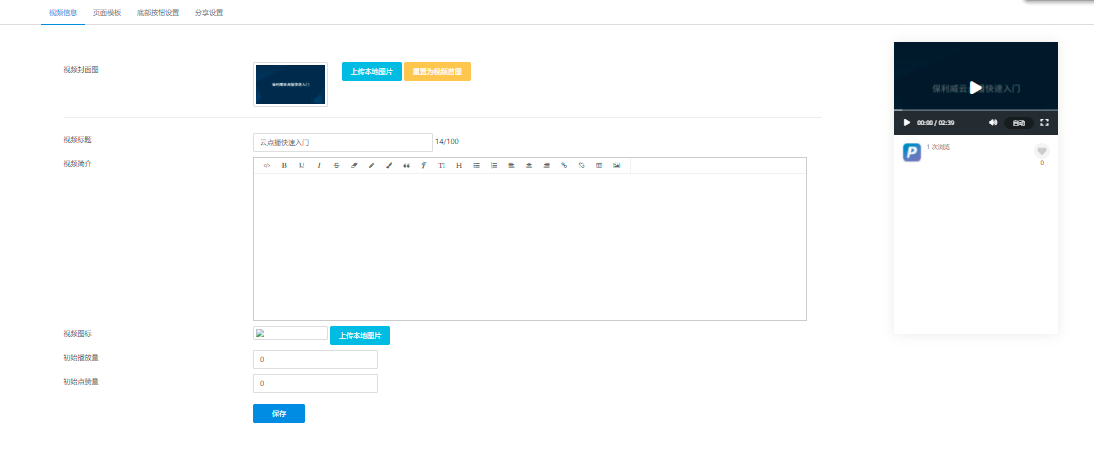
You can edit the basic information of the page.
Set the video cover image. By default, the first image of the video is used. You can also upload an image from your local device to set it as the video cover.
You can also modify the video title, edit the video description, and insert images or tables.
Set the video icon, initial play count, and initial like count.
After saving, you can preview the final result in the preview window on the right. See the image below for details:
Page Template
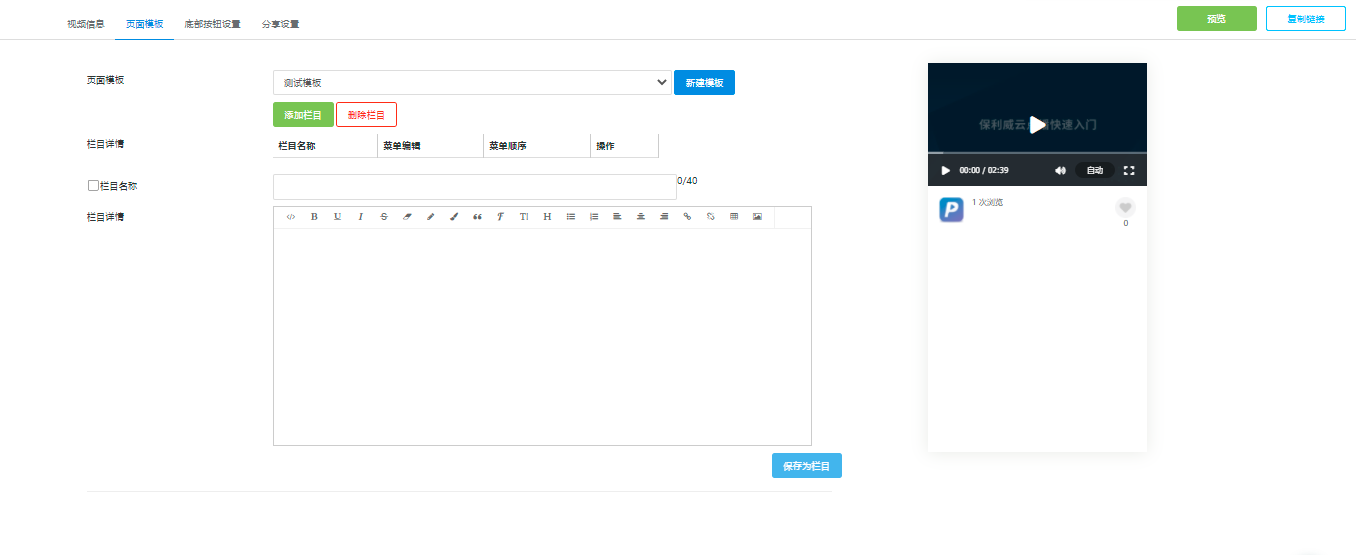
If your account does not have a template yet, click "Create Template", enter a template name, and click "Confirm".
On the column editing page, you can add columns, set column names, and edit the text and image content of the columns. Save your changes. To ensure proper display on mobile devices, you can add up to 4 columns.
After creating columns, you can modify column content, adjust column order, or delete columns in the column list. You can also save the current layout as a template for direct use next time. See the image below for details:
Bottom Button Settings
You can choose whether to display a bottom button. After selecting [External Link Button], you can customize the button name, color, and redirect link. Once saved successfully, the bottom button style will be displayed on the right.
Sharing Settings
You can edit the content shared to WeChat when playing the video, including the page title, page description, and page thumbnail.
