


How to Capture the Current Video Frame for AI Analysis to Aid Learning?
In scenarios such as online education and knowledge payment, learners watching courses may wish to ask further questions about formulas, charts, courseware, or operational steps in the current frame. For example: "How should I understand this problem?" or "Please summarize the key points on this page."
You can use the screenshot capability of the video player to capture the current video frame. The business system then submits the image to a large model that supports image understanding, and displays the analysis results to the learner, enabling auxiliary explanations centered on the course frame.
1. Which Learning Scenarios Is This Suitable For?
- Courseware Interpretation: Capture the current courseware to assist in extracting key points, explaining concepts, or organizing knowledge.
- Problem Explanation: Capture problems, formulas, or solution processes from the video, and analyze them together with the learner's questions.
- Chart Analysis: Capture charts or diagrams from the course to help understand the information and relationships within them.
- Software Operation Learning: Capture the current demonstration screen to ask questions about menus, parameters, or operational steps.
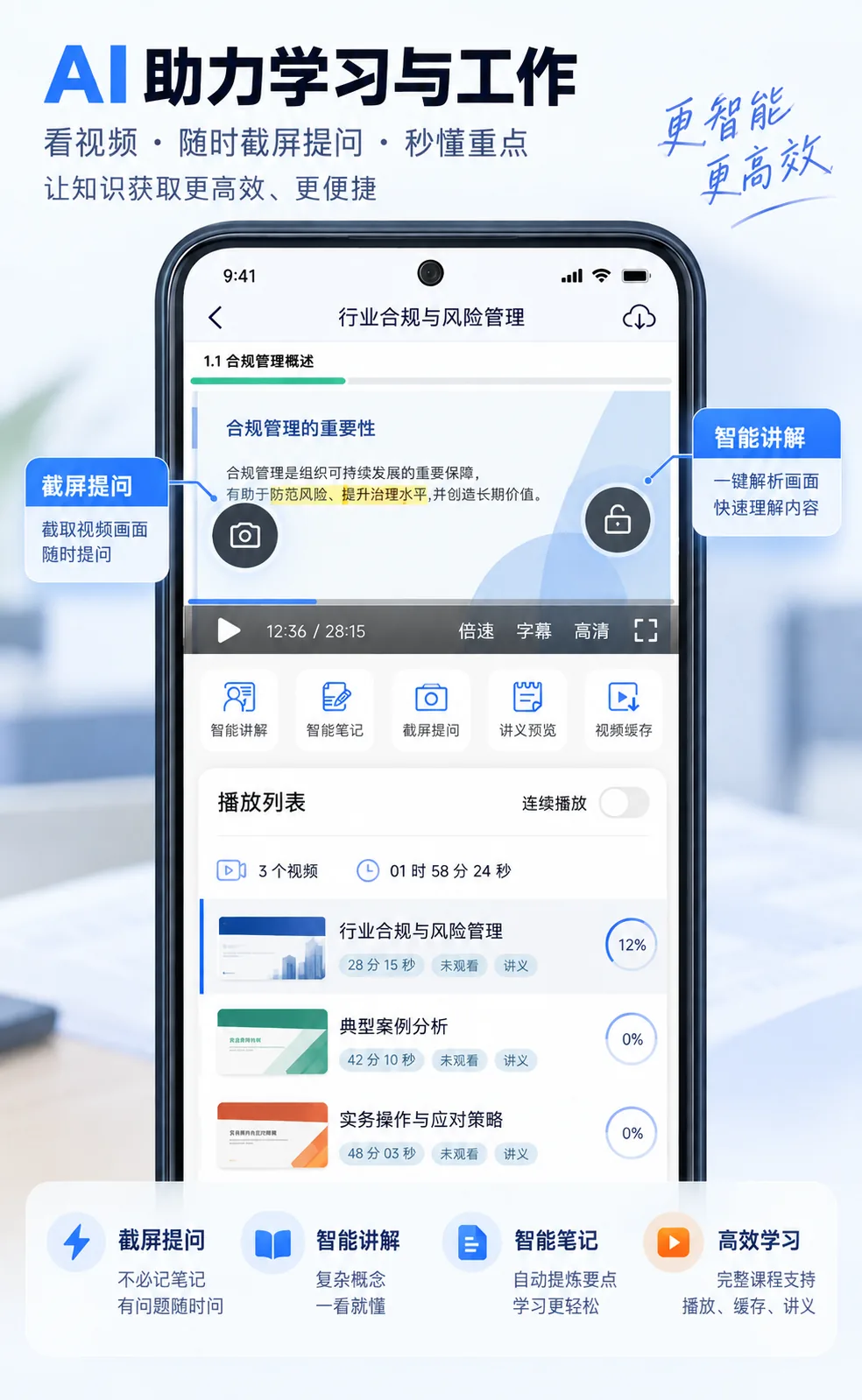
The following is a schematic of the business application scenario: Learners can capture the current frame while watching a course and initiate questions or obtain auxiliary explanations. AI functions such as intelligent explanation, screenshot questioning, and smart notes in the figure are integrated by the business side using the player's screenshot capability and large model services. The specific interface and effects depend on the business implementation.
2. How to Implement?
Taking the uni-app education app as an example, you can add an entry for "Ask AI" or "Analyze Current Frame" on the course playback page. Developers should integrate the following process. Before integration, confirm that the player or plugin version supports directly obtaining screenshot image data. The specific calling method should follow the interface documentation for the corresponding version. If the existing documentation only mentions saving to the photo album, contact technical support to confirm the applicable version and integration method.
- Capture the Current Frame: After the learner clicks the entry, the business side calls the player's screenshot interface to obtain the image content of the current video frame.
- Upload the Image: Upload the obtained image to the business server or an image storage service to obtain an image link accessible by the large model.
- Submit the Analysis Request: The business server submits the image and the learner's question together to a large model that supports image understanding. For example: "Based on this courseware, explain the meaning of the formula in the image."
- Display the Analysis Results: Display the explanation or summary returned by the large model on the learning page for the learner to reference and continue asking questions.
It is recommended to also record the video ID and the playback time corresponding to the screenshot, making it easier for learners to return to the original course position for review.
3. Why Is It Necessary to Directly Obtain Image Content?
This scenario requires the screenshot to be processed by subsequent business workflows. Therefore, a screenshot capability that returns image data should be used.
If the screenshot function only saves the image to the phone's photo album, the business system would still need to read or select the image separately before uploading and analyzing. Directly obtaining image content allows the screenshot, upload, and AI analysis to be chained together in a single operation.
4. Will the Screenshot Include Player Buttons and the Progress Bar?
This scenario should capture the current video frame content, excluding player controls such as play/pause buttons or the progress bar. This allows the large model to focus on the course content. When integrating, confirm that the output of the screenshot interface used meets this requirement.
This differs from a phone system screenshot: system screenshots typically also capture the chat area, navigation bar, and other interface elements on the page.
5. Will the Player Automatically Perform AI Analysis?
No. The player's screenshot capability is responsible for obtaining the video frame. The image upload, large model invocation, question entry, and result display need to be integrated by the business system itself.
The large model should support image input and be able to access the submitted image. If the image link has access restrictions or an expiration date, ensure the model can read it during analysis.
6. What Should Be Noted When Using This Feature?
- A single image only contains the current frame. If the question depends on the instructor's preceding or following verbal explanations or operational processes, it is recommended to supplement relevant textual context to avoid drawing incomplete conclusions based solely on one image.
- Screenshot capability is limited by the playback environment and content protection rules. For DRM-protected or similar content, the actual support range of the corresponding SDK should be followed. If screenshot fails, the business side needs to prompt the learner and handle the error.
- AI analysis is for learning assistance. Explanations of formulas, problems, and professional knowledge should be cross-checked with the original course content.
- Confirm the scope of use for course content. Before submitting course screenshots to a third-party large model, ensure you have the appropriate authorization.
