


Quick Business Integration Solution
Solution Description
This integration method is based on POLYV's SaaS product viewing page. It is integrated or embedded into the customer's product via iframe or webview to enable live streaming viewing capabilities.
Features
Short development cycle, low technical involvement, quick go-live, estimated around 1 week.
Viewing page features automatically upgrade with POLYV updates, requiring no technical intervention.
Supports all POLYV business scenarios (three-screen, pure video).
The SaaS viewing page is POLYV's standard product for all customers. It does not support business logic or UI customization. For customized development, please refer to the Customized Business Integration Solution.
Applicable Scenarios
Customers with limited technical resources and insufficient manpower.
Customers needing to quickly achieve a business闭环.
Customers with no customization requirements.
Business Diagram
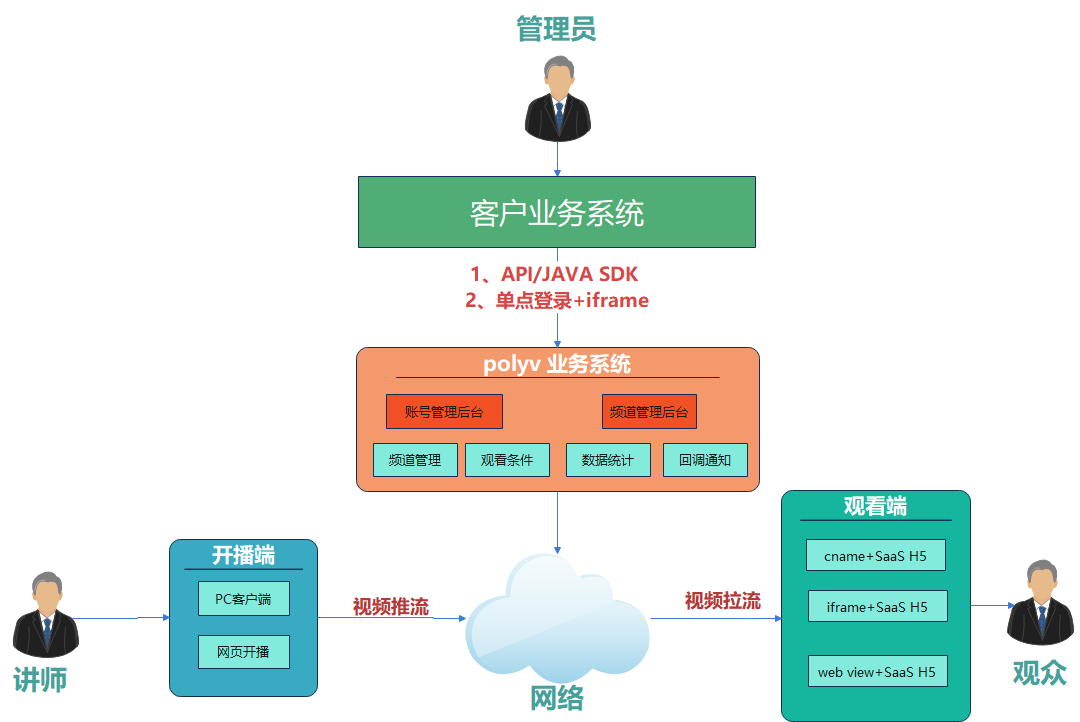
Note: In the diagram above, the viewing end uniformly uses the SaaS viewing page for stream pulling and viewing. The page URL construction rule: Replace the channel at the end of https://live.polyv.cn/watch/{channel}, with the actual POLYV backend channel number, e.g., https://live.polyv.cn/watch/3274670, where 3274670 is the channel number.
Backend Management
There are two ways to integrate the backend. The method descriptions and references are as follows:
Option 1: According to the customer's own business logic, use API / Java SDK to bridge the customer's business system with POLYV's business system data. Refer to Server API.
Option 2: Embed POLYV's backend management system directly into the customer's own management system via single sign-on (SSO). The customer's backend can access POLYV's backend management system without a password to manage channel live rooms.
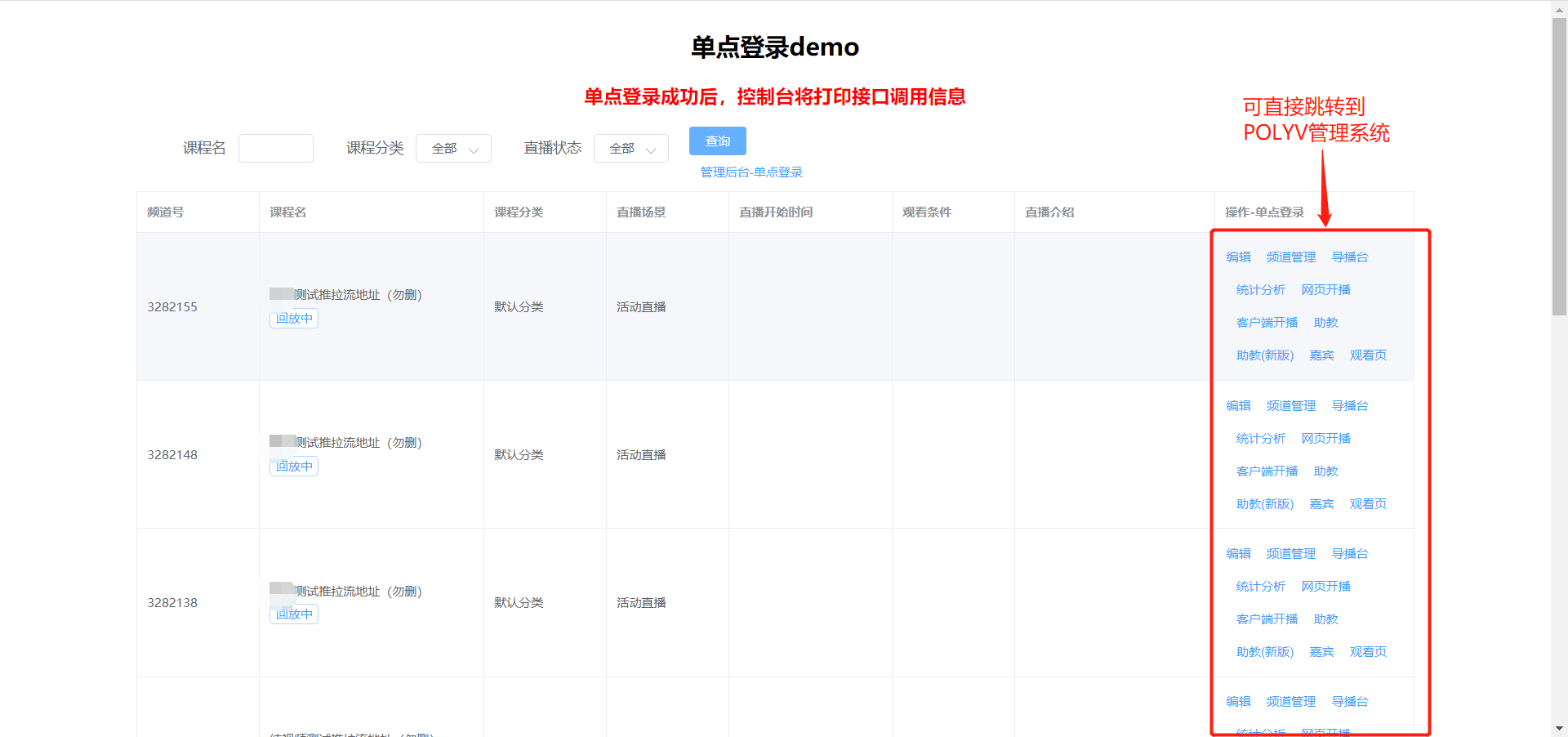
| Integration Method | Documentation | Usage Description | Example |
|---|---|---|---|
| Single Sign-On | SSO for Account Backend, Channel Backend, Role Backend, Instructor Broadcast Page | Via SSO, the customer's business system and POLYV's business system can be bridged. The customer's business system can directly access POLYV's backend for channel-level and account-level operations without entering a username or password. If the customer needs a CNAME to the backend, configure the CNAME to point to [live-manage.videocc.net]. For other configurations, refer to the viewing end configuration. | SSO DEMO |
| Server API | DOC | The customer's business system can directly use API calls to bridge with POLYV's business system. | API Online Test Tool |
| Live Java SDK | DOC | When developing the backend using Java, integrate the Java SDK for API calls to reduce integration time. (The SDK encapsulates request parameters, signatures, exceptions, etc. See the documentation for details.) | Feature Index |
Broadcasting End (Pushing Stream to Server)
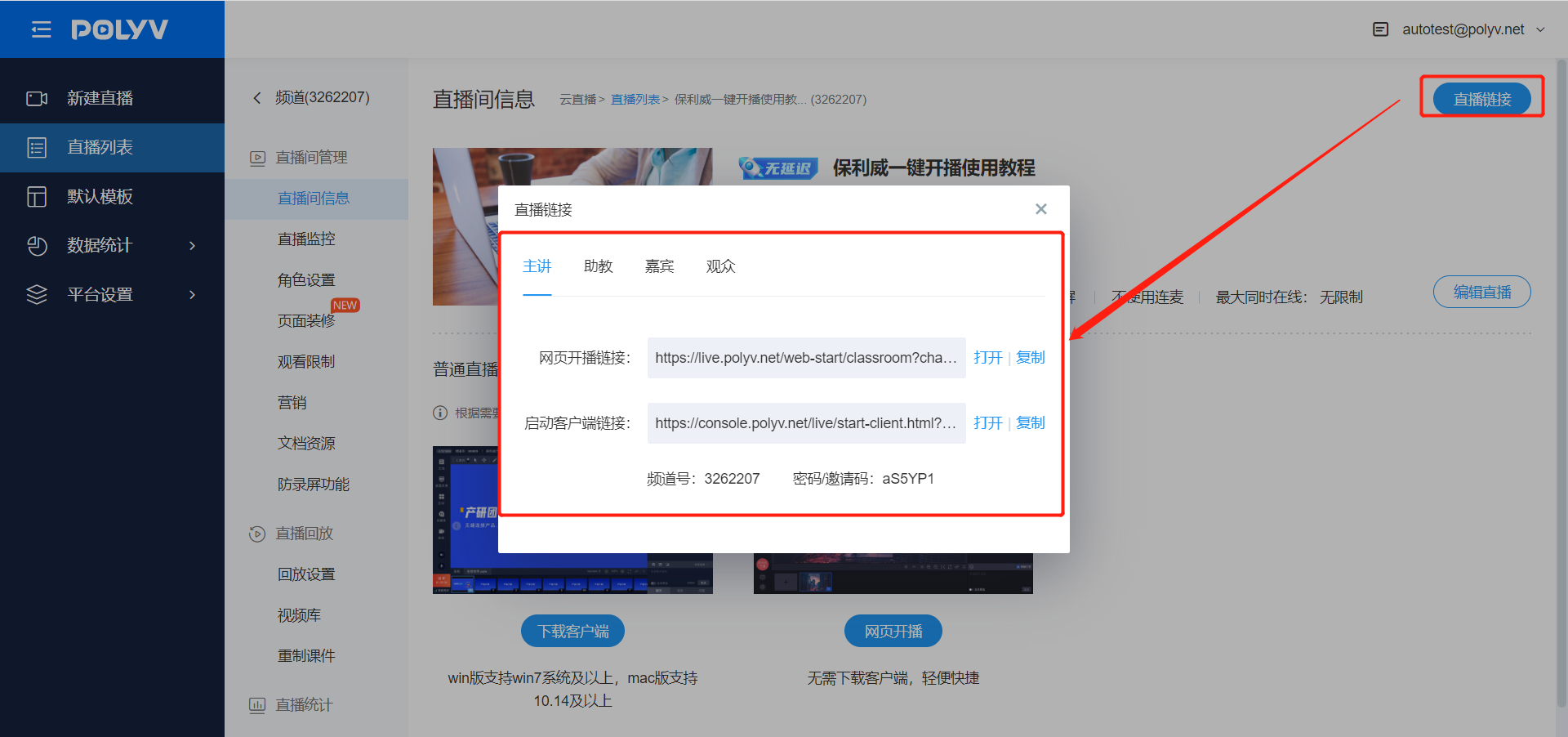
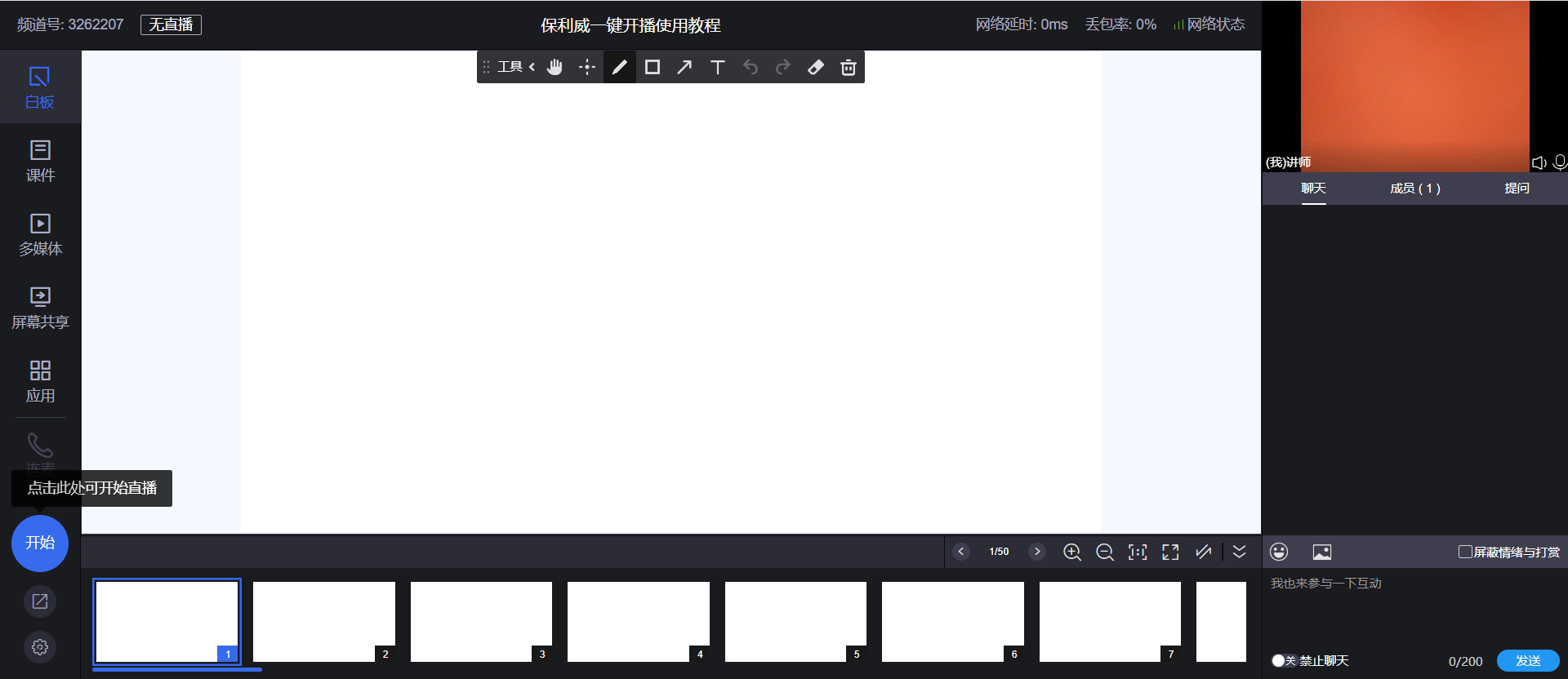
Log in to the POLYV live streaming backend, enter the channel management page, select the live streaming link, and click to start broadcasting. Details are as follows:
| Platform | Entry Point | Supported Range | Applicable Scenarios |
|---|---|---|---|
| PC Client Broadcasting | POLYV backend corresponding channel link, e.g., Example | Supports Windows/Mac systems | Download and start broadcasting directly. Includes a three-in-one client: Live Assistant, Cloud Classroom, and Large Class. |
| Web Broadcasting | POLYV backend corresponding channel link, e.g., Example | Supports all platforms, uses browser for broadcasting. | Provides web-based quick access to broadcasting service capabilities. |
Viewing End (Pulling Stream from Server)
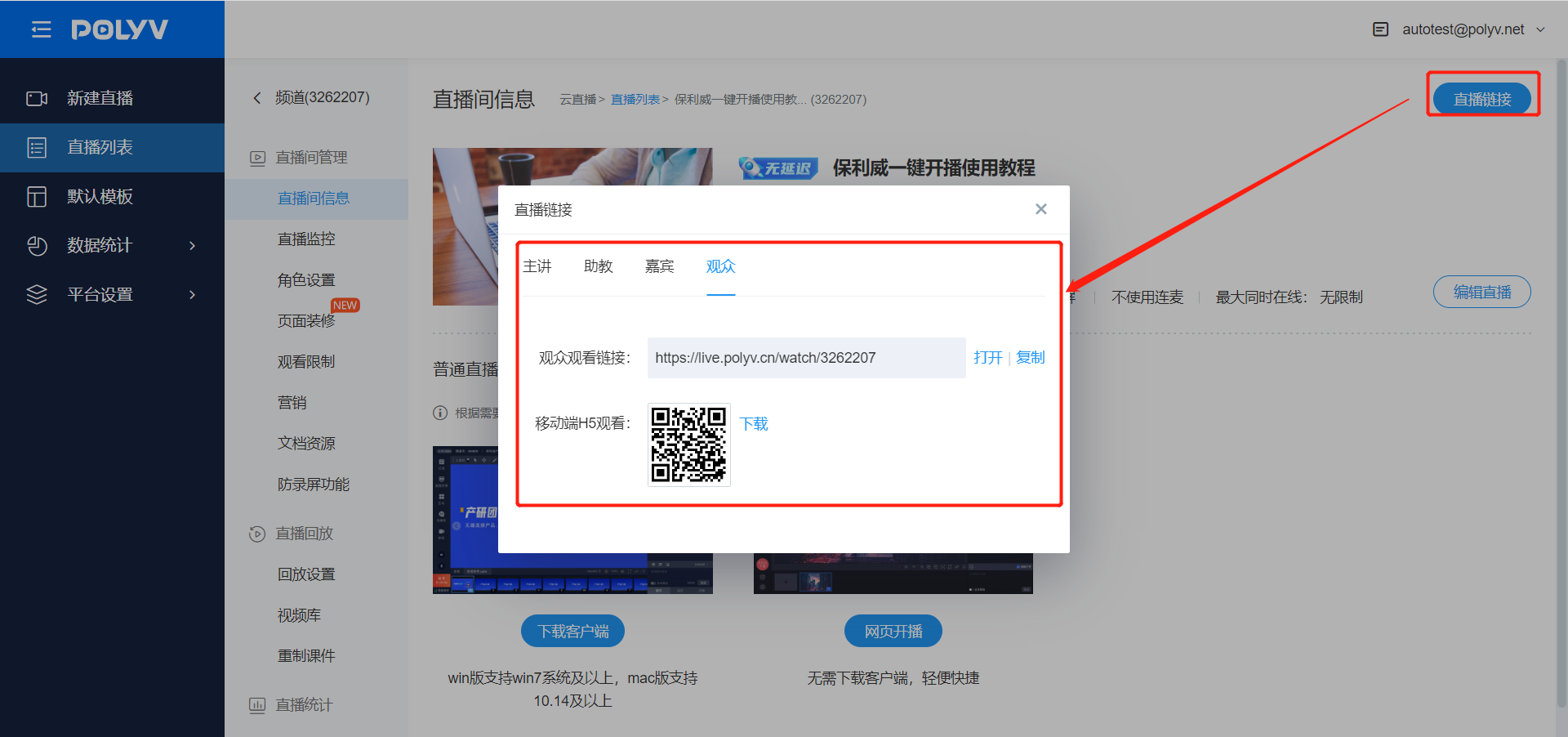
The viewing end uses the SaaS viewing page for stream pulling and viewing. The page URL construction rule: Replace the channel at the end of https://live.polyv.cn/watch/{channel}, with the actual POLYV backend channel number, e.g., https://live.polyv.cn/watch/3274670, where 3274670 is the channel number. It can also be obtained from the POLYV management backend, as shown below:
| Integration Method | Applicable Scenarios |
|---|---|
| CNAME + SaaS H5 | Set a CNAME alias for the customer's domain pointing to POLYV's viewing page domain live-watch.videocc.net, enabling the customer's domain to directly open the viewing page. For example, if the customer's domain is [www.baidu.com], set the alias [live.baidu.com] to point to live-watch.videocc.net. The customer's viewing page domain would be https://live.baidu.com/watch/3274670. From the domain perspective, it appears as the customer's own business system, but it actually enters POLYV's viewing page. Configuration process: 1. The customer sets their business domain via CNAME to bind to POLYV's playback domain live-watch.videocc.net and informs POLYV of the CNAME domain. Reference documentation for configuration. 2. Since POLYV's viewing page uses the HTTPS protocol, the customer should provide the SSL certificate bound to the CNAME domain to POLYV, including *.pem & *.key files. 3. After POLYV configures the system, verify with the customer whether the CNAME domain is effective. The viewing page address should then be: https://{your_domain_name}/watch/{channel}. |
| webview + SaaS H5 | This solution is a lightweight integration method for mobile apps and mini-programs. The app or mini-program loads the SaaS viewing page via webview to easily achieve viewing page integration. |
| iframe + SaaS H5 | The customer embeds POLYV's SaaS viewing page via iframe. From the domain perspective, it appears as the customer's own business system, but the embedded page is POLYV's viewing page. Reference documentation and usage restrictions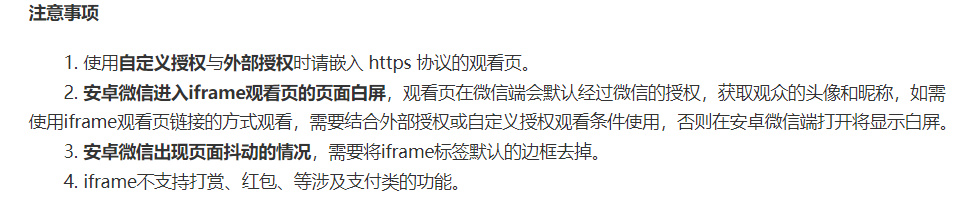 |
If the customer needs to pass their business system's C-end account ID back to their own business system via the POLYV viewing end, please refer to the Independent Authorization integration method.
