


Demo Experience
Updated: 2022-11-17 10:14:37
Watch Page Example
Experience Package Download Links
| Package Name | Download QR Code | Download Password |
|---|---|---|
| iOS-POLYV Multi-Scenario |  |
polyv |
| Android-POLYV Multi-Scenario |  |
polyv |
| iOS-WebView Experience Package |  |
polyv |
| Android-WebView Experience Package |  |
polyv |
WebView Experience Package Steps
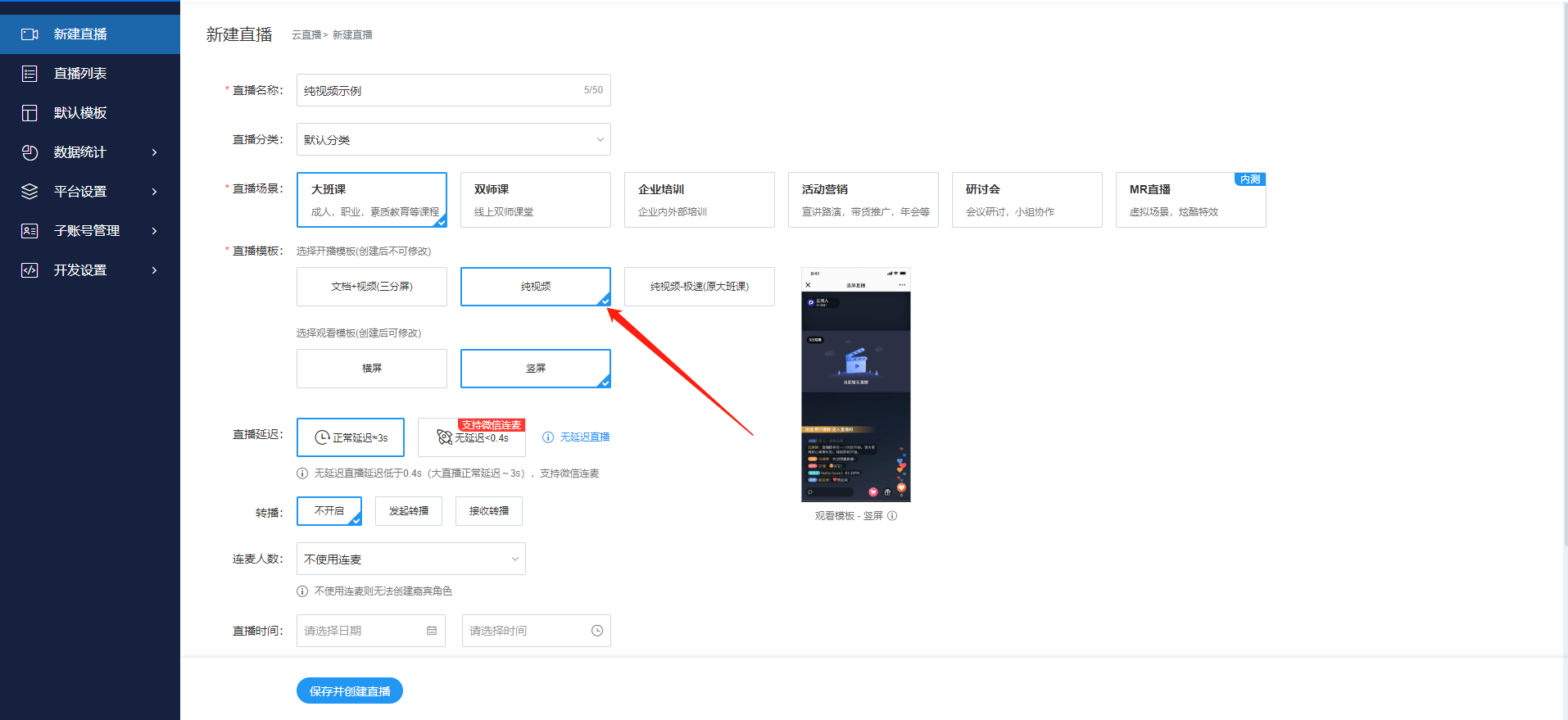
Log in to the POLYV Live Streaming Backend -> Create a new live stream -> Select Pure Video
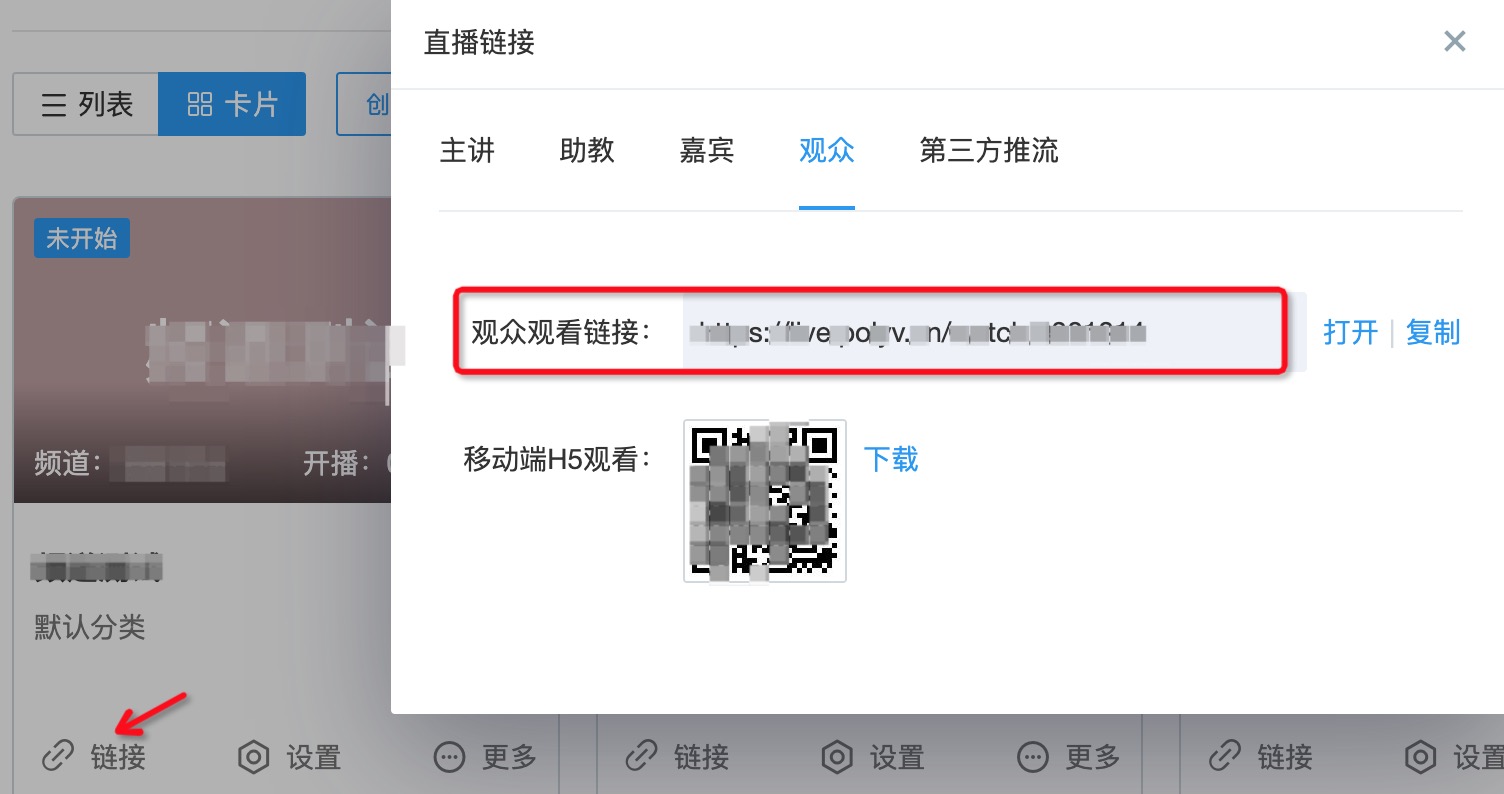
Enter the channel -> Live streaming link -> Obtain the watch page URL
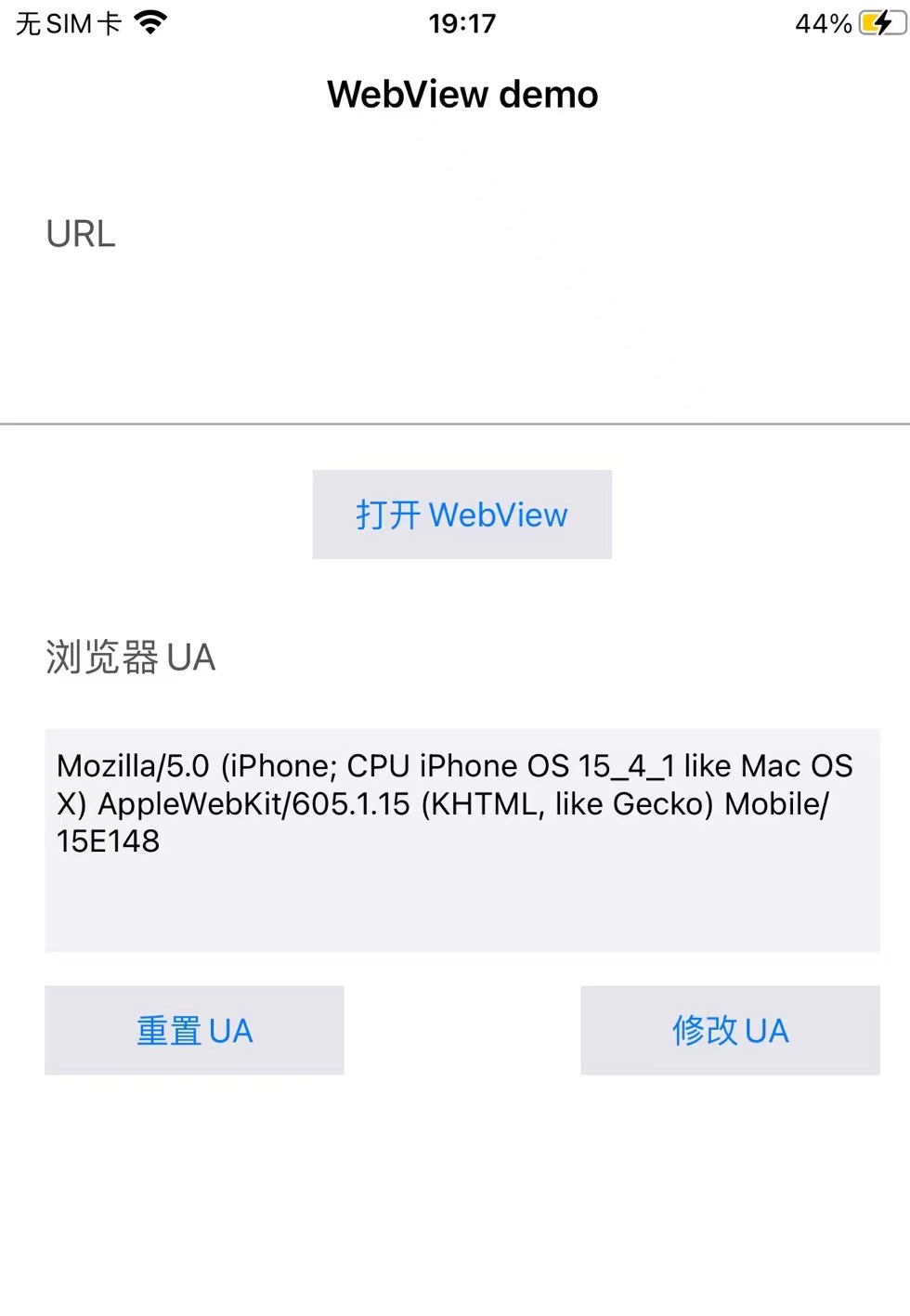
- Enter the watch URL and click to open WebView
POLYV Multi-Scenario Experience Package Steps
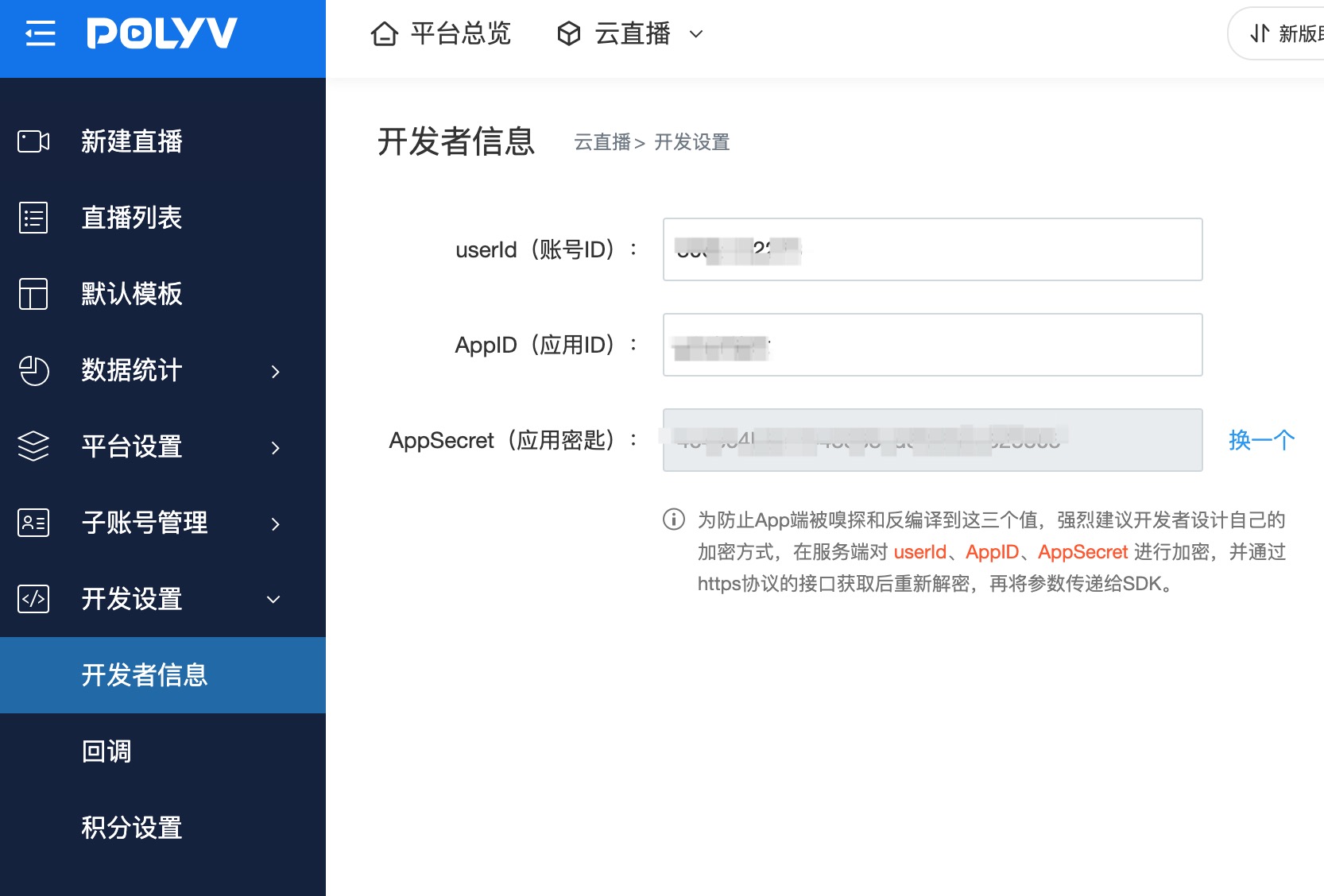
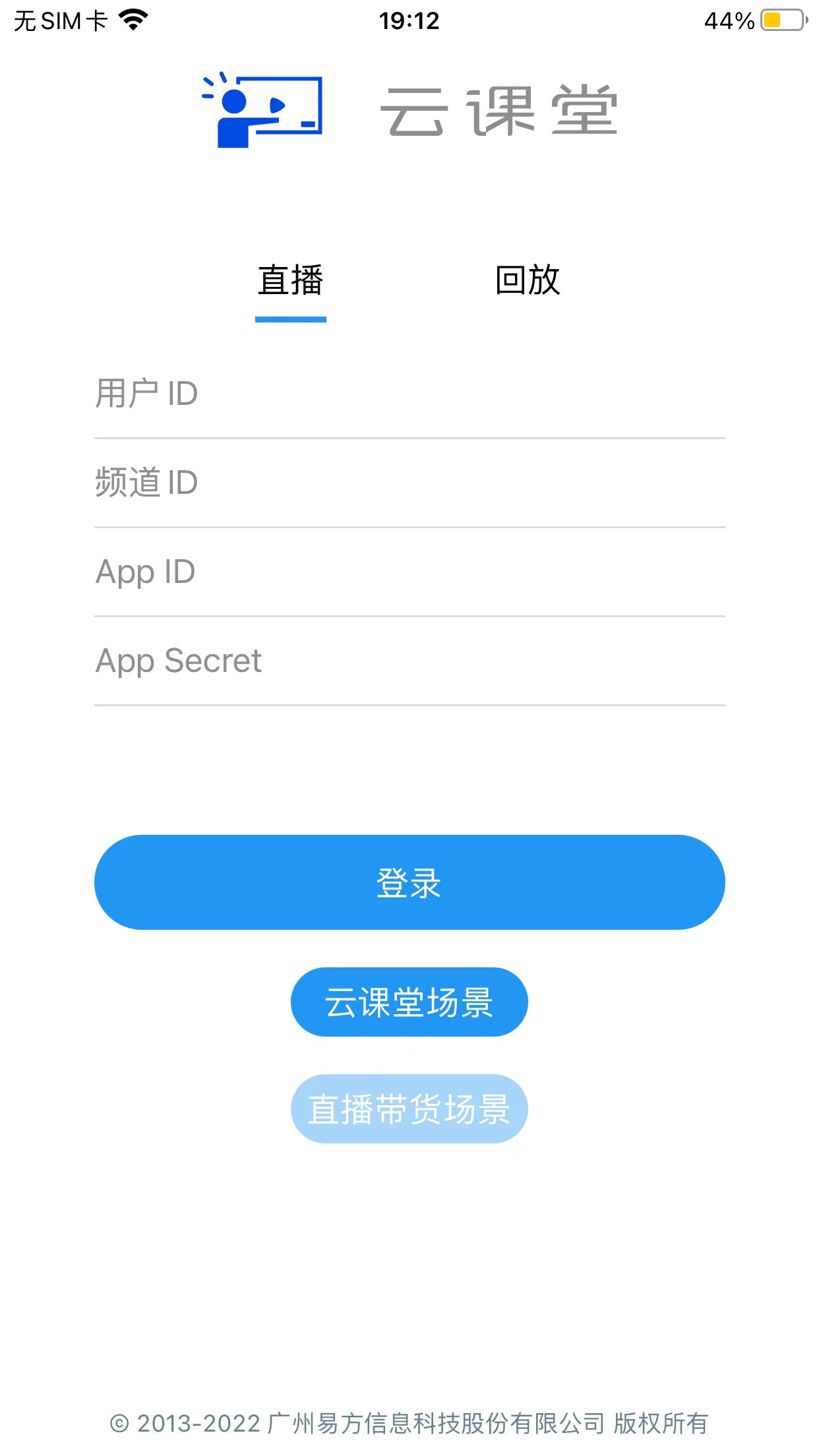
Log in to the POLYV Live Streaming Backend -> Product Services -> Cloud Live Streaming -> Development Settings -> Obtain developer information
Enter login credentials, select "Live Commerce Scenario" or "Cloud Classroom Scenario", and click Log In
Additional Notes
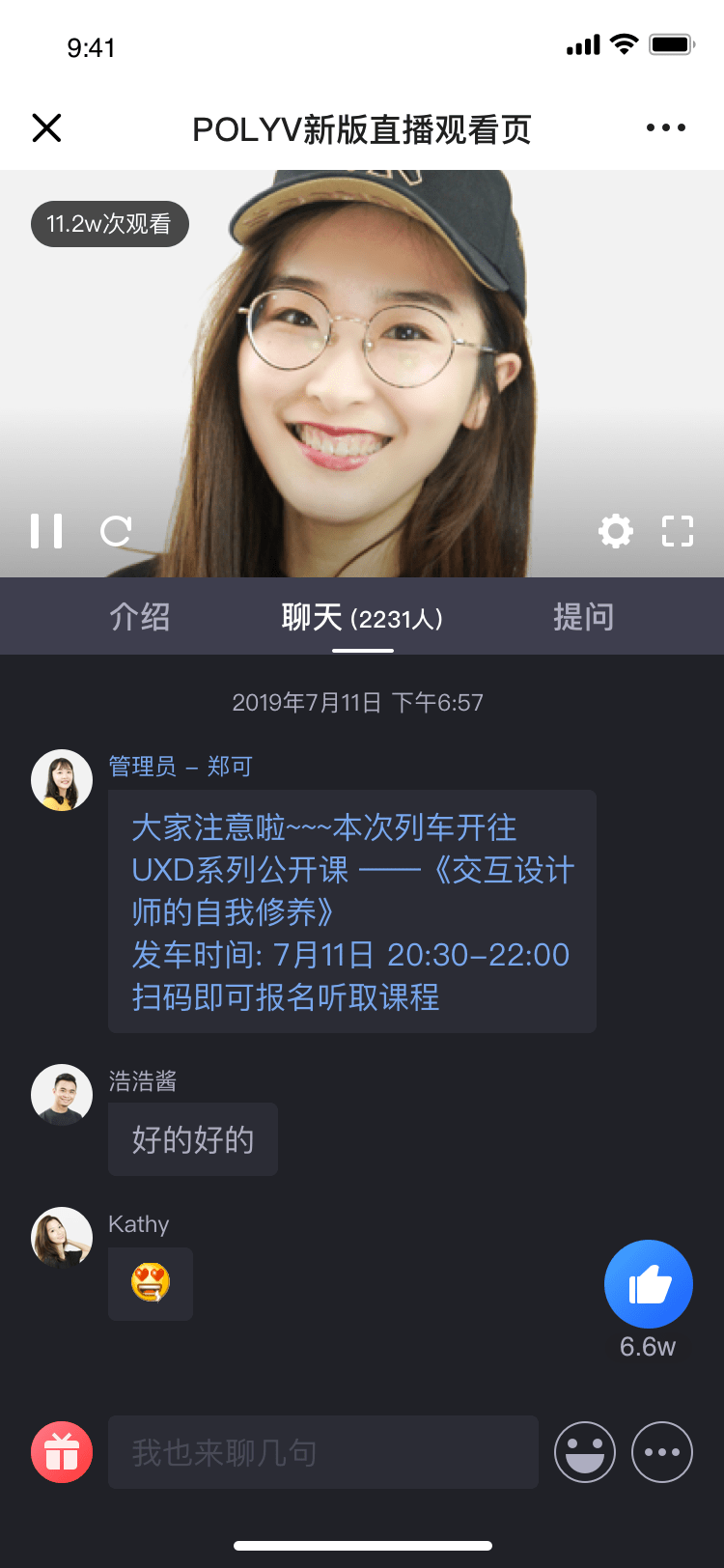
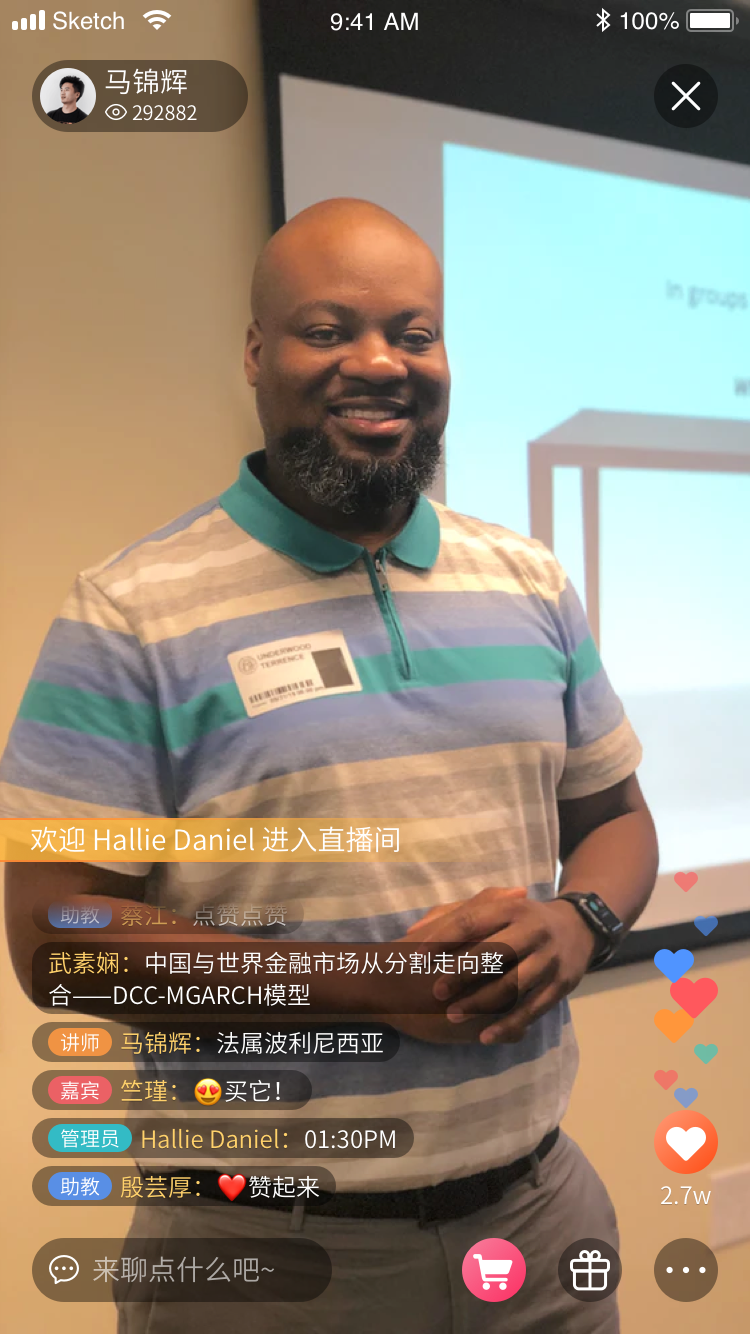
- For the POLYV Multi-Scenario Experience Package, when selecting "Cloud Classroom Scenario" for a pure video channel, it will be in pure video landscape mode; when selecting "Live Commerce Scenario", it will be in pure video portrait mode
- For the POLYV Multi-Scenario Experience Package, when logging into a live stream, you can only watch the live broadcast. It will not automatically switch to playback based on channel status changes. To watch playback, you need to log into the playback
- For the POLYV Multi-Scenario Experience Package, when logging into playback, you need to enable the playback switch for the corresponding channel in the POLYV Live Streaming Backend
- Under the iOS system, all experience packages are enterprise applications. Running enterprise applications on iOS 9 and above
Preview
| Pure Video Landscape | Pure Video Portrait |
|---|---|
 |
 |
