Patrol Monitoring
1. Feature Overview
Feature Info |
Description |
|---|---|
| Feature Name | Patrol Monitoring |
| Feature Description | Provides a "patrol display page" for monitors. Monitors can remotely activate participants' cameras in real time and monitor the camera feeds of multiple participants with their knowledge. |
| Purpose | Check participants' level of focus |
| Use Cases | Scenarios with high discipline requirements, such as party/government meetings and corporate meetings |
| Operation Path | 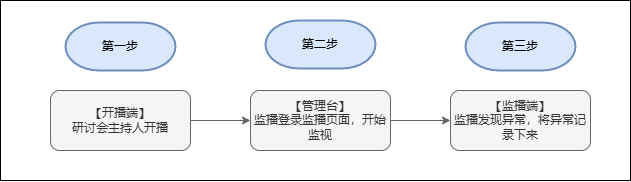 |
2. Usage Flow
Open the webinar backend, find "Patrol Monitoring" under the live room management section, and enable the monitoring toggle.
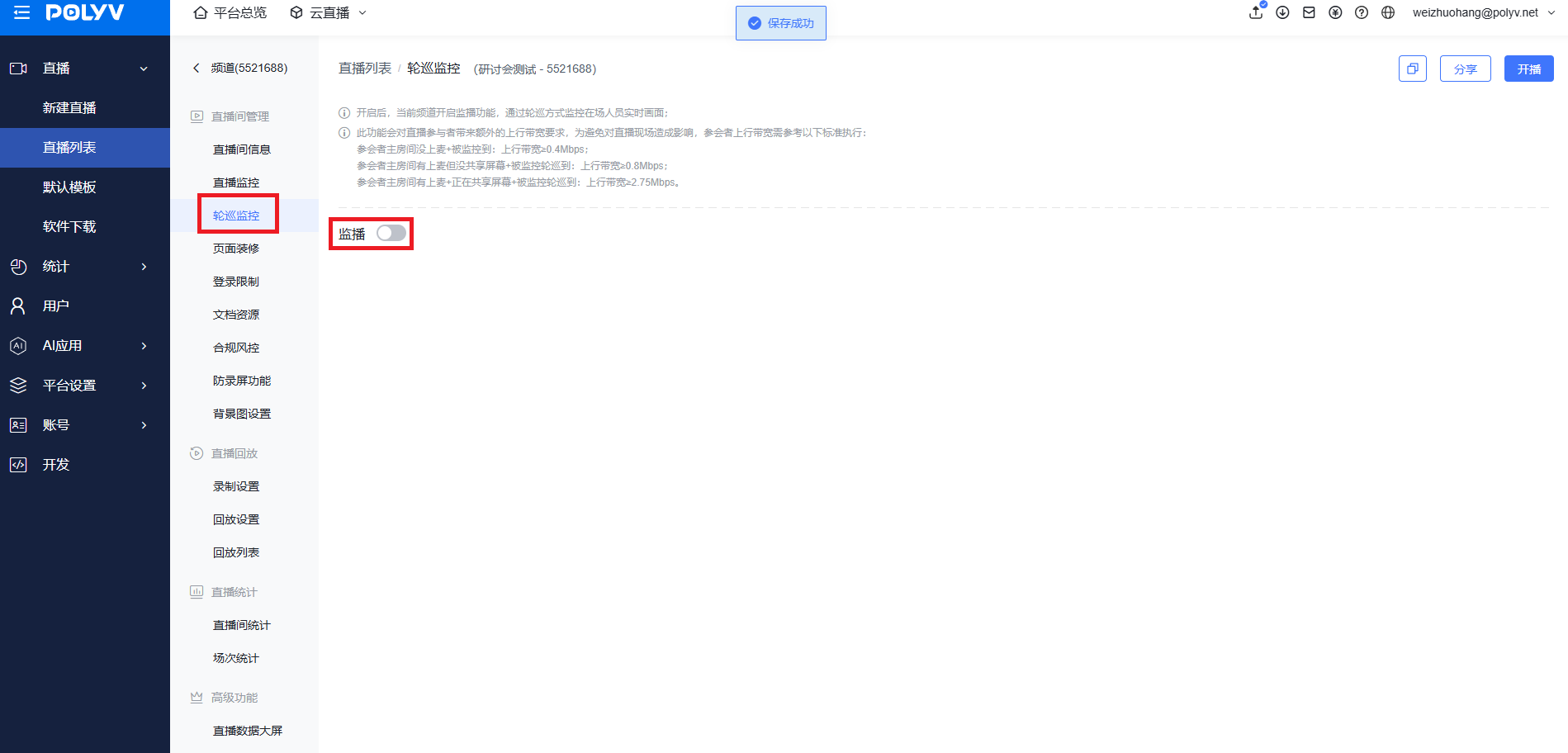
Log in using the monitor's credentials (monitoring login is only possible after the host has started the broadcast).
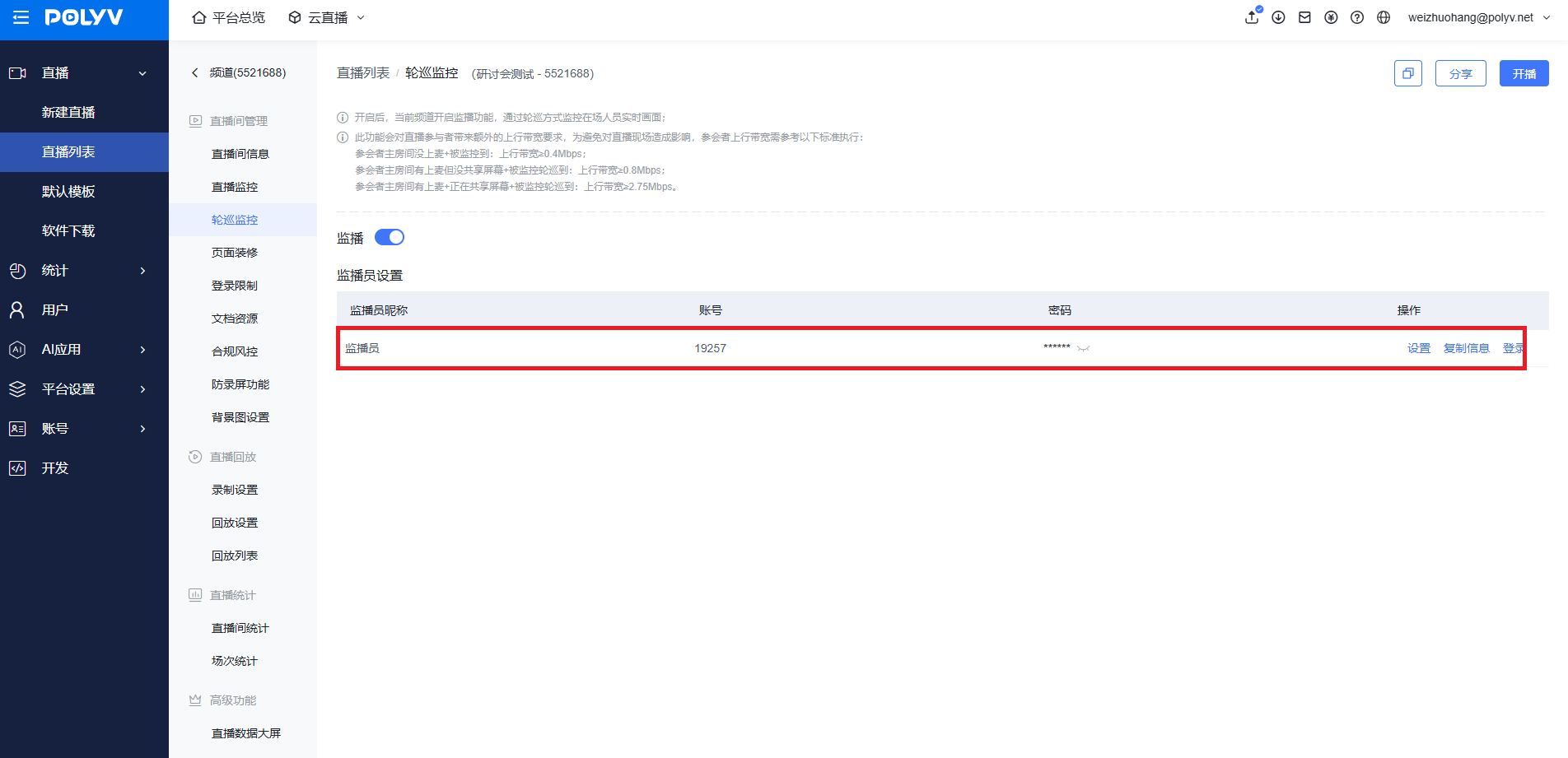
Enter the monitoring page and enable the monitoring toggle.
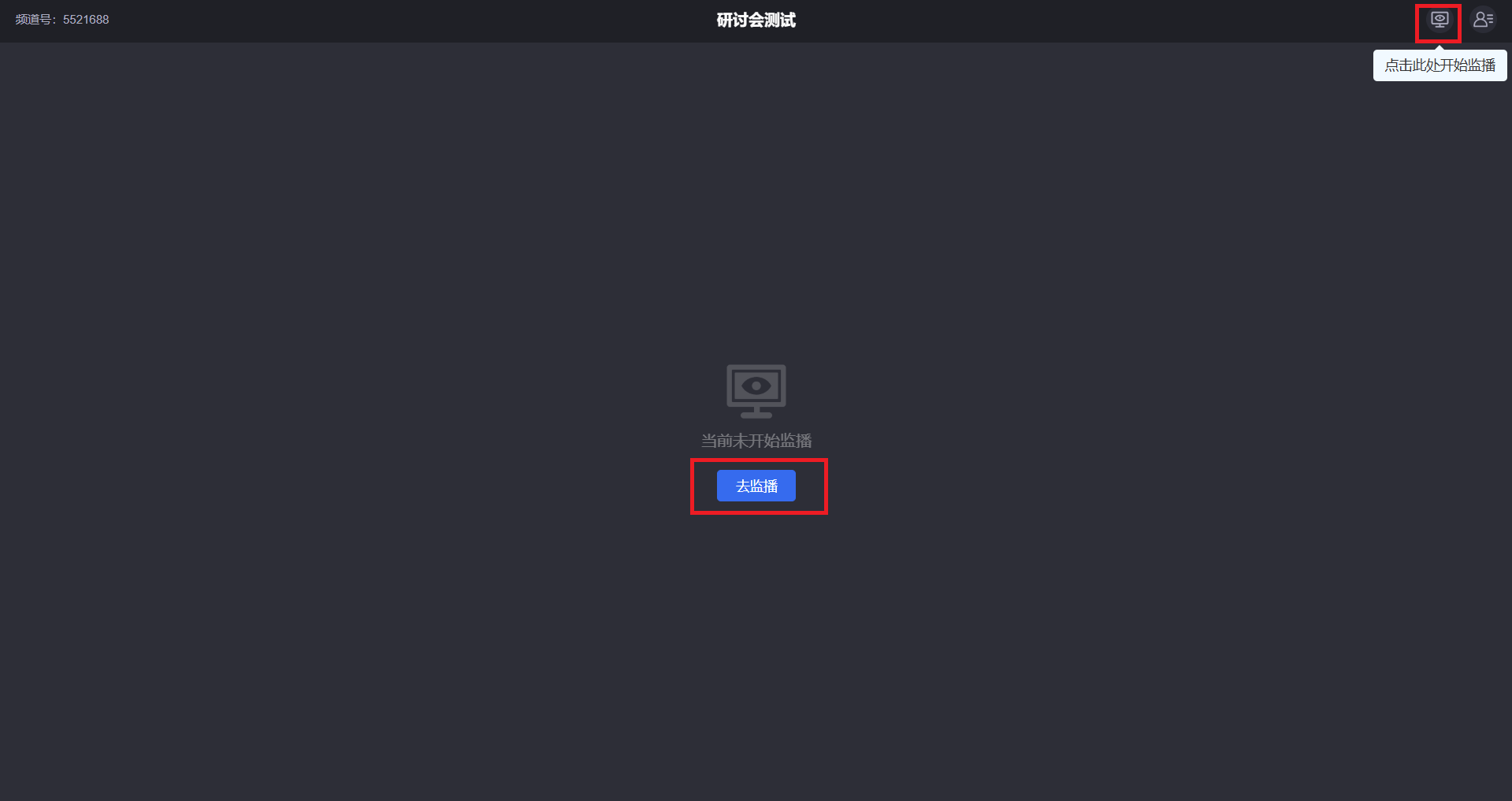
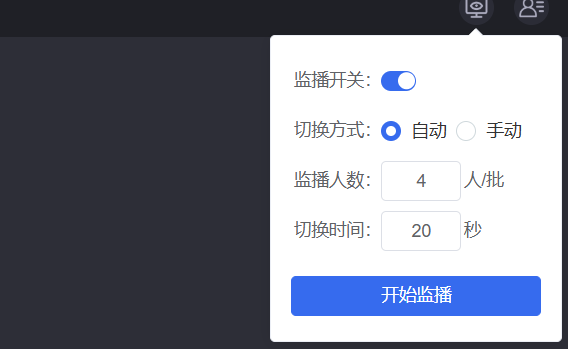
Configure specific details. Choose a monitoring mode (automatic or manual; the difference is that in manual mode, the switching time is determined by you).
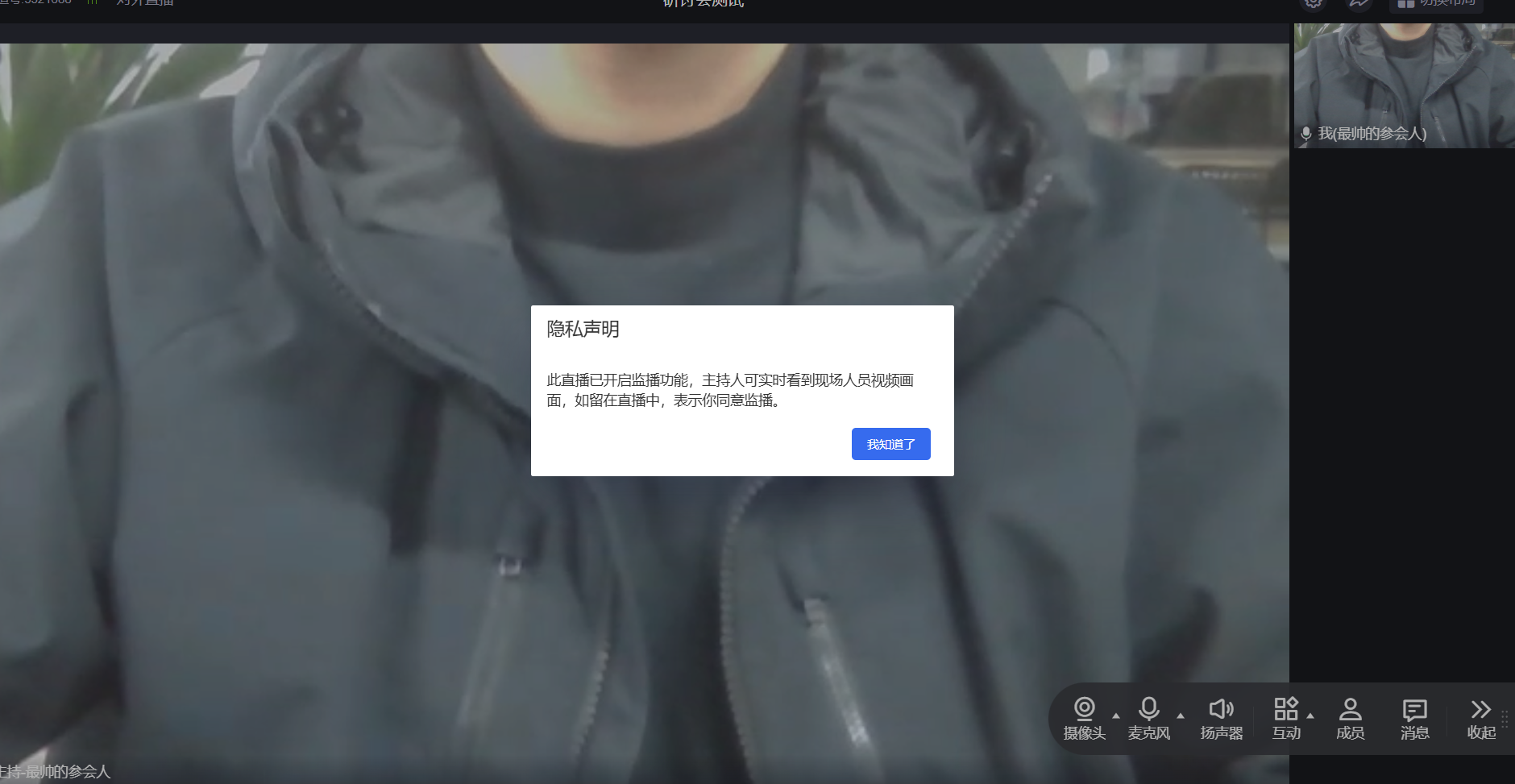
After enabling monitoring, a privacy notice reminder will appear for the host or participants in the webinar. Click "I understand" to proceed. The host's view is shown below.
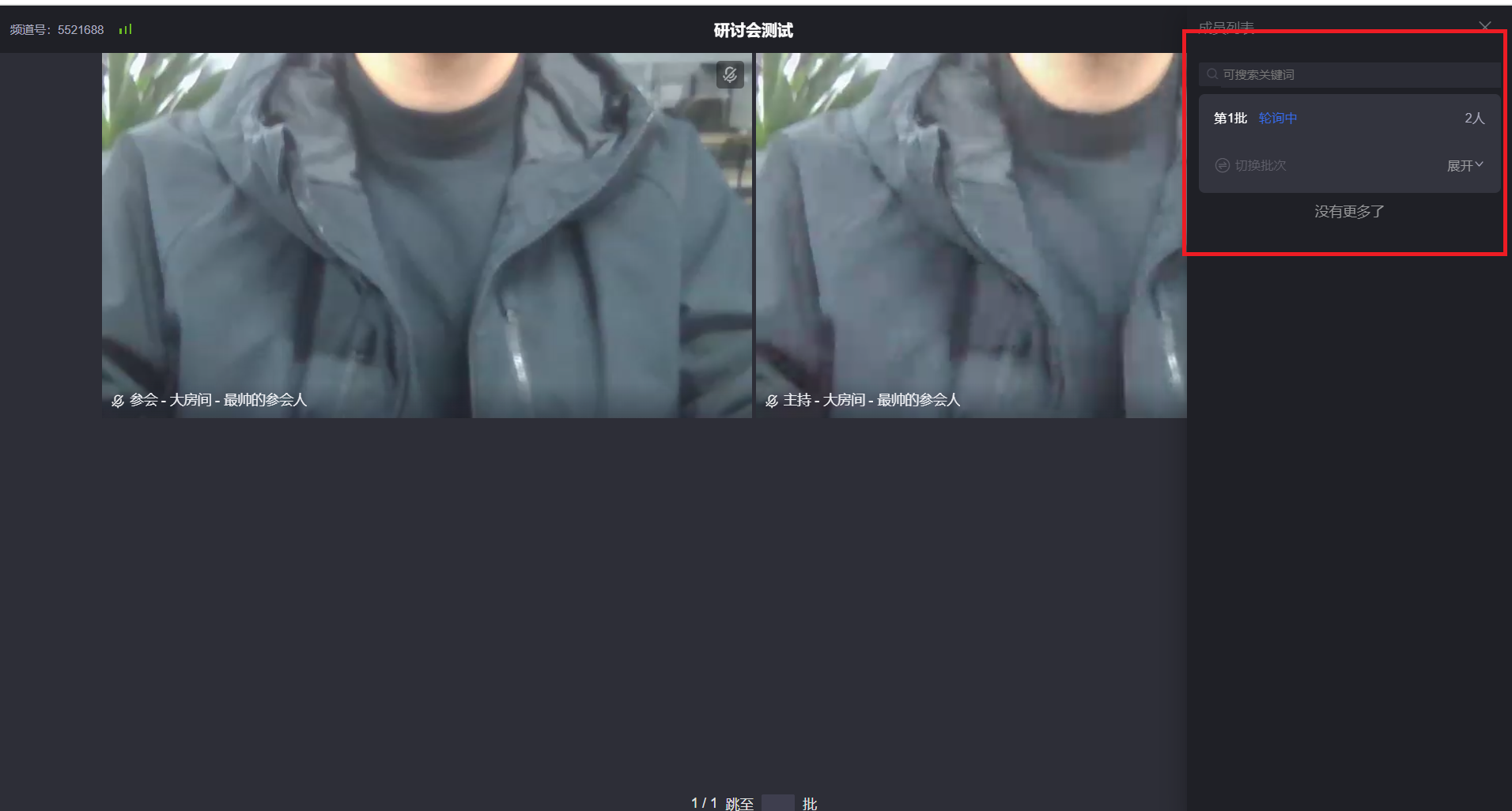
The monitoring page is displayed as follows.
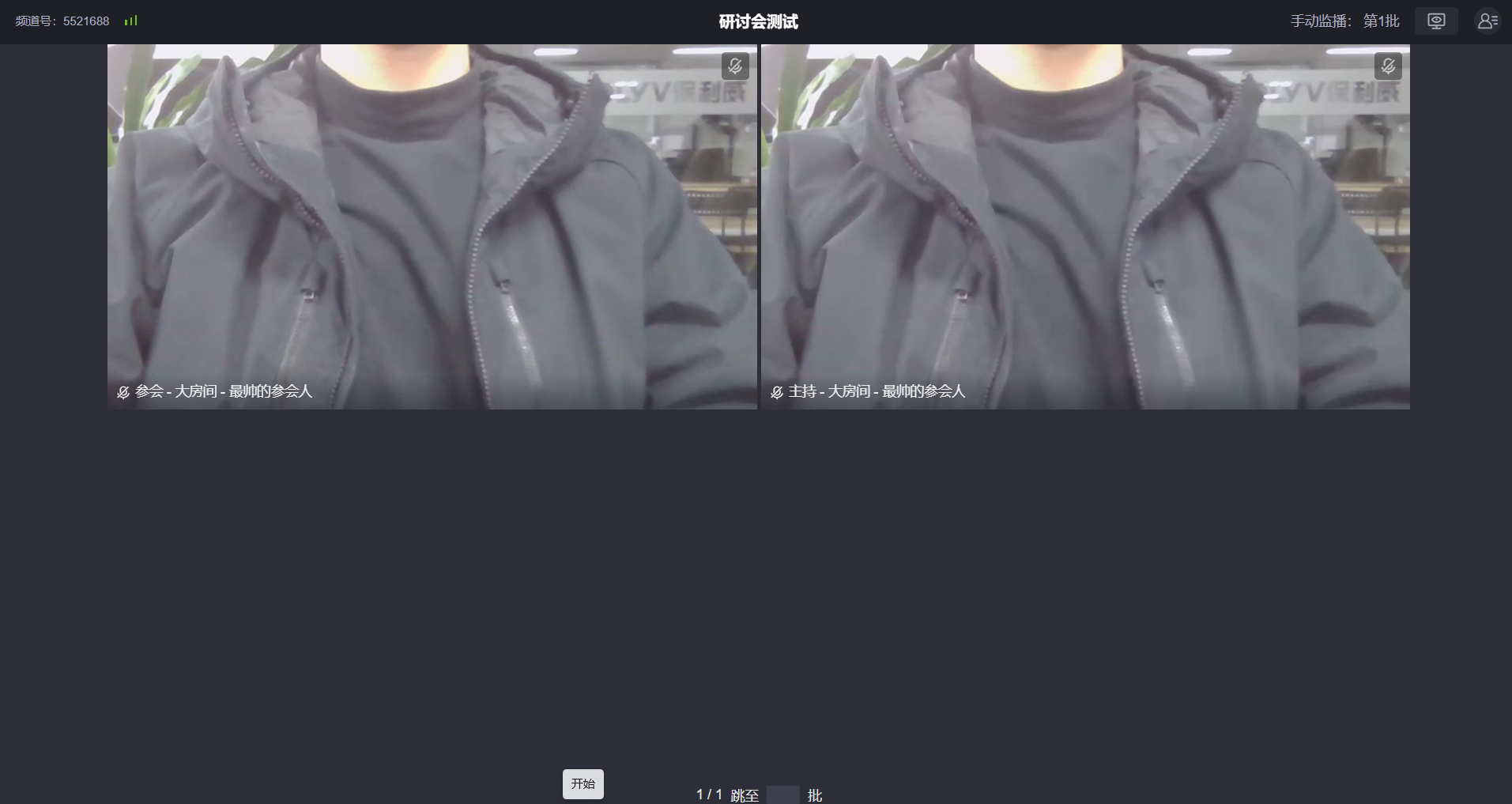
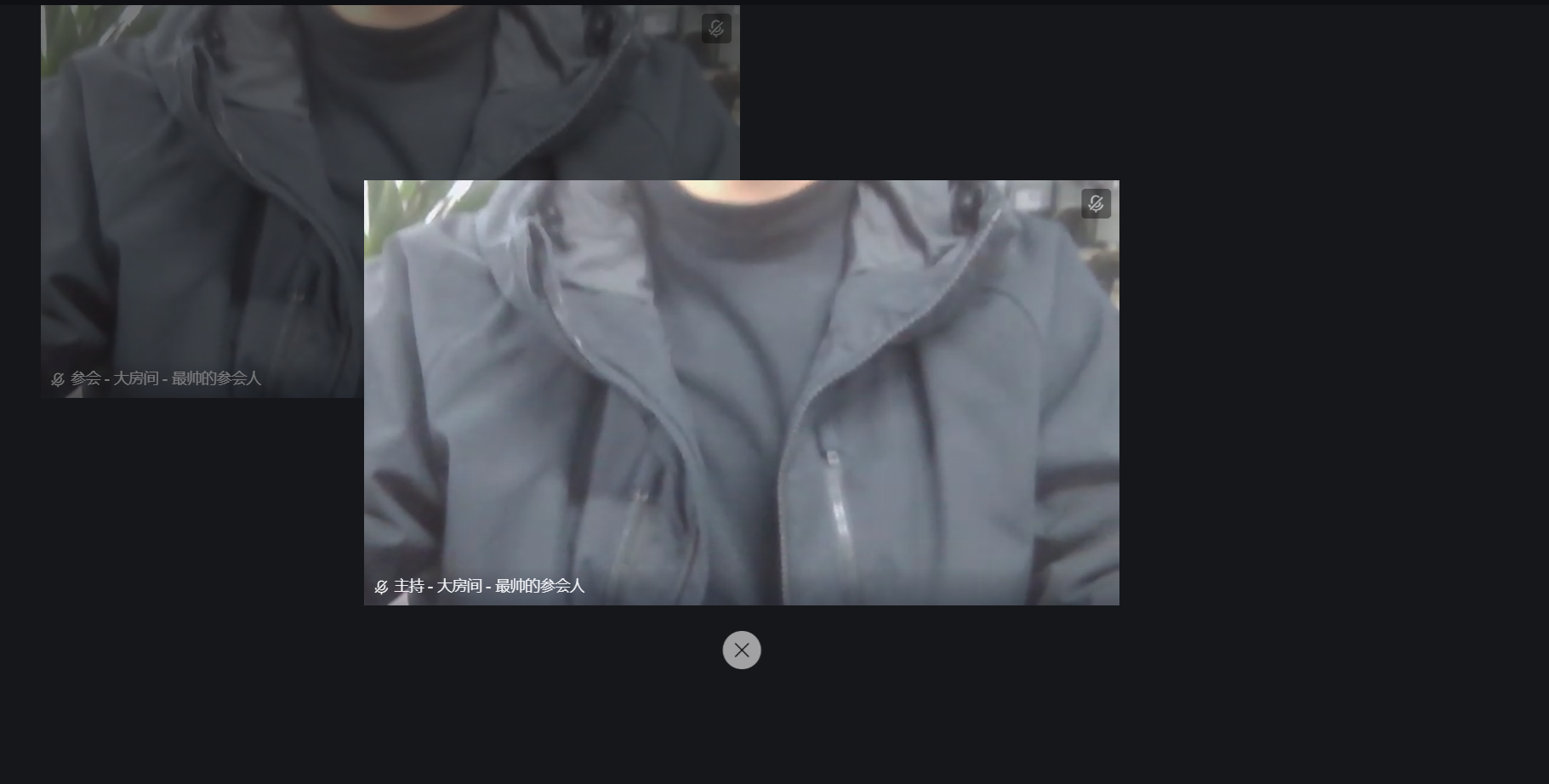
To view a specific camera, click on a feed to enlarge it.
Click the member list in the top right corner to quickly locate a specific person or batch.