


User System - Guest Login
This document applies only to customers conducting secondary development using the Watch Page SDK and the accompanying Live Watch Page Open Source Project.
1. Solution Overview
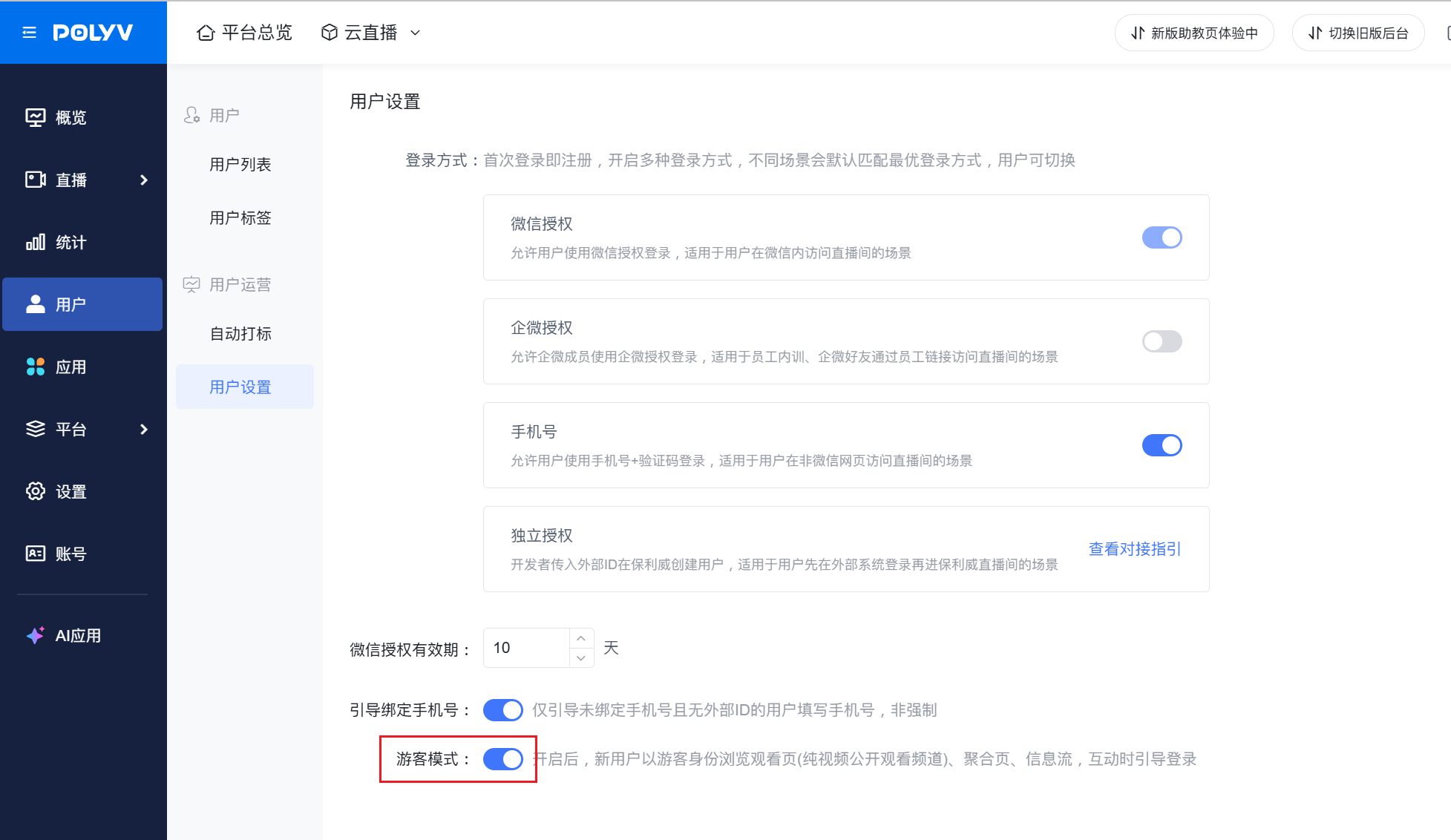
- Within the user system, you need to enable the "Guest Mode" toggle in the "Cloud Live Broadcast Console" to activate the guest feature.
- Once "Guest Mode" is enabled, the watch page will default to logging in as a guest. It is recommended to subsequently use User System - Independent Authorization to allow guests to register/log in as users.
Important Notes:
- Under the user system, the live watch page natively supports the guest feature.
- When a user accesses the watch page as a guest, they can only view the live stream and chat room content normally. They cannot send messages in the chat or participate in interactions.
- When a guest registers as a new user, Polyv will continue to use the same user ID. If they log in as an already registered user, two different user IDs will be involved.
2. Concept Explanation
- Guest Authorization: Allows the current viewer to access the watch page as a guest.
- Guest Login: The process where a current viewer transitions from a guest to a formal user. This document utilizes User System - Independent Authorization to achieve this.
3. Detailed Steps
Note: This scenario involves first entering the watch page as a guest, followed by logging in via User System - Independent Authorization. For specific code screenshots, please refer to version 2.9.0 of the Live Watch Page Open Source Project.
1. Enable the "Guest Mode" Toggle
2. Guest Authorization to Access the Watch Page
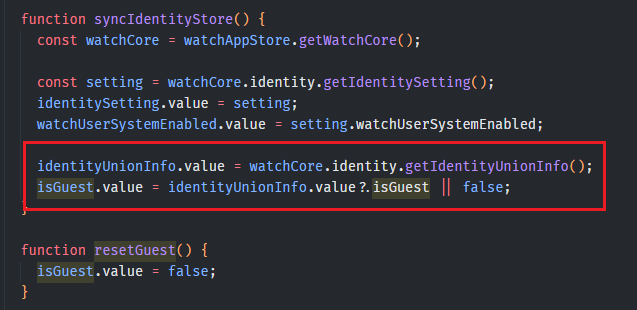
This step is already built into the live watch page project. It is provided here for you to confirm the guest authorization logic; no additional action is required.
In src/store/use-identity-store.ts, the current user data and guest identity are recorded.
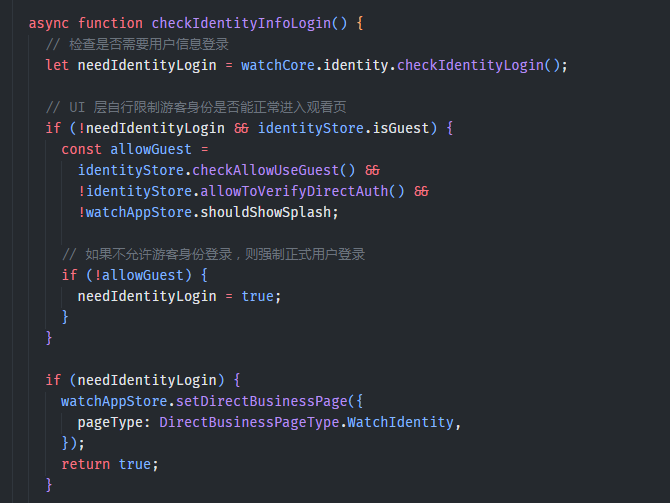
When the watch page loads, user login interception is handled in the src/app/_hooks/use-user-identity-intercept.ts file.
Currently, Polyv restricts guest access in certain scenarios due to technical implementation reasons, requiring users to log in as formal users first. Please contact the Polyv after-sales team if you have any questions.
The default user login logic is implemented in a separate page, specifically in the src/app/layout/direct-business-page_components/page-watch-identify/page-watch-identify.vue file.
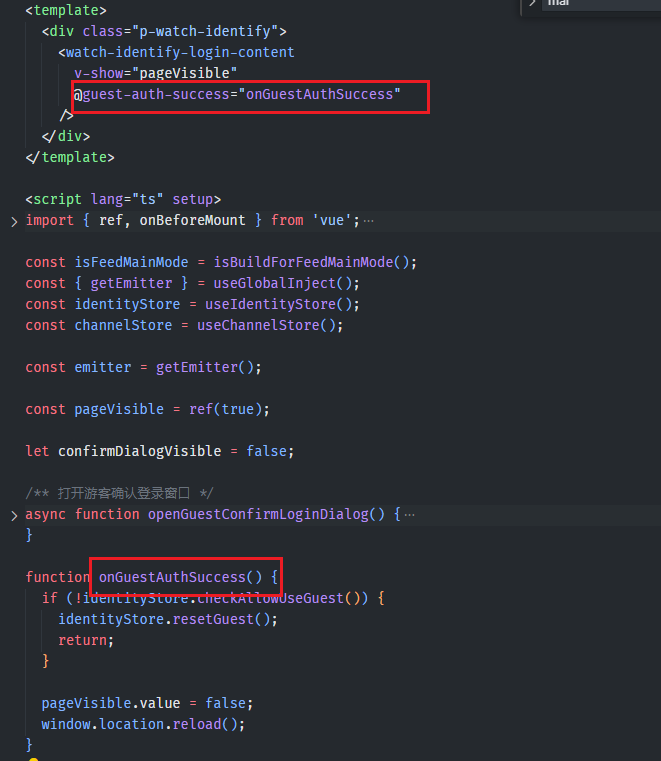
Note: The screenshot shows the callback triggered by guest authorization. After the callback, the page will refresh. At this point, guest authorization is complete, and the watch page can be accessed normally.
3. Implementing Guest Login as a User
When a viewer accesses the watch page as a guest, they can only view the live stream and chat room content normally. They cannot send messages in the chat or participate in interactions.
When a guest wants to participate in interactions, Polyv's current interaction flow first opens a confirmation dialog. After confirmation, the Polyv user login popup is displayed.
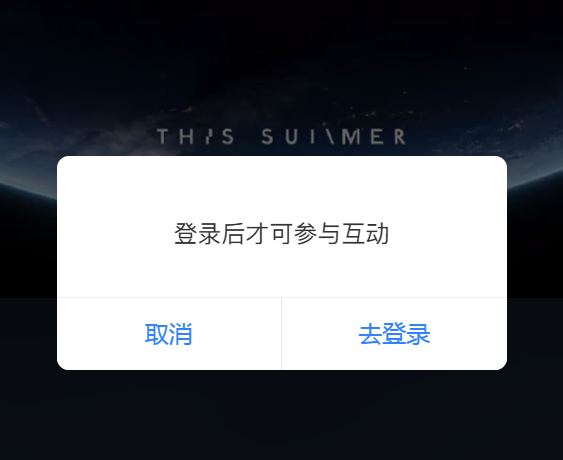
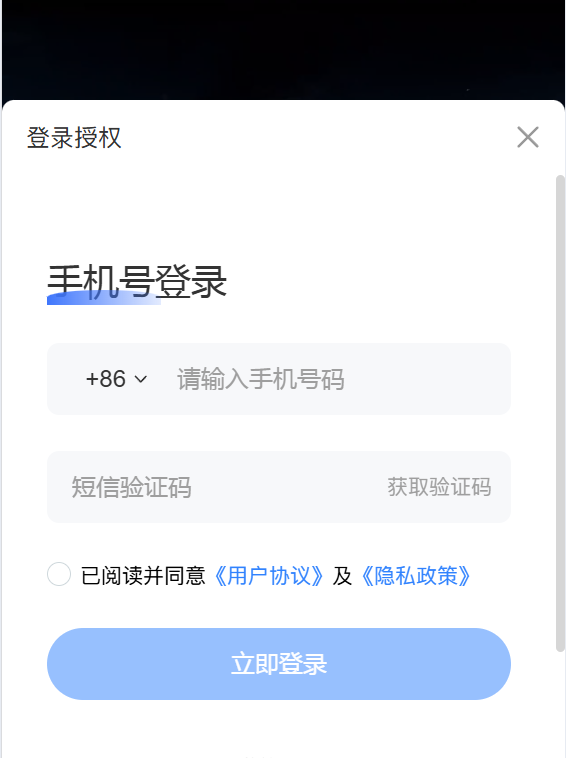
This interaction logic corresponds to triggering a callback for the appEvents.global.OpenIdentityLoginDialog event in the live watch page project. You can listen for this event's callback in the src/components/common-business/watch-identity/identity-login-dialog-render/use-identity-login-dialog-render.ts file.
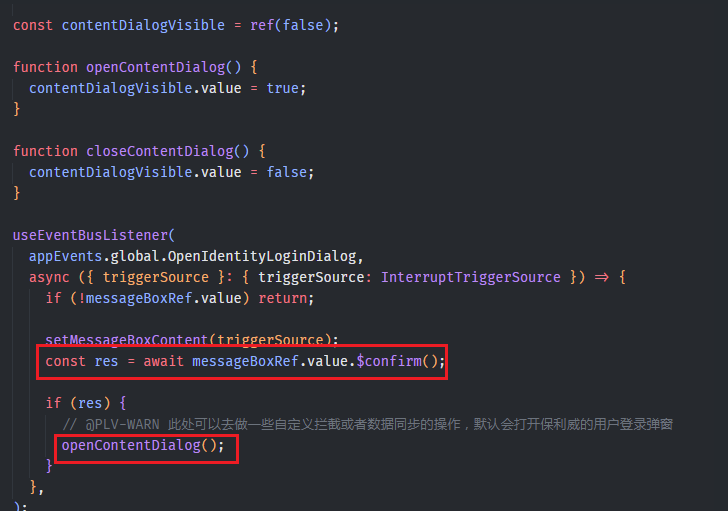
As seen in the code screenshot, after the event callback, a confirmation dialog is opened. Once confirmed, the login popup is displayed.
Note: At this point, you can start integrating User System - Independent Authorization at @PLV-WARN, or perform additional processing based on your business needs. It is recommended that after completing independent user authorization, you reload the current page to ensure the logged-in user can use the watch page features normally.
Additionally, the specific component code is located in the src/components/common-business/watch-identity/identity-login-dialog-render/mobile-identity-login-dialog-render.vue file.
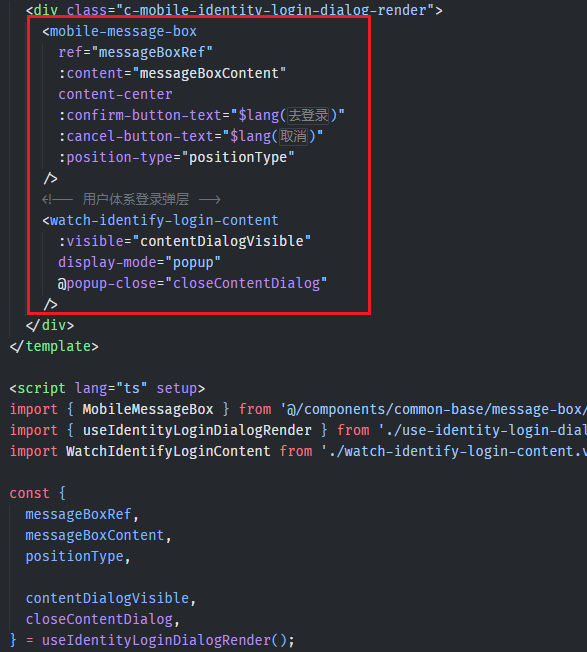
If you do not require additional UI customization and only need to quickly integrate User System - Independent Authorization, you can directly pass the relevant independent authorization parameters in src/components/common-business/watch-identity/identity-login-dialog-render/watch-identify-login-content.vue.
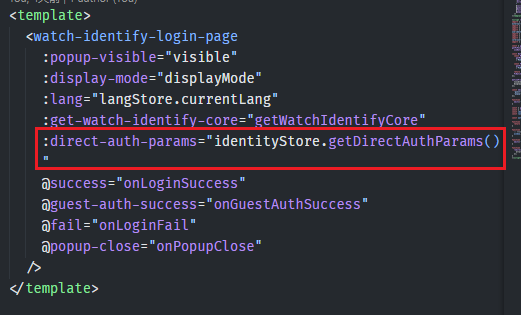
Note: The independent authorization parameters are obtained from the watch page URL by default. Please adjust them according to your actual requirements.
