


API
Classes
Overview
PolyvLiveSdk is a class used for creating SDK instances.
Application Scenario: These two properties can be used when implementing a chat room feature.
Class Properties
| Property Name | Description | Return Data Type | Notes |
|---|---|---|---|
| emotionLists | Polyv emoji data list | array | Deprecated |
| emotionSearch | Object with key-value pair [表情title]: 表情url |
object | Deprecated |
emotionLists and emotionSearch are deprecated and no longer maintained. Please use the Polyv Emoji SDK to convert emoji content in messages.
All emoji sprites image URL: https://livestatic.polyv.net/assets/images/em/default.png
/**
 * 获取表情数据列表
 *
 * @return {Array} - 表情数据列表
 */
// 示例代码
console.log(PolyvLiveSdk.emotionLists);
// 返回数据
[
    {
        url: "https://livestatic.polyv.net/assets/images/em/1.png",
        title: "微笑",
        position: "0px 0px"
    }
]
/**
 * 获取表情对象
 *
 * @return {Object} - 对象
 */
// 示例代码
console.log(PolyvLiveSdk.emotionSearch);
// 返回数据
{
    NO: {
        url: "https://livestatic.polyv.net/assets/images/em/89.png",
        title: "NO",
        position: "-4224px 0px"
    }
}
Class Methods
| Method Name | Description | Parameters |
|---|---|---|
| getChannelInfo | Get channel info | See example code block below |
| previewPPT | Preview specified PPT | See example code block below |
/**
 * 获取频道信息
 *
 * @param {string} channelId - 直播后台频道号
 * @param {string} appId - polyv 后台的 appId:开发设置 => 开发者信息 => AppID(应用 ID )
 * @param {string} sign - 频道验证签名
 * @param {string} timestamp - 当前 13 位毫秒级时间戳
 * @return {Promise} - 标准 Promise 对象
 */
// 示例代码
// 注:自动请求的接口:/live/v3/applet/sdk/get-channel-detail
PolyvLiveSdk.getChannelInfo(channelId, appId, sign, timestamp)
    .then(res => {
        console.log(res);
    })
/**
 * 预览指定的ppt
 *
 * @param {object} config - 配置对象
 * @description config - config 列表:
 *	el {DOMSeletor|string} - 需要显示预览ppt的dom选择器
 *	autoId {number|string} - pptId
 *	type {string} - ppt类型
 *	width {number|string} - 可选,ppt宽,默认100%
 *	height {number|string} - 可选,ppt高,默认100%
 *	pptNav {boolean} - 可选,是否显示ppt控制控件,默认`true`
 *	pptNavBottom {string} - 可选,ppt控制栏距离底部距离,例:`pptNavBottom: '50px'
 * @return {function} - previewPPT 对象
 */
// 示例代码
// 需要给 el 元素设置相对定位和宽高
/*
#previewPPT{
    position: relative;
    width: 500px;
    height: 300px;
}
*/

var previewPPT = PolyvLiveSdk.previewPPT({
    el: '#previewPPT',
    autoId: 1329757,
    type: 'new'
});

// 示例事件
previewPPT.on('success', function () {
    console.log('预览成功');
});

previewPPT.on('error', function (err) {
    console.log('预览失败', err);
});

previewPPT.on('pptStatusChange', function (err) {
    console.log('当前页改变', err);
});

// 实例方法
previewPPT.nextPPTPage(); // 使 ppt 切换到下一页,跟随模式下不能切到讲师未讲解的 ppt
previewPPT.prevPPTPage(); // 使 ppt 切换到上一页

// 销毁ppt预览实例
//previewPPT.destroy()
Example
Overview
var liveSdk = new PolyvLiveSdk({}) // Create an SDK instance
Instance Properties
| Property Name | Required | Type | Possible Values | Default | Description |
|---|---|---|---|---|---|
| channelId | Yes | string | Channel ID, supports live streaming initiated by Cloud Classroom/Live Assistant/Large Class. | ||
| sign | Yes | string | Signature used for POLYV channel info retrieval API Signature Rules Please concatenate the sign using channelId, timestamp, and appId. |
||
| timestamp | Yes | number | Timestamp used for POLYV channel info retrieval API Note: This timestamp must match the signature obtained from the server. |
||
| appId | Yes | string | POLYV account appId, obtained from the POLYV backend. | ||
| user | Yes | object | {user: string; userName: string; pic: string} | { userId: '', // User ID userName: '', // User nickname pic: '' // User avatar, must start with http/https/ // } userId is the unique user identifier in the chat room. If two identical userId log into the chat room, the latter will kick out the former. Therefore, different chat room users' userId must be unique. Generation suggestions:1. If you have a user system, use the user ID from your system as the userId for logging into the chat room.2. If you do not have a user system, generate a highly random value on the backend as the userId for logging into the chat room, e.g., "timestamp + 5-digit random number", uuid, etc., and save this userId to a cookie or local storage (localStorage or sessionStorage) to avoid regenerating userId after each page refresh. |
|
| updatePageview | No | boolean | false | When set, each call to the instance polyv's viewing page will increment the cumulative viewer count by one. | |
| chat | No | boolean | true | Whether to connect to the chat room. In live mode, if a live player is called, the chat room must be connected. Therefore, even if set to false, the chat room will be automatically connected when initializing the live player. In playback mode, it can be disconnected. |
|
| keepChatDisabled | No | boolean | false | Whether to keep the chat room disconnected in live mode. When chat: false is set, the chat room will not be connected in playback scenarios, but will be connected during live streaming. If you need to keep the chat room closed during live streaming, set this parameter. Note that after setting, features relying on chat room signaling (e.g., PPT, low latency, co-hosting, interactive features) will be unavailable. This parameter only takes effect when chat: false is set. |
|
| lang | No | string | 'zh_CN' | 'en' | 'zh_CN' | Set the player language. 'zh_CN': Chinese 'en': English |
| param4 | No | string | Player statistics parameter. param1, param2, and param3 are preset to userId, userName, and live status, so setting them is ineffective. |
||
| param5 | No | string | Player statistics parameter. | ||
| code | No | string | Authorization parameter for the marquee. | ||
| socket | No | object | This parameter creates a socket by default, but also supports passing in an external socket or a chat room SDK socket. Note: If using the chat room SDK or a self-created chat room, the instantiated socket must be passed into this field; otherwise, duplicate login to the chat room may cause exceptions. Usage: See example below. |
||
| lotteryEnabled | No | string | 'Y' | 'N' | When set to 'N', the current user will be filtered out during regular lottery draws. |
Live SDK & Chat Room SDK Example Code (using polyv Chat Room SDK as an example)
var chatroom = new PolyvChatRoom({  //实例聊天室SDK
  roomId: channelId,
  userId: userId,
  nick: userName,
  pic: pic,
  userType: 'slice'
});

var liveSDK = new PolyvLiveSdk({   //实例直播SDK
  channelId: channelId,
  appId: appId,
  sign: sign,
  timestamp: timestamp,
  socket: chatroom.chat.socket,    //传入聊天室的socket
  user: {
    userId: userId,
    userName: userName,
    pic: pic
  }
});
Instance Methods
1. Initialize the Player
Description: Initialize the player. Must be called after the channel information event is triggered.
Parameter: config Player configuration object.
Usage: liveSdk.setupPlayer(config: object)
Example code:
var config = {
    pptEl: '#ppt',
    el: '#player',
    type: 'auto',
    autoplay: false,
    audioMode: false,
    width: '100%',
    height: '100%',
    pptWidth: '100%',
    pptHeight: '100%',
    controllerPosition: 'ppt',
    controller: true,
    pptNav: true,
    // 回放模式需要fileId、url、sessionId
    fileId: undefined,
    url: undefined,
    sessionId: undefined
}
// 监听频道信息并初始化播放器
liveSdk.on(PolyvLiveSdk.EVENTS.CHANNEL_DATA_INIT, (event, data) => {
  liveSdk.setupPlayer(config);
});
Parameter description:
| Parameter Name | Required | Type | Optional Values | Default Value | Description |
|---|---|---|---|---|---|
| el | Yes | string | id or class | The element for the lecturer area | |
| pptEl | No | string | id or class | The selector for the PPT document element. Not required for non-cloud classroom (triple-screen) scenarios. Note: Only effective in triple-screen mode |
|
| width | No | string | number | '100%' | Width of the lecturer area | |
| height | No | string | number | '100%' | Height of the lecturer area | |
| pptWidth | No | string | number | '100%' | Width of the PPT area | |
| pptHeight | No | string | number | '100%' | Height of the PPT area | |
| type | No | string | 'auto' | 'live' | 'vod' | 'record' | 'auto' | Player playback type. When set to 'auto', the player will play in the priority order: Live -> Playback list video -> First temporary video (priority from high to low).'auto': Automatically selects playback type based on the channel's actual settings.'live': Live'vod': Playback'record': Temporary storage |
| pptType | No | string | 'vod' | 'record' | 'vod' | Sets the PPT type. Used to specify the PPT type in type: 'vod' mode. Options are 'record' and 'vod'. When using a specific temporary storage scenario for a playback session, it can be set to 'record'. It is not required for the playback list. If switching to a normal playback list session via player.switchVod, you must pass 'vod' to change it back to the playback list type.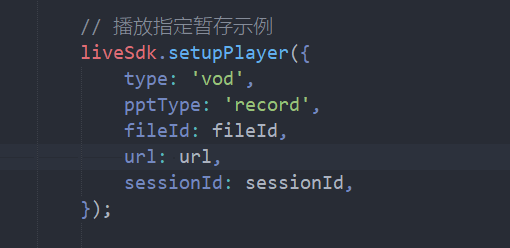 |
| vodType | No | string | 'playback' | 'vod' | Sets the playback type. Used in type: 'vod' mode for the playback list type (playback - playback list, vod - VOD list). When set to vod, the VOD player will be used, and traffic will be billed to the VOD platform. Therefore, vid is required. If set to type: 'auto', and the current playback is a playback session, it will play according to the VOD list. |
|
| vodToken | No | object | ((vid: string, next: (data: VodToken) => void) => void) | VodToken | Verification parameter for encrypted VOD videos. If the VOD video to be played is encrypted, this parameter must be provided. Refer to Playing Encrypted Videos. Example: 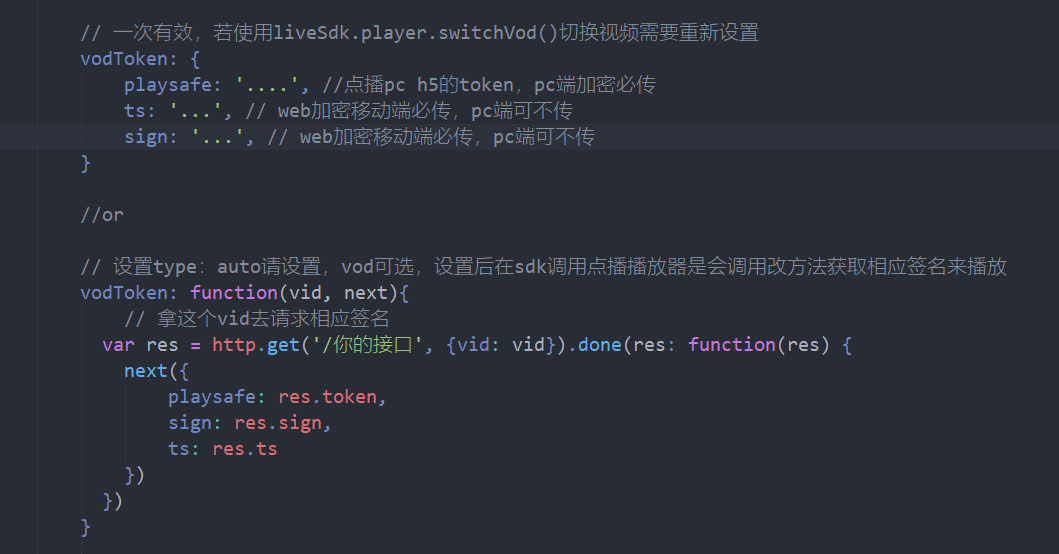 |
|
| responseSettings | No | boolean | false | When using the auto-play mode type: 'auto', determines whether playback follows the Polyv backend settings. |
|
| autoplay | No | boolean | false | Whether to autoplay. May not work on mobile devices due to browser restrictions. | |
| audioMode | No | boolean | false | Plays the lecturer video in audio-only mode. Note: Only effective on mobile devices. |
|
| controller | No | boolean | true | Whether to display the control bar. Note: Due to device compatibility issues, it is recommended to show the control bar on mobile devices. |
|
| controllerPosition | No | string | 'ppt' | 'player' | 'ppt' | The area where the control bar is displayed.'ppt': PPT area'player': Lecturer areaNote: Due to compatibility considerations, this setting only works in PC triple-screen mode. |
| fixedController | No | boolean | false | Whether to keep the control bar fixed (always visible). When set, the control bar does not hide when the mouse leaves. Note: Only effective on PC. |
|
| pptNav | No | boolean | true | Whether to display PPT navigation controls. Note: Only effective in triple-screen mode. |
|
| pptNavBottom | No | string | Distance of the PPT navigation bar from the bottom. Example: pptNavBottom: '50px'.Note: Only effective in triple-screen mode. |
||
| pptPlaceholder | No | boolean | false | Whether to display a placeholder image in the PPT area when in live mode and no live stream is currently available. Note: Only effective in triple-screen mode. |
|
| fileId | No | string | PPT data ID. Required for playback mode. | ||
| url | No | string | Playback video URL. Required for playback mode. | ||
| sessionId | No | string | |||
| clipSessionId | No | string | ID for the clipped/merged video. | ||
| vid | No | string | Playback ID. If this parameter is provided in playback mode, fileId, url, and sessionId are not required. |
||
| barrage | No | boolean | false | Whether to enable danmaku (barrage). | |
| defaultBarrageStatus | No | boolean | true | Whether the danmaku switch is enabled by default when the player loads. | |
| switchPlayer | No | boolean | false | Whether to display the PPT/Player switch button in the control bar. Used for switching between the main and secondary screens. Requires listening to the player instance's 'switchPlayer' event for handling. This event is not triggered on mobile devices.Note: Only effective in triple-screen mode. |
|
| controllerEl | No | HTMLElement | The element for the control bar. When set, the control bar does not follow the position of the PPT or player. Clicking fullscreen will fullscreen this element, allowing both the PPT and lecturer to be displayed simultaneously in fullscreen mode. Note: Only effective in triple-screen mode. |
||
| useH5Page | No | boolean | false | Whether to enable the WeChat H5 page setting. | |
| fullscreenEl | No | HTMLElement | Sets the element to be fullscreened when the fullscreen button in the control bar is clicked. Can also be updated using liveSdk.player.setFullscreenEl(el?: HTMLElement): void. If el is empty, the default value is used.Note: Only effective on PC in non-IE scenarios. |
||
| theme | No | object | Sets some player styles. { playerBackgroundImage: 'string' | false, // 讲师背景图,false 去掉默认背景图playerBackgroundColor: '', // 讲师背景颜色(css颜色,如'red'、'#ffffff'、'rgb(0,0,0)'),注意设置后可能被背景图遮挡pptBackgroundImage: '', // ppt背景图pptBackgroundColor: '' // ppt背景颜色} |
||
| showPPTFullscreenButton | No | boolean | false | Whether to display a fullscreen button within the PPT area. This fullscreen effect only achieves page-level fullscreen and may conflict with the page's own styles, causing style anomalies. If using this feature, check for style conflicts and listen for the liveSdk.player.on('PPTFullscreenChange') event to make adjustments.Note: Only effective on mobile devices. |
|
| warmUpImg | No | string | Sets the warm-up image. | ||
| warmUpImgType | No | string | 'contain' | 'cover' | 'cover' | Sets the fit mode for the warm-up image. 'cover': Stretch to cover. 'contain': Maintain aspect ratio. |
| warmUpImgBgColor | No | string | '#212121' | Hexadecimal color value. When warmUpImgType is set to contain, sets the color of the area not covered by the image.Note: Only effective on mobile devices. |
|
| skinConfig | No | object | Modifies the placeholder images for non-live status, audio mode, and live pause. { streamStop: '', // 图片地址,用于修改暂无直播时居中图标streamStopTxt: '', // 用于修改暂无直播时显示的文字,默认为'当前暂无直播',需要streamStop有效streamPause: '', // 图片地址,用于修改直播暂停状态时居中图标streamPauseTxt: '', // 用于修改直播暂停时显示的文字,默认为'休息一会 稍后继续',需要streamPause有效audioMode: '', // 图片地址,用于修改音频模式时居中图标audioModeTxt: '', // 用于修改音频模式时显示的文字,默认为'当前为音频模式',需要audioMode有效audioModeVod: '', // 用于修改音频模式回放背景占位图,优先级低于audioModebgColor: '', // 设置streamStop, streamPause, audioMode后自定义的背景颜色} |
||
| webviewAutoplay | No | boolean | false | Supports autoplay in WebView scenarios (requires WebView support for autoplay). Can also be used in non-WebView scenarios to force autoplay. May cause black screen issues on Android devices. Note: Only effective for live streams and live stream playback. |
|
| speed | No | boolean | false | Whether to display the playback speed control. | |
| webPageFullScreen | No | boolean | false | Whether to enable webpage fullscreen. Note: Only effective on mobile devices. |
|
| fullScreenOrientation | No | string | 'portrait' | 'landscape' | 'none' | 'none' | Orientation for webpage fullscreen. Note: Only effective on mobile devices. |
2. Reload the Player
Description: Currently supports the use case where the player's playback type is live. For example, if the client is not currently streaming and the user opens the page, but after a period of time the client starts streaming, this method can be called to refresh the player.
Usage: liveSdk.reloadPlayer(): void
Example code:
liveSdk.setupPlayer({
  // ...
  type: 'live'
  // ...
});

// 监听流状态变化刷新播放器
liveSdk.on(PolyvLiveSdk.EVENTS.STREAM_UPDATE, function() {
  console.log('流状态改变');
  liveSdk.reloadPlayer();
});
3. Setting the Token
Description: The SDK sets the interface token, which is used for requests to certain interactive feature interfaces, such as likes (this method must be called to set the token before calling the like function).
Parameter: token How to obtain
Usage: liveSdk.setApiToken(token: string)
Example code:
liveSdk.setApiToken('token');
4. Switching Playback Sessions
Description: Switch playback sessions, used to switch to a specific session's video for playback.
Parameter: sessionData – The session data of the session to be played.
Usage: liveSdk.switchVod(sessionData: object)
Playback Operation Demo
Example code:
/**
 * 切换回放场次,用于切换具体播放场次视频
 *
 * @param {object} sessionData - 需要播放场次的场次数据
 * @return
 */

liveSdk.setupPlayer({
  // ...
  type: 'vod'
  fileId,
  url,
  sessionId
});
// data 数据是该场次数据,可通过 liveSdk.getPlaybackLists(...) 获取
liveSdk.switchVod({
  fileId: data.videoId,
  url: data.url,
  sessionId: data.channelSessionId
});

//or
liveSdk.setupPlayer({
  // ...
  type: 'vod'
  vid
});
liveSdk.switchVod({
  vid: data.videoPoolId
});
5. Get Playback List
Description: Switch playback sessions to change the specific session video being played.
Usage: liveSdk.getPlaybackLists(page: number, pageSize: number, type: 'playback'|'vod' = 'playback): Promise
Example code:
liveSdk.getPlaybackLists(1, 5)
.then(function(data) {
    console.log(data);
});
Parameter Description:
| Parameter | Type | Description |
|---|---|---|
| page | number | Page number |
| pageSize | number | Number of items per page |
| type | string | playback: Playback list vod: VOD list, VOD list needs to be played with a VOD player |
6. Get Chapter List
Description: Retrieve the chapter list, only effective in the three-panel layout.
Usage: liveSdk.getChapterLists(fileId: string, type: string): Promise
Example code:
/**
 * 获取章节列表,注:仅在三分屏生效
 * @return {Promise} - 标准 Promise 对象
 */
// 示例代码
liveSdk.getChapterLists('28acd4bd4526a6daa8368949e7c31713', 'record')
    .then(res => {
        console.log(res);
    })
Parameter Description:
| Parameter | Type | Description |
|---|---|---|
| fileId | string | PPT data ID |
| type | string | Chapter type playback: Playback record: Temporary storage |
7. Sending Chat Messages
Description: Send a chat message
Usage: liveSdk.send(message: string, callback?: (data: string) => void): void
Example code:
/**
 * 发送聊天信息
 */
// 示例代码
liveSdk.send('这是一条聊天信息')
Parameter Description:
| Parameter | Type | Description |
|---|---|---|
| message | string | Chat content |
8. Sending a Private Chat Message to the Instructor
Description: Send a private chat message to the instructor to ask a question.
Usage: liveSdk.sendQuestion(message: string): void
Example code:
/**
 * 向讲师发送提问私聊信息
 */
// 示例代码
liveSdk.sendQuestion('这是一条提问信息')
Parameter Description:
| Parameter | Type | Description |
|---|---|---|
| message | string | Private chat content |
9. Send Answer Sheet Response Content
Description: Send the answer sheet response content
Usage: liveSdk.sendAnswer(option: string, questionId: string, callback: Function): void
Example code:
/**
 * 发送答题卡回答内容。
 * 1.结合 PolyvLiveSdk.EVENTS.GET_TEST_QUESTION_CONTENT 使用,获取到 questionId。
 * 2.结合 PolyvLiveSdk.EVENTS.GET_TEST_QUESTION_RESULT 获取到答题卡结果,需要讲师点击发送结果。
 * 3.结合 PolyvLiveSdk.EVENTS.STOP_TEST_QUESTION,了解到讲师停止答题。
 */
// 示例代码
liveSdk.sendAnswer(
    option,
    questionId,
    function (res) {
        console.log(res);
    }
)
Parameter Description:
| Parameter | Type | Description |
|---|---|---|
| option | string | Answer sheet answer, 'A' | 'ABC' |
| questionId | string | Answer sheet question ID |
| callback | Function | Callback on successful send |
10. Sending Custom Messages
Description: Send custom messages that will be broadcast in the chat room. Users can define the data structure themselves. Except for the viewing end, other ends will not parse the received messages.
Usage: liveSdk.sendCustomMessage(messsage: object, callback?: (data: Object) => void): void
Example code:
/**
 * 发送自定义消息,聊天室会广播这些信息,由用户自行定义数据结构
 *
 * @param {object} - config 配置对象
 */
// 示例代码
liveSdk.sendCustomMessage({
    EVENT: 'myMessage', // 自定义消息类型,事件字符长度不大于 20
    version: '1.0', // 自定义消息版本
    emitMode: 0, // 可选,是否广播给自己,0表示广播所有人包括自己,1表示广播给所有人除了自己,2表示只发送给自己
    roomId: channelId, // 频道号
    data: { // 自定义消息内容,由客户定义
        message: value
    },
    tip: '我的自定义消息', // 提示语
});

// 收到自定义消息(仅限于sendCustomMessage发送)
liveSdk.on(PolyvLiveSdk.EVENTS.CUSTOM_MESSAGE, function (event, data) {
    console.log('监听自定义消息: ',data);
});
11. Sending a Like Message
Description: Sends a like message. [Before using the like method, ensure that liveSdk.setApiToken() has been called.]
Usage: liveSdk.sendLike(times: number): void
Example code:
/**
 * 发送点赞数
 */
// 示例代码
liveSdk.sendLike(1)
Parameter Description:
| Parameter | Type | Description |
|---|---|---|
| times | number | Number of likes, maximum cannot exceed 30 |
12. Retrieve Historical Chat Records
Description: Retrieve historical chat records. Parameters are optional; the default is 10 records. Used in conjunction with the PolyvLiveSdk.EVENTS.HISTORY_MESSAGE event. Upon receiving the event, data can be prepended to the chat list.
Usage: liveSdk.getHistoryMessage(pageNum: number, start: number): liveSdk
Example code:
// 点击查看更多
var more = true;
$more.on('click', function() {
  if (!more) return;
  // 消息返回后在 `PolyvLiveSdk.EVENTS.HISTORY_MESSAGE` 中返回信息
  liveSdk.getHistoryMessage();
})

// 监听历史内容更新
liveSdk.on(PolyvLiveSdk.EVENTS.HISTORY_MESSAGE, function (event, data, begin, end) {
  console.log(event, data, begin, end);
  // 渲染数据
  render(data);
  if (data.length < 10) {
    console.warn('已经没有更多历史消息');
    more = false;
  }
});
Parameter Description:
| Parameter | Type | Description |
|---|---|---|
| pageNum | number | The number of messages to retrieve |
| start | number | Indicates the starting position relative to the most recent chat message |
13. Destroying the Player
Description: Destroy the player
Usage: liveSdk.destroy(disconnectSocket: boolean = true): void
Example code:
/**
 * 销毁播放器
 *
 * @param {string} disconnectSocket - 是否断开 socket
 */
// 示例代码
liveSdk.destroy(true);
Parameter Description:
| Parameter Name | Type | Description |
|---|---|---|
| disconnectSocket | boolean | Whether to disconnect the socket |
14. Send Check-in
Description: Send check-in
Usage: liveSdk.toSign(checkinId: string, callback: Function): void
Example code:
/**
 * 发送签到。
 * 结合 PolyvLiveSdk.EVENTS.SIGN_IN 使用,收到讲师发起签到消息和获取到 checkinId。
 * 结合 PolyvLiveSdk.EVENTS.STOP_SIGN_IN 使用,收到讲师停止签到消息,收到后不允许发送签到
 */
// 示例代码
liveSdk.toSign(
    checkinId,
    res => console.log(res)
);
Parameter Description:
| Parameter | Type | Description |
|---|---|---|
| checkinId | string | Check-in ID |
| callback | function | Callback for sending check-in. The returned code descriptions are as follows: 200: Check-in successful 301: The user checking in is not logged into the chat room 302: The room is not in check-in status 303: The user has already checked in |
15. Sending Questionnaire Answers
Description: Send questionnaire answers
Usage: liveSdk.sendQuestionnaireAnswer(questionnaireId: string, answer: [], callback: Function): void
Example code:
/**
 * 发送问卷答案
 * 结合 PolyvLiveSdk.EVENTS.START_QUESTIONNAIRE 使用,收到问卷消息和获取到 questionnaireId、questionId
 * 结合 PolyvLiveSdk.EVENTS.STOP_QUESTIONNAIRE 使用,了解到讲师停止问卷
 */
// 示例代码
liveSdk.sendQuestionnaireAnswer(
    questionnaireId,
    [
        {
            questionId: questionId,
            answer: 'A'
        }
    ],
    function(res){
        console.log(res);
    }
)
Parameter Description:
| Parameter Name | Type | Description |
|---|---|---|
| questionnaireId | string | File ID |
| answer | array | Answer list Consistent with the answer in documentation ANSWER_QUESTIONNAIRE |
| callback | function | Send callback 200: Answer submitted successfully 301: Questionnaire has ended 302: This student has already submitted an answer 303: User not logged in, i.e., the current user is not in the chat room |
16. Query the Live Streaming Status of the Current Channel
Description: Query the live streaming status of the current channel. This is only effective when live recording is enabled.
Usage: liveSdk.getCloudClassRoomStatus(): Promise
Example code:
liveSdk.getCloudClassRoomStatus()
.then(function(resp) {
  if (resp.status === 'success') {
    // liveStart(开始上课)、liveRecovery(恢复)、liveSuspend(暂停)、liveFinish(结束)
    console.log('当前直播状态为:' + resp.data.status);
  }
});
17. Modify Nickname
Description: Modify the nickname. You can listen to the PolyvLiveSdk.EVENTS.SET_NICK_STATUS event to get the modification status.
Usage: liveSdk.setNick(newName: string): void
Example code:
// 调用该方法设置新的昵称
liveSdk.setNick('新的昵称');

// 监听修改状态
liveSdk.on(PolyvLiveSdk.EVENTS.SET_NICK_STATUS, function(event, resp) {
    if (resp.status === 'success') {
      // 修改成功,需要页面记录设置的昵称以便下次进来用同样的昵称
          console.log(`修改昵称成功,新的昵称为:${resp.nick}`)
    } else {
        console.log(`修改昵称失败 ${resp.message}`)
    }
});
Instance player Object
liveSdk.player: The player instance created after calling setupPlayer, which can be used to control player playback-related interactions.
Object Properties
Object Properties: When Can They Be Accessed?
- Object properties that can only be obtained after calling
setupPlayerto create a player instance:currentTime,playbackRate,cameraStatus,supportFullScreen,fullScreen,barrageStatus,levels,level - Object properties that can only be obtained after the
loadedmetadataevent:duration,volume,paused,lines,line,currentPPTPage,totalPPTPages
Example code:
// 示例代码
liveSdk.player.on('loadedmetadata', function () {
    console.log('获得当前视频时长');
    console.log(liveSdk.player.duration);
});
| Property Name | Type | Return Description |
|---|---|---|
| duration | number | Video duration, in seconds |
| currentTime | number | Current playback progress |
| playbackRate | number | Current playback speed |
| volume | number | Current volume |
| cameraStatus | boolean | Whether the instructor's camera is currently turned off |
| paused | boolean | Whether the current state is paused |
| supportFullScreen | boolean | Whether fullscreen is supported |
| fullScreen | object | Player fullscreen instance, encapsulating methods to enter and exit fullscreen, can operate on any DOM element on the page |
| lines | number | Number of lines available for the current channel, accessible after loadedmetadata time |
| line | number | Currently playing line 0/1 |
| currentPPTPage | number | Current PPT page number displayed; returns 1 if PDF or whiteboard is shown |
| totalPPTPages | number | Total number of PPT pages currently in use; returns 1 if PDF or whiteboard is used |
| barrageStatus | boolean | Current barrage (danmaku) status |
| levels | number | Current number of bitrates; not supported on mobile |
| level | number | Current resolution, increasing from 0/1/2; returns 0 if the channel has only one bitrate; not supported on mobile |
Fullscreen Example Description
liveSdk.player.fullScreen.request($dom: HTMLElement): void: Puts the specified element into fullscreen mode. On mobile devices, this only works with video elements; actual support depends on the browser.
liveSdk.player.fullScreen.exit(): void: Exits fullscreen mode.
Example code:
console.log('获取播放器全屏实例', liveSdk.player.fullScreen);
// 将指定元素进入全屏状态移动端中只在video中生效,具体需要看浏览器支持度,注意,参数是 DOM 元素
liveSdk.player.fullScreen.request(document.querySelector("#ppt > div"))
// 退出全屏状态
liveSdk.player.fullScreen.exit()
Object Methods
demo Example code:
liveSdk.player.setVolume(1); // 设置播放器音量
| Method Name | Parameters | Description |
|---|---|---|
| setVolume | (volume: number) | Set the player volume, range [0, 1]. Invalid on mobile devices; uses the device's built-in volume control. |
| play | Resume video playback. | |
| pause | Pause video playback. | |
| togglePlay | Toggle between resuming and pausing video playback. | |
| resize | Refresh the PPT size. If the PPT container size is changed during playback, the PPT size may become abnormal. Call this method after resizing to restore normal size. Invalid during live streaming. |
|
| seek | (time: number) | Seek to a specified playback position, in seconds. |
| setRate | (rate: number) | Switch playback speed. Options: 0.5, 1, 1.25, 1.5, 2. (Mobile devices are limited by hardware and do not support speed switching.) Speed switching is not supported during live streaming. |
| switchCamera | (hide: boolean) | Whether to hide the instructor's camera. |
| switchLine | (line: number) | Switch the current line. The line number increments from 0, representing Line 1, Line 2, etc. |
| switchPPTDocMode | (control: boolean) | Switch PPT mode during live streaming. When set to true, the user can control the PPT content independently without following the client (free mode), and vice versa. Returns whether the switch was successful (follow mode). |
| nextPPTPage | Advance the PPT to the next page. In follow mode, cannot skip to a PPT page the instructor has not yet explained. | |
| prevPPTPage | Go back to the previous PPT page. | |
| sendBarrage | (text: string, color: string) | Send a barrage. text is the barrage content, color is the barrage color, e.g., '#ffffff'.Must set barrage: true. |
| hideBarrage | Hide the barrage. | |
| showBarrage | Restore barrage display. | |
| toggleBarrage | Toggle barrage visibility. | |
| resizeBarrage | Refresh the barrage size. Call this when the player size is updated. | |
| switchLevel | (level: number) | Switch video quality. The level increments from 0. |
| changePPTNavVisible | (hide: boolean) | Show or hide the PPT navigation control. |
| setFullscreenEl | (el: HTMLElement) | Update the fullscreen element setting. If el is empty, the default value is used. |
Object Events
demo Example code:
liveSdk.player.on('playing', function () {
    console.log('恢复播放');
});
| Event Name | Description |
|---|---|
| playing | Resume playback |
| pause | Pause playback |
| timeupdate | Playback progress update |
| loadedmetadata | Video loaded successfully and ready to play; operations such as play() and pause() can be performed on the player |
| ended | Playback ended |
| ratechange | Playback speed changed |
| volumechange | Volume changed |
| lineChanged | Stream line changed |
| barrageStatusChange | Barrage status changed, returns true (enable barrage), false (disable barrage) |
| switchPlayer | Triggered by clicking the switch button on the control bar; used to swap PPT and lecturer positions; switching styles need to be implemented by yourself |
| levelChanged | Resolution changed, returns the new resolution after switching |
| error | Video playback error |
| switchMainScreen | Callback for switching main and secondary screen players; a callback with the current initial value is received when the player is initialized 'player' | 'ppt' |
| mutedAutoplay | Muted autoplay callback. Due to browser autoplay policy restrictions, when autoplay is not supported, a muted autoplay strategy is adopted. This event is triggered and can be used to prompt the user to restore volume在非无延迟的pc端才支持 |
PPT Operation Related Events
Example code:
liveSdk.player.on('pptStatusChange', function(data) {
  /*
  {
    page: 3,  // 当前是第几页
    total: 30, // 当前ppt总页数
    type: 'ppt' // ('ppt'|'whiteboard') 当前显示类型,ppt或白板
  }
  */
  console.log(data);
});
| Event Name | Description |
|---|---|
| pptStatusChange | PPT status change, including current page number change (PPT switch, PPT/whiteboard switch), page turning. Note that page turning is not allowed in whiteboard mode. |
| whiteboardOpened | Instructor opens the whiteboard. |
| whiteboardClosed | Instructor closes the whiteboard and reverts to PPT. |
| PPTFullscreenChange | PPT fullscreen status change. Triggered only after setting showPPTFullscreenButton: true. |
Danmaku Usage Instructions
- You need to listen to the chat room's chat message events on your own and call the
liveSdk.player.sendBarragemethod to send danmaku. - Danmaku is displayed on the player where the control bar is located. On mobile devices, it is fixed and displayed on the instructor's screen.
- If the player size changes, you need to call
liveSdk.player.resizeBarrage()to refresh the danmaku.
Instance Events
Event Methods
liveSdk.on(event: string, func: Function) Event Listener Method
Example code:
/**
 * 事件监听方法
 *
 * @param {string} event - 绑定事件名称
 * @param {Function} func(event: string, data: object) - 事件回调函数
 */
// 示例代码
liveSdk.on(PolyvLiveSdk.EVENTS.CHANNEL_DATA_INIT, function (event, data) {
    console.log('事件:',event);
    console.log('数据:',data);
});
Binding Events
Example code:
/**
 * 绑定事件,只触发一次
 *
 * @param {string} event - 绑定事件名称
 * @param {Function} func(event: string, data: object) - 事件回调函数
 */
// 示例代码
liveSdk.once(PolyvLiveSdk.EVENTS.CHANNEL_DATA_INIT, function (event, data) {
    console.log('事件:',event);
    console.log('数据:',data);
});
Unbinding Events
Example code:
/**
 * 解除事件绑定
 *
 * @param {string} event - 绑定事件名称
 * @param {Function} func - 事件回调函数
 */
// 示例代码
liveSdk.off(PolyvLiveSdk.EVENTS.CHANNEL_DATA_INIT, function () {
    console.log('解除事件绑定');
});
Event List
1. Channel Information Retrieval Completed
Example code:
/**
 * 事件名称:PolyvLiveSdk.EVENTS.CHANNEL_DATA_INIT(event: string, data: object)
 */
// 示例代码
liveSdk.on(PolyvLiveSdk.EVENTS.CHANNEL_DATA_INIT, function (event,data) {
    console.log('频道信息获取完成', data);
});
data Return Parameter Details
| Attribute Name | Type | Description |
|---|---|---|
| channelId | number | Live channel ID |
| userId | string | Live user ID |
| name | string | Live channel name |
| desc | string | Live channel description |
| publisher | string | Host name |
| likes | number | Current like count |
| pageView | number | Total viewer count |
| coverImage | string | Live channel icon |
| status | string | Live status: Y (currently live), N (no live stream currently) |
| startTime | string | Live start time |
| stream | string | Channel stream name |
| roomId | string | Chat room ID; if the channel has no separate room, it is the channel ID |
| scene | string | Live scene: alone (event recording), ppt (three-screen), topclass (large class) |
| splashEnabled | string | Splash screen toggle: Y (on), N (off) |
| splashImg | string | Splash image |
| warmUpImg | string | Warm-up image URL |
| warmUpFlv | string | Warm-up video URL |
| playbackEnabled | string | Playback toggle: Y (on), N (off) |
| hasPlayback | boolean | Whether a playback video exists |
| sessionId | string | Current session ID of the channel; if not live, returns the session ID of the last live stream |
| watchStatus | string | Watch page status: live (streaming), playback (replaying), end (ended), waiting (not started) |
| playbackOrigin | string | Playback video source: record (temporary list), playback (playback list), vod (VOD list) |
| resolutionWidth | number | Resolution width |
| resolutionHeight | number | Resolution height |
| country | string | City |
| watchThemeModel | object | Watch page theme info { pageSkin: string; defaultTeacherImage: string; watchLayout: 'ppt' | 'player' } |
| recordFileSimpleModel | object | Channel recording file; null if no recording video exists { m3u8: string | null mp4: string | null fileId: string; channelSessionId: string; duration: number; [propName: string]: string | number | null } |
| channelMenus | Array | Custom menu list [{ menuId: string, // Menu ID menuType: string, // Menu type: desc (live intro), tuwen (text & image live), quiz (consultation Q&A), text (text menu), chat (interactive chat), iframe (promotional external link) name: string, // Menu name ordered: number, // Menu order, starting from 1 content: string // Menu content }] |
2. Playback Chapter Initialization Complete
Example code:
/**
 * 事件名称:PolyvLiveSdk.EVENTS.PLAYBACK_INIT(event: string, data: object)
 */
// 示例代码
liveSdk.on(PolyvLiveSdk.EVENTS.PLAYBACK_INIT, function (event,data) {
    console.log('回放章节初始化完成', data);

    // data返回数据
    {
         sessionId: '123',
         fileId: '123'
    }
});
3. Stream Status Update, used to determine if there is currently a live stream being pushed
Example code:
/**
 * 事件名称:PolyvLiveSdk.EVENTS.STREAM_UPDATE(event: string, status: 'live'|'end')
 */
// 示例代码
liveSdk.on(PolyvLiveSdk.EVENTS.STREAM_UPDATE, function (event,status) {
    console.log('流状态更新', status);
    liveSdk.reloadPlayer();// 刷新播放器
});
4. Non-self User Speech
Example code:
/**
 * 事件名称:PolyvLiveSdk.EVENTS.SPEAK(event: string, data: object)
 */
// 示例代码
liveSdk.on(PolyvLiveSdk.EVENTS.SPEAK, function (event,data) {
    console.log('收到非本人的用户发言', data);

    // data返回聊天信息数据
    {
        EVENT: 'speak',
        content: 'test',  // 聊天具体内容
        currentUser: false, // 是否为当前用户
        custom: false, // 是否是自定义消息
        formatTime: '2019-07-02 14:12',
        id: '65975130-9c90-11e9-94b0-fd61e3983999',  // 消息id
        reward: false,
        time: 1562047960506,
        user: { // 用户信息
          banned: false,
          channelId: '275682',
          clientIp: '61.144.146.199',
          nick: 'polyv',
          pic: '//livestatic.videocc.net/v_314/assets/wimages/missing_face.png',
          roomId: '275682',
          sessionId: 'f8qnsda4zq',
          uid: 'Ph4UtYfnxQo7pZK6AkbP',
          userId: '1562047951865',
          userType: 'slice',
        }
    }
});
5. My Statement
Example code:
/**
 * 事件名称:PolyvLiveSdk.EVENTS.SEND_MESSAGE(event: string, data: object)
 */
// 示例代码
liveSdk.on(PolyvLiveSdk.EVENTS.SEND_MESSAGE, function (event,data) {
    console.log('本人的发言', data);

    // data返回聊天信息数据, 和 非本人的用户发言  返回的数据一致
})
6. Callback for Sending Question Messages
Example code:
/**
 * 事件名称:PolyvLiveSdk.EVENTS.S_QUESTION(event: string, data: object)
 */
// 示例代码
liveSdk.on(PolyvLiveSdk.EVENTS.S_QUESTION, function (event,data) {
    console.log('发送提问消息回调', data);

    // data返回数据
    {
        EVENT: 'S_QUESTION',
        content: '1+1=多少',
        currentUser: true,
        custom: false,
        reward: false,
        roomId: '275682',
        user: {
          // ... 用户信息
        }
    }
})
7. Administrator or Instructor Answers Questions
Example code:
/**
 * 事件名称:PolyvLiveSdk.EVENTS.T_ANSWER(event: string, data: object)
 */
// 示例代码
liveSdk.on(PolyvLiveSdk.EVENTS.T_ANSWER, function (event,data) {
    console.log('管理员或讲师回答提问', data);

    // data返回数据
    {
        EVENT: 'T_ANSWER'
        content: '等于2'
        roomId: '275682'
        s_userId: '1559030433536', // 被回答用户id
        user: {
          // ... 用户信息
        }
    }
})
8. Receiving Custom Messages
Code Example:
/**
 * 事件名称:PolyvLiveSdk.EVENTS.CUSTOMER_MESSAGE(event: string, data: object)
 * 一般由 https://help.polyv.net/#/live/api/v4/chat/send_custom_message 发起才会触发此回调
 */
// 示例代码
liveSdk.on(PolyvLiveSdk.EVENTS.CUSTOMER_MESSAGE, function (event,data) {
    console.log('收到自定义消息', data);

    // data返回数据,具体数据结构由用户自行定义
})
9. Clear Chat History Callback
Example code:
/**
 * 事件名称:PolyvLiveSdk.EVENTS.REMOVE_HISTORY
 * 清除聊天记录,页面可收到该消息后清除页面聊天内容
 */
// 示例代码
liveSdk.on(PolyvLiveSdk.EVENTS.REMOVE_HISTORY, function () {
    console.log('清除聊天记录回调');
})
10. Callback for Clearing a Specific Chat Message
Example code:
/**
 * 事件名称:PolyvLiveSdk.EVENTS.REMOVE_CONTENT(event: string, data: object)
 * 清除某一条聊天信息,页面可收到该消息后清除相应聊天内容
 */
// 示例代码
liveSdk.on(PolyvLiveSdk.EVENTS.REMOVE_CONTENT, function (event,data) {
    console.log('清除某一条聊天信息', data);

    // data返回数据,被删除消息内容
    {
        EVENT: 'removeContent',
        id: '65975130-9c90-11e9-94b0-fd61e3983999', // 被删除消息的id
        roomId: '275682'
    }
})
11. Retrieve Historical Chat Information Completed
Example code:
/**
 * 事件名称:PolyvLiveSdk.EVENTS.HISTORY_MESSAGE(event: string, data: object)
 * 获取历史聊天信息完成
 */
// 示例代码
liveSdk.on(PolyvLiveSdk.EVENTS.HISTORY_MESSAGE, function (event,data) {
    console.log('获取历史聊天信息完成', data);

    // data返回数据,历史聊天信息,内容为speak事件内容组成的数组
})
12. Speech Failure
Example code:
/**
 * 事件名称:PolyvLiveSdk.EVENTS.PROHIBIT_TO_SPEAK
 * 发言失败,可能由于聊天室为连接但发送聊天消息等发送错误触发
 */
// 示例代码
liveSdk.on(PolyvLiveSdk.EVENTS.PROHIBIT_TO_SPEAK, function () {
    console.log('发言失败', data);
})
13. User is Banned from Speaking
Example code:
/**
 * 事件名称:PolyvLiveSdk.EVENTS.ADD_SHIELD
 * 用户被禁止发言
 */
// 示例代码
liveSdk.on(PolyvLiveSdk.EVENTS.ADD_SHIELD, function (event, data) {
    console.log('用户被禁止发言', data);

     // data返回数据, 可以根据data里面返回的userId来判断是哪个用户
})
14. User's Speech is Restored
Example code:
/**
 * 事件名称:PolyvLiveSdk.EVENTS.REMOVE_SHIELD
 * 用户被恢复发言
 */
// 示例代码
liveSdk.on(PolyvLiveSdk.EVENTS.REMOVE_SHIELD, function (event, data) {
    console.log('用户被恢复发言', data);

    // data返回数据, 可以根据data里面返回的userId来判断是哪个用户
})
15. User Login Event in Channel
Example code:
/**
 * 事件名称:PolyvLiveSdk.EVENTS.LOGIN(event: string, data: object)
 * 频道内用户登录事件
 */
// 示例代码
liveSdk.on(PolyvLiveSdk.EVENTS.LOGIN, function (event,data) {
    console.log('频道内用户登录事件', data);

    // data返回数据,用户信息
    {
        EVENT: 'login',
        onlineUserNumber: 3, // 当前在线人数
        timeStamp: 1562051459569,
        user: {
          // 用户信息
        }
    }
})
16. User Exit Event in Channel
Example code:
/**
 * 事件名称:PolyvLiveSdk.EVENTS.LOGOUT(event: string, data: object)
 * 频道内用户退出事件
 */
// 示例代码
liveSdk.on(PolyvLiveSdk.EVENTS.LOGOUT, function (event,data) {
    console.log('频道内用户退出事件', data);

    // data返回数据,用户信息
    {
        EVENT: 'loginOut',
        channelId: '275682',
        onlineUserNumber: 2,  //当前在线人数
        roomId: '275682',
        timeStamp: 1562051345281,
        uid: 'LVexVHpKvK0KOU_0Ak4L',
    }
})
17. Kick a User Out of a Room in a Channel
Example code:
/**
 * 事件名称:PolyvLiveSdk.EVENTS.LOGIN_REFUSE(event: string, data: object)
 * 频道内有用户被踢出房间,包含用户以及本身
 * 一般应用于再次登录后需要获取是否被踢出房间
 */
// 示例代码
liveSdk.on(PolyvLiveSdk.EVENTS.LOGIN_REFUSE, function (event,data) {
    console.log('频道内有用户被踢出房间,包含用户以及本身', data);

    // data返回数据, 被踢用户数据
    {
        EVENT: 'LOGIN_REFUSE',
        data: {referField: '1559030433537', type: 'userId'}
    }
})
18. Current user kicked out of the room
Example code:
/**
 * 事件名称:PolyvLiveSdk.EVENTS.BAN_USER_ROOM
 * 当前用户被踢出房间,这时候会自动断开聊天室连接
 */
// 示例代码
liveSdk.on(PolyvLiveSdk.EVENTS.BAN_USER_ROOM, function () {
    console.log('当前用户被踢出房间');
})
19. Receiving a check-in message initiated by the instructor
Example code:
/**
 * 事件名称:PolyvLiveSdk.EVENTS.SIGN_IN(event: string, data: object)
 * 收到讲师发起签到消息,可调用 `liveSdk.toSign` 方法发送签到
 */
// 示例代码
liveSdk.on(PolyvLiveSdk.EVENTS.SIGN_IN, function (event,data) {
    console.log('收到讲师发起签到消息', data);

    // data返回数据, 签到数据
    {
        EVENT: 'SIGN_IN',
        data: {
          checkinId: '07ff9330-9c99-11e9-8aa1-37da87', // 签到id
          createTime: 1562051668963,
          limitTime: '30', // 签到时间,页面需要根据这个时间显示倒计时,结束后不允许再签到
          message: '各位同学开始签到了' // 签到提示文案
        }
        roomId: '275682'
    }
})
20. Received instructor's sign-in stop message
Example code:
/**
 * 事件名称:PolyvLiveSdk.EVENTS.STOP_SIGN_IN
 * 收到讲师停止签到消息,收到后不允许发送签到
 */
// 示例代码
liveSdk.on(PolyvLiveSdk.EVENTS.STOP_SIGN_IN, function () {
    console.log('收到讲师停止签到消息');
})
21. Receiving Announcement Messages
Example code:
/**
 * 事件名称:PolyvLiveSdk.EVENTS.BULLETIN(event: string, data: object)
 */
liveSdk.on(PolyvLiveSdk.EVENTS.BULLETIN, function (event,data) {
    console.log('收到公告消息', data);

    // data返回数据, 公告消息
    {
        EVENT: 'bulletin',
        content: '公告内容'
    }
})
22. Delete Announcement Message
Example code:
/**
 * 事件名称:PolyvLiveSdk.EVENTS.REMOVE_BULLETIN
 * 删除公告消息
 */
liveSdk.on(PolyvLiveSdk.EVENTS.REMOVE_BULLETIN, function () {
    console.log('删除公告消息');
})
23. Receiving a Survey Message
Example code:
/**
 * 事件名称:PolyvLiveSdk.EVENTS.START_QUESTIONNAIRE(event: string, data: object)
 * 收到问卷消息, 回答后可使用`liveSdk.sendQuestionnaireAnswer` 方法发送答案
 */
liveSdk.on(PolyvLiveSdk.EVENTS.START_QUESTIONNAIRE, function (event,data) {
    console.log('收到问卷消息', data);

    // data返回数据, 问卷内容,与polyv 聊天室 START_QUESTIONNAIRE 事件数据一致
})
24. Instructor Stops Questionnaire
Example code:
/**
 * 事件名称:PolyvLiveSdk.EVENTS.STOP_QUESTIONNAIRE(event: string, data: object)
 */
liveSdk.on(PolyvLiveSdk.EVENTS.STOP_QUESTIONNAIRE, function (event,data) {
    console.log('讲师停止问卷', data);

    // data返回数据, 问卷ID
})
25. Get Question Content
Example code:
/**
 * 事件名称:PolyvLiveSdk.EVENTS.GET_TEST_QUESTION_CONTENT(event: string, data: object)
 */
liveSdk.on(PolyvLiveSdk.EVENTS.GET_TEST_QUESTION_CONTENT, function (event,data) {
    console.log('获取问题内容', data);

    // data返回数据, 答题卡消息
})
26. Get Answer Results
Example code:
/**
 * 事件名称:PolyvLiveSdk.EVENTS.GET_TEST_QUESTION_RESULT(event: string, data: object)
 */
liveSdk.on(PolyvLiveSdk.EVENTS.GET_TEST_QUESTION_RESULT, function (event,data) {
    console.log('获取答题结果', data);
})
27. Stop Answering
Example code:
/**
 * 事件名称:PolyvLiveSdk.EVENTS.STOP_TEST_QUESTION(event: string, data: object)
 */
liveSdk.on(PolyvLiveSdk.EVENTS.STOP_TEST_QUESTION, function (event,data) {
    console.log('停止答题', data);
})
28. Pause Live Recording
Example code:
/**
 * 事件名称:PolyvLiveSdk.EVENTS.ON_PAUSE_RECORD(event: string, data: object)
 */
liveSdk.on(PolyvLiveSdk.EVENTS.ON_PAUSE_RECORD, function (event,data) {
    console.log('直播录制暂停(课间休息)', data);
})
29. Resume Recording
Example code:
/**
 * 事件名称:PolyvLiveSdk.EVENTS.ON_START_RECORD(event: string, data: object)
 */
liveSdk.on(PolyvLiveSdk.EVENTS.ON_START_RECORD, function (event,data) {
    console.log('恢复录制(休息结束,恢复直播)', data);
})
30. Exit Recording
Example code:
/**
 * 事件名称:PolyvLiveSdk.EVENTS.ON_EXIT_RECORD(event: string, data: object)
 */
liveSdk.on(PolyvLiveSdk.EVENTS.ON_EXIT_RECORD, function (event,data) {
    console.log('退出录制(下课)', data);
})
31. End Class / End Live Stream
Example code:
/**
 * 事件名称:PolyvLiveSdk.EVENTS.FINISH_CLASS(event: string, data: object)
 */
liveSdk.on(PolyvLiveSdk.EVENTS.FINISH_CLASS, function (event,data) {
    console.log('讲师点击下课按钮下课/结束直播', data);
})
32. Nickname Modification Status Callback
Example code:
/**
 * 事件名称:PolyvLiveSdk.EVENTS.SET_NICK_STATUS(event: string, data: object)
 */
liveSdk.on(PolyvLiveSdk.EVENTS.SET_NICK_STATUS, function (event,data) {
    console.log('修改昵称状态回调', data);
})
33. Like Event
Example code:
/**
 * 事件名称:PolyvLiveSdk.EVENTS.LIKES(event: string, data: object)
 */
liveSdk.on(PolyvLiveSdk.EVENTS.LIKES, function (event,data) {
    console.log('收到点赞事件', data);
})
34. Maximum Concurrent Login Events
Example code:
/**
 * 事件名称:PolyvLiveSdk.EVENTS.MAX_VIEWER_LOGIN(event: string)
 */
liveSdk.on(PolyvLiveSdk.EVENTS.MAX_VIEWER_LOGIN, function (event) {
    console.log('收到最大并发登录事件', data);
    // TODO:跳出页面/页面提示
})
35. Repeated Login Event for the Same User in a Channel
Example code:
/**
 * 事件名称:PolyvLiveSdk.EVENTS.RELOGIN(event: string, data: object)
 * 频道内同一用户重复登录事件
 */
// 示例代码
liveSdk.on(PolyvLiveSdk.EVENTS.RELOGIN, function (event,data) {
    console.log('频道内同一用户重复登录事件', data);

    // data返回数据,用户信息
    {
        EVENT: 'RELOGIN',
        channelId: 'channelId',
        user: {
          // 用户信息
        }
    }
})
36. Channel Information Initialization Failure Callback
Example code:
/**
 * 事件名称:PolyvLiveSdk.EVENTS.CHANNEL_DATA_INIT_ERROR(error: string, msgDetails: string)
 * 频道初始化失败的回调
 */
// 示例代码
liveSdk.on(PolyvLiveSdk.EVENTS.CHANNEL_DATA_INIT_ERROR, function (error, msgDetails) {
    console.log('频道初始化失败', error, msgDetails);
})

