Live Player Control Bar and Danmaku Switch
Updated: 2021-05-18 14:44:21
1. Default Danmaku Switch State
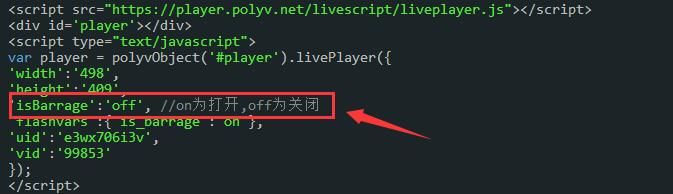
Parameter: isBarrage=on/off
Supported Terminals: PC, Mobile
Effect: When isBarrage=on or the parameter is not set, the danmaku switch is enabled on both mobile and PC, displaying danmaku content in the player.
When isBarrage=off is set, the danmaku switch is disabled on both mobile and PC, requiring manual activation to show danmaku. The specific effects are shown below:
| Terminal | Danmaku On | Danmaku Off |
|---|---|---|
| Mobile |  |
 |
| PC |  |
 |
Usage Example: When using this parameter, ensure you have implemented the danmaku feature (click POLYV Live Danmaku Usage Guide for details and development). After implementing the danmaku feature, add the parameter 'isBarrage':'off' in your code to disable danmaku display by default.
2. Control Bar Display
Parameter: skin_float=on/off barStaticTime=number
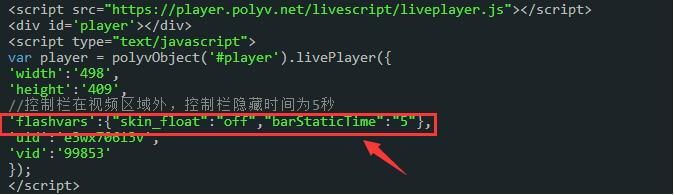
Parameter Description: skin_float=on/off indicates whether the control bar is inside or outside the video area. barStaticTime specifies the auto-hide duration of the control bar, in seconds.
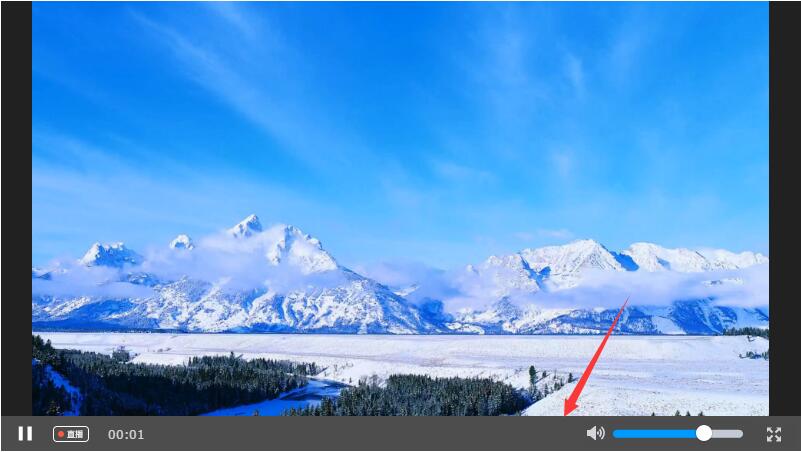
Usage Notes: These two parameters are only applicable to the PC terminal. The default value of skin_float is off, and it only takes effect for player skins where the control bar is outside the video area. When skin_float=off is set, the fullscreen mode still uses the on effect.
Effect: When skin_float=on:

When skin_float=off:
Usage Example: Control bar outside the video area with a 5-second auto-hide duration: 'flashvars':{"skin_float":"off","barStaticTime":"5"}