


WeChat Mini Program Background Playback Integration Guide
This document describes how to integrate Polyv live streaming with background mini-window playback in WeChat Mini Programs, covering the following two viewing scenarios:
- Native Mini Program viewing page: The viewer page player directly requests background mini-window playback.
- Mini Program WebView viewing page: The H5 viewing page navigates to a native Mini Program relay page, which creates a native
<video>and requests background mini-window playback.
The background mini-window is always rendered by the native WeChat Mini Program <video> or <live-player> component. requestBackgroundPlayback() does not accept playback URLs directly. The live stream or replay URL must first be bound to the currently playing native component, and then background playback is requested via the corresponding Context.
WeChat Mini Program Core API
The core mechanism for implementing background playback in WeChat Mini Programs is requestBackgroundPlayback() on the player Context. The watchCore.player.requestBackgroundPlayback() provided by the Polyv SDK is a unified wrapper around the WeChat native Context API, not a separate system mini-window capability.
Entering Background Mini-Window
| WeChat Native API | Official Description | Minimum Base Library | Applicable Component |
|---|---|---|---|
VideoContext.requestBackgroundPlayback() |
Enter background mini-window playback mode | 2.14.3 |
<video> |
LivePlayerContext.requestBackgroundPlayback() |
Enter background mini-window playback mode | 2.14.3 |
<live-player> |
Both APIs have no parameters and return void. Usage is as follows:
// video
const videoContext = wx.createVideoContext('videoId', this);
videoContext.requestBackgroundPlayback();

// live-player
const livePlayerContext = wx.createLivePlayerContext('livePlayerId', this);
livePlayerContext.requestBackgroundPlayback();
Refer to the official WeChat documentation for creating Contexts:
In the Polyv native viewing page, the business code only needs to call:
watchCore.player.requestBackgroundPlayback();
The SDK will forward the call to VideoContext.requestBackgroundPlayback() or LivePlayerContext.requestBackgroundPlayback() based on the current actual playback node.
Exiting Background Mini-Window
| WeChat Native API | Official Description | Minimum Base Library | Applicable Component |
|---|---|---|---|
VideoContext.exitBackgroundPlayback() |
Exit background mini-window playback mode | 2.14.3 |
<video> |
LivePlayerContext.exitBackgroundPlayback() |
Exit background mini-window playback mode | 2.14.3 |
<live-player> |
The WebView relay page uses VideoContext.exitBackgroundPlayback() before returning to the H5 page:
const videoContext = wx.createVideoContext('polyvLiveVideo', this);
videoContext.exitBackgroundPlayback();
wx.navigateBack({ delta: 1 });
Native Control Bar Button
The video component's show-background-playback-button controls whether the native control bar displays the background playback button. This property only controls button visibility and does not replace the Context API; when using a custom button, you must still actively call requestBackgroundPlayback().
Pre-Integration Checklist
Before integration, ensure the following:
- The corresponding mini-window playback setting is enabled in the Polyv Live Management Console.
- The WeChat Mini Program base library version is
2.14.3or higher. Lower versions require compatibility handling. - Test on real iOS and Android devices. The developer tools cannot replace real device testing for app backgrounding scenarios.
- The player has been initialized and is in a playing state when the API is called. The native player node must still be mounted on the page.
- The current WeChat version and operating system support background mini-window playback.
This solution does not depend on app.json's requiredBackgroundModes. The audio in requiredBackgroundModes is for background audio capability, not a video background mini-window toggle.
Management Console Settings
In the channel mini-program settings of the Live Management Console, you can find the following configuration:
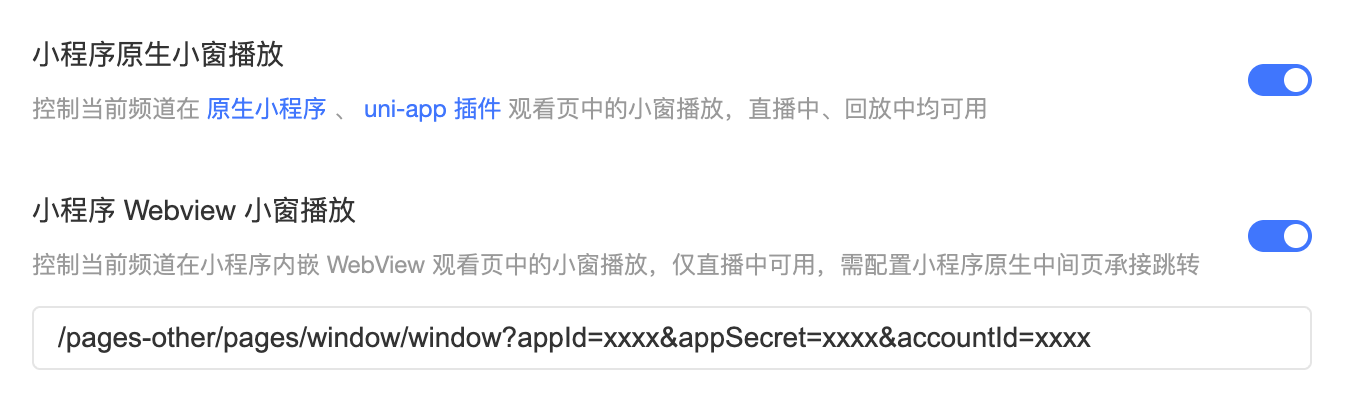
| Setting Item | Function | Current Applicable Scope |
|---|---|---|
| Mini Program Native Mini-Window Playback | Controls whether the native mini-program viewing page shows the mini-window entry | Live, Replay |
| Mini Program WebView Mini-Window Playback | Controls whether the WebView H5 viewing page shows the mini-window entry | Live |
| Mini Program Native Relay Page Path | The native mini-program page path navigated to after clicking the mini-window on the WebView viewing page | WebView only |
Relay Page Path
The current reference relay page provided by Polyv viewing end is:
/pages-other/pages/window/window
For implementation, refer to the Polyv viewing end source code:
src/pages-other/pages/window/
The relay page must be registered in the Mini Program's app.json's pages or subpackage pages. The WebView viewing page must use wx.miniProgram.navigateTo to open this page to retain the previous WebView page; do not use redirectTo to replace the WebView page, otherwise the relay page cannot return to the original viewing page via navigateBack.
The configuration example in the screenshot is:
/pages-other/pages/window/window?appId=xxxx&appSecret=xxxx&accountId=xxxx
The current reference page actually requires the following four parameters:
| Parameter | Required | Description |
|---|---|---|
channelId |
Yes | Current live channel ID, usually appended by the H5 viewing page on click |
accountId |
Yes | Polyv account ID, not the viewer's userId |
appId |
Yes | Player authentication App ID used by the current verification implementation |
appSecret |
Yes | Used by the current verification implementation for frontend signature calculation |
Parameter names are case-sensitive. accountId represents the Polyv account ID, while the viewer's userId represents the viewing user identifier. These are completely different business fields and cannot be substituted for each other. Do not pass the viewer's userId as accountId. All dynamic parameters should be encodeURIComponent.
Security Note: The screenshot shows the configuration for the current verification environment. In production, do not place long-term
appSecretin the management console page path, H5 JavaScript, Mini Program route parameters, or Mini Program code. For formal integration, the business server should manage the secret key, issuing only short-lived, least-privilege playback credentials to the frontend. The relay page can receive a one-timeticketand exchange it with the business server for a short-termsign + timestampor playback token. Before adopting this approach, the authentication input parameters of the current Polyvwindowreference page need to be refactored accordingly.
Native Mini Program Viewing Page Implementation
Implementation Flow
The current Polyv viewing end only displays the mini-window button on the portrait viewing page. The button is located next to the channel info capsule and is displayed under the following conditions:
- "Mini Program Native Mini-Window Playback" is enabled in the backend.
- The current channel status is "Live" or "Replay".
The call chain is as follows:
sequenceDiagram
  participant User as 用户
  participant Page as 原生观看页
  participant SDK as watchCore.player
  participant Controller as 播放器控制器
  participant Context as VideoContext 或 LivePlayerContext
  participant System as 微信或系统小窗
  User->>Page: 点击小窗按钮
  Page->>SDK: requestBackgroundPlayback()
  SDK->>Controller: 转发到当前直播或点播控制器
  Controller->>Context: requestBackgroundPlayback()
  Context->>System: 请求进入后台小窗
The corresponding core call is:
watchCore.player.requestBackgroundPlayback();
The SDK forwards the call based on the current player type:
- Live player: Gets the
getVideoContext()exposed by the current player component, ultimately callingVideoContextorLivePlayerContext. - VOD player: Calls the VOD player context's
requestBackgroundPlayback().
The current local player selects the native node based on the media type:
- Normal live streams prioritize using
<live-player>. .m3u8, replays, warm-up videos, or whenforceVideois enabled, use<video>.
Recommended Call Timing
The mini-window button should be made available only after the player has truly started playing. The viewing page SDK can listen for PlayerEvents.PlayerPlaying:
import { PlayerEvents } from '@polyv/live-watch-miniprogram-sdk';

let canRequestBackgroundPlayback = false;

watchCore.player.eventEmitter.on(PlayerEvents.PlayerPlaying, () => {
  canRequestBackgroundPlayback = true;
});

function onTapBackgroundPlayback() {
  if (!canRequestBackgroundPlayback) {
    wx.showToast({
      title: '请先开始播放',
      icon: 'none',
    });
    return;
  }

  try {
    watchCore.player.requestBackgroundPlayback();
  } catch (error) {
    wx.showToast({
      title: '小窗打开失败',
      icon: 'none',
    });
  }
}
requestBackgroundPlayback() has no parameters and returns void. The call has no success callback, so "method did not throw an error" cannot be directly equated to "the system mini-window has been opened".
Using Native Video Directly
If you are not using the viewing page SDK, you can also create a Context directly for the native <video>:
<video
  id="liveVideo"
  src="{{ videoSrc }}"
  autoplay
  show-background-playback-button="{{ true }}"
  bindplay="onVideoPlay"
/>

<button bind:tap="onTapBackgroundPlayback">小窗播放</button>
Page({
  data: {
    isPlaying: false,
  },

  onVideoPlay() {
    this.setData({ isPlaying: true });
  },

  onTapBackgroundPlayback() {
    if (!this.data.isPlaying) {
      wx.showToast({ title: '请先开始播放', icon: 'none' });
      return;
    }

    const videoContext = wx.createVideoContext('liveVideo', this);
    if (typeof videoContext.requestBackgroundPlayback !== 'function') {
      wx.showToast({ title: '当前环境不支持小窗播放', icon: 'none' });
      return;
    }

    try {
      videoContext.requestBackgroundPlayback();
    } catch (error) {
      wx.showToast({ title: '小窗打开失败', icon: 'none' });
    }
  },
});
show-background-playback-button only controls whether the native control bar displays the background playback button; when using a custom button, you must still actively call the Context API.
Page Lifecycle
The system mini-window depends on the original player page and native node remaining alive. During background playback, do not perform the following operations:
navigateBack,redirectTo, or other routing operations that would unload the player page.- Destroy the viewing page SDK or player instance.
- Remove
<video>/<live-player>viawx:if. - Clear
srcor switch to another player Context.
The current Polyv native viewing page includes compatibility handling for the issue of playback not resuming after returning to the page on iOS: after triggering background playback, when the page becomes visible again, it immediately calls play() once, and again after 1 second. This handling can mitigate the issue where the first play() is ineffective when <video> plays m3u8; currently, <live-player> paused in the system mini-window and then returned may still not resume via play(), requiring further handling based on real device results.
WebView Viewing Page Implementation
Solution Positioning
WebView pages cannot directly obtain the native Mini Program VideoContext. The current solution uses a visible native relay page to take over playback:
sequenceDiagram
  participant User as 用户
  participant H5 as WebView 观看页
  participant Window as 原生 window 中转页
  participant Core as wx-live-player-core
  participant Video as 原生 video
  participant System as 微信或系统小窗
  User->>H5: 点击小窗播放
  H5->>Window: wx.miniProgram.navigateTo
  Window->>Core: 创建播放器并请求媒体信息
  Core-->>Window: 返回 mediaInfo.src
  Window->>Video: 设置 src 并自动播放
  Video-->>Window: bindplay
  Window->>System: requestBackgroundPlayback()
  System-->>Window: 用户返回微信
  Window->>Video: exitBackgroundPlayback()
  Window->>H5: navigateBack 返回 WebView
The current complete flow is:
- The Mini Program login page opens the WebView page hosting the H5 viewing page via
redirectTo. - The H5 page decides whether to show the mini-window button based on the backend's "Mini Program WebView Mini-Window Playback" setting.
- When the user clicks, the H5 page pauses its own player and uses
wx.miniProgram.navigateToto open the native relay page configured in the backend. - The relay page obtains the live stream URL and mounts the native
<video>. - After
<video>triggersbindplay, the relay page callsrequestBackgroundPlayback(). - When the user returns to WeChat from the system mini-window, the relay page exits background playback in the subsequent
onShow, then usesnavigateBackto return to the original WebView page. - The relay page destroys the player when
onUnload.
Therefore, the playback ownership switches in this solution: after entering the relay page, the native player plays; before returning to the WebView, the native system mini-window ends and the relay player is destroyed. It does not support the parallel state of "already returned to the WebView page, but the native system mini-window continues playing".
H5 Navigation to Relay Page
The WebView page needs to include the WeChat JSSDK and call the following when the user clicks:
<script src="https://res.wx.qq.com/open/js/jweixin-1.3.2.js"></script>
function openBackgroundPlayback(options) {
  const intermediatePagePath = options.intermediatePagePath;
  const channelId = options.channelId;
  const separator = intermediatePagePath.includes('?') ? '&' : '?';
  const targetUrl =
    intermediatePagePath +
    separator +
    'channelId=' +
    encodeURIComponent(channelId);

  // 跳转前暂停 H5 播放器,避免双音频和重复统计。
  options.pauseWebPlayer();

  wx.miniProgram.navigateTo({
    url: targetUrl,
    fail(error) {
      console.error('打开小窗中转页失败', error);
      options.resumeWebPlayer();
    },
  });
}
intermediatePagePath uses the relay page path returned by the management console. The path in the current screenshot already includes appId, appSecret, and accountId. The H5 page appends the current channelId on click. In a production environment, this should be changed to appending a short-term ticket, and long-term appSecret should not be passed.
Polyv Window Relay Page Logic
The Polyv viewing end's pages-other/pages/window/window currently uses the native Page({...}) lifecycle. The core logic is as follows:
- Parse and validate
channelId,accountId,appId,appSecret. - Generate a timestamp and MD5 signature, create a
@polyv/wx-live-player-coreplayer. - Set
forceVideo: trueto ensure the live stream is rendered by the native<video>. - Listen for
UPDATE_MEDIA_INFO, writemediaInfo.srcto the page'svideoSrc. - After the native
<video>starts playing, createVideoContext, and only initiaterequestBackgroundPlayback()once. - In the subsequent
onShow, check if the previous page is a WebView; if so, first exit background playback, then return to the WebView. onUnloaddestroysPolyvLiveto prevent player and event listener leaks.
The reference page passes accountId to the uid configuration of PolyvLive and uses it for statistics.param1. Here, accountId is still the Polyv account ID and does not represent the viewer's userId.
The native node of the relay page should remain visible and mounted:
<video
  wx:if="{{ videoSrc }}"
  id="polyvLiveVideo"
  src="{{ videoSrc }}"
  autoplay
  controls="{{ false }}"
  enable-progress-gesture="{{ false }}"
  show-fullscreen-btn="{{ false }}"
  object-fit="contain"
  bindplay="onVideoPlay"
  binderror="onVideoError"
/>
Do not use display: none, visibility: hidden, opacity: 0 on the player, and do not unload the relay page immediately after initiating background playback.
Production Authentication Refactoring
The current reference page brings appSecret to the frontend and calculates the signature within the Mini Program, which is only suitable for internal verification. The recommended production flow is:
- The H5 page requests a one-time, short-lived
ticketfrom the business server. - The H5 page only passes
channelIdandticketto the native relay page; if the business also needs the viewer'suserId, use a separate field and do not overwriteaccountId. - The relay page uses
ticketto exchange for short-term player authentication information from the business server. - The business server holds
appSecretand completes the signature; the frontend never touches the long-term secret key. - The relay page uses the returned short-term
appId + sign + timestampor playback token to create the player.
ticket should be bound to the channel, viewer, expiration time, and usage count, and validated on the server side to prevent copying to other channels or reuse.
User Interaction and Call Timing
The official WeChat documentation for requestBackgroundPlayback() does not explicitly state "can only be called by user click", but this does not mean it can be called unconditionally immediately upon entering the page:
- The native media may not have created a Context or started playing yet.
- Autoplay may be affected by device, system, or media policies.
- Whether the background mini-window appears is ultimately determined by WeChat and the operating system together.
Recommended practices:
- On the native viewing page, trigger via user click on the mini-window button.
- For the WebView solution, trigger by the user clicking the H5 mini-window button to enter the relay page, and wait for the native
<video>'sbindplaybefore calling. - Do not call immediately after creating the Context in
onLoad. - Do not call
wx.exitMiniProgram()immediately after the call. WeChat does not guarantee the combined timing of this set of calls.
Status Determination and Error Handling
It is recommended to maintain status using the following methods simultaneously:
- Check if
requestBackgroundPlaybackexists before calling, and catch synchronous exceptions. - Provide a manual retry entry point; do not rely solely on a single automatic call.
- Record in the page lifecycle whether a background playback request has been initiated to avoid duplicate calls.
The backgroundPlaybackRequested in the current Polyv window reference page only indicates "the call has been initiated and no synchronous error was thrown", not that the background mini-window has actually been entered. The business side needs to retain failure prompts and manual retry entry points.
Background Playback Limitations
- WeChat does not provide a global API to directly pass a stream URL to the background mini-window.
- You must first have the WeChat native
<video>or<live-player>playing, then call the corresponding Context. - Background playback cannot continue after forcibly terminating the WeChat process, unloading the player page, destroying the player, or clearing the media source.
- If the mini-window disappears immediately when the user switches WeChat to the background, first check the base library version, whether the player has started playing, whether the native node is still alive, and whether the current WeChat version and operating system support this capability.
- There are no additional Mini Program parameters that can force the background mini-window to remain displayed.
Current Reference Project Notes
- The button on the native viewing page currently only checks the backend switch and channel status, not whether the player
