


Recording Generation Callback Notification
Purpose
After a recorded video is successfully generated, a callback notification will be sent to the configured interface address.
Details
After setting the interface address, if the account has the recording function enabled, when a channel under the account finishes streaming and generates an m3u8 recorded video, the live streaming system will submit the parameters channelId (channel ID) and fileUrl (recording file URL) via GET to the user-defined callback interface for notification, for example:
Callback Parameter Description
| Parameter | Type | Description |
|---|---|---|
| channelId | String | Channel ID |
| fileUrl | String | Recording file URL |
| format | String | File type, m3u8 or mp4 |
| timestamp | Long | 13-digit timestamp |
| sign | String | Encrypted string for verification, generated by the rule md5(AppSecret+timestamp), where AppSecret is the secret key of the live streaming system |
| fileId | String | Unique recording ID |
| origin | String | Recording source manual: Cloud recording auto: Automatic recording merge: Merge clip: Clip smart-clip: Smart clip |
| hasRtcRecord | String | This field is only useful when the cloud recording function is enabled Y: Indicates that both cloud recording and automatic recording exist for this live stream N: Indicates that this live stream only has automatic recording |
| sessionId | String | Session ID |
How to Set
Configure via the backend:
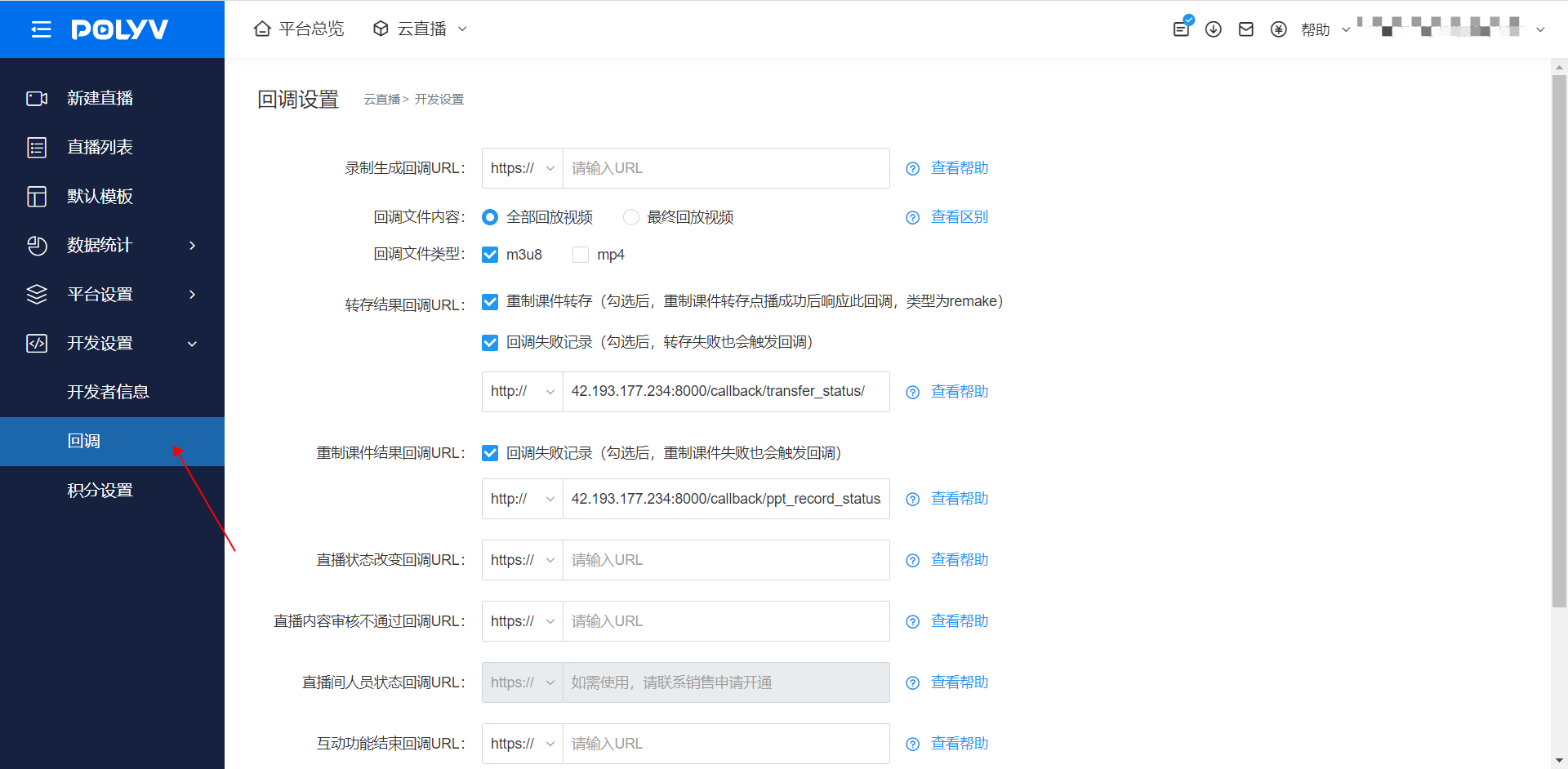
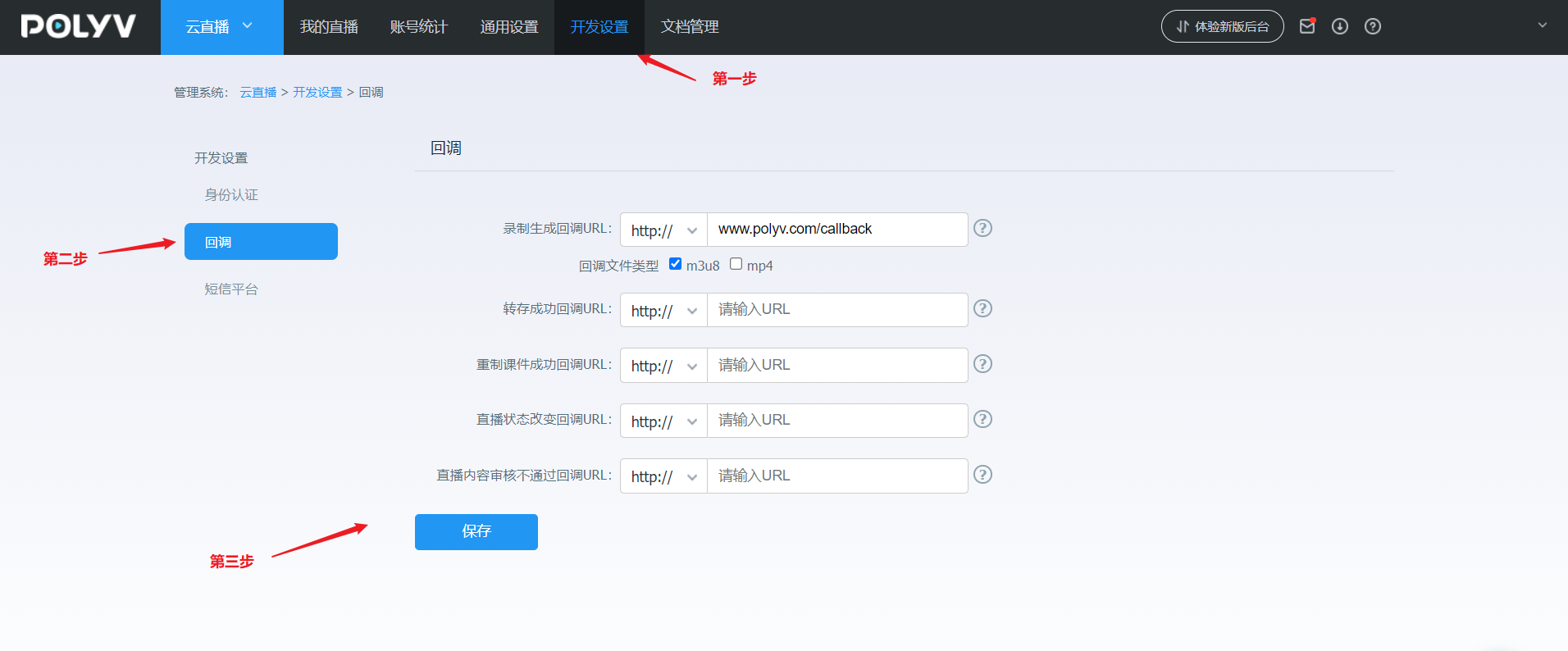
Log in to your account - Go to [Cloud Live Streaming] - Click [Development Settings] - Click [Callback Settings] - Recording Generation Callback URL
Note: The submitted interface address must start with http:// or https://
Backend Setting Reference Images
New backend settings:
Old backend settings:
If you cannot find the corresponding setting, it may be due to insufficient account permissions. For assistance, please contact the online customer service in the bottom right corner.
