


Storage Transfer Result Callback Notification
Purpose
After a live streaming temporary file under your account is successfully transferred to the video-on-demand (VOD) system, a callback notification will be sent to the configured interface address (if "Callback Failure Records" is checked in the SaaS backend, a failed transfer will also trigger a callback).
Details
After setting the interface address, if your account performs a temporary video transfer (i.e., transferring recording files generated from live streaming to VOD), and the transferred video processing is completed, the live streaming system will submit the following parameters via GET to your custom callback interface for notification: channelId (channel ID), vid (successfully transferred video ID), title (video title), duration (video duration), and fileSize (video file size). For example:
Callback Parameter Description
Note: When origin is remake, you need to manually concatenate "_" + the first character of vid. For example, if the callback vid is 1b448be323bbcdf259ec7a814dba03ac, the concatenated vid becomes 1b448be323bbcdf259ec7a814dba03ac_1.
| Parameter | Type | Description |
|---|---|---|
| channelId | String | Channel ID |
| vid | String | Successfully transferred video ID, corresponds to the VOD system VID, used by the VOD system |
| title | String | Video title |
| duration | String | Video duration, format: hh:mm:ss |
| fileSize | Long | Video file size, in bytes |
| timestamp | Long | 13-digit timestamp |
| sign | String | Encrypted string for verification, generated by rule: md5(AppSecret+timestamp), AppSecret is the secret key of the live streaming system |
| sessionIds | String | Array string of recording sessions and times, format: ["20190703145126,4,fdqbopvtnv","20190703145126,8,fdqbopvtnv"], where: "20190703145126,4,fdqbopvtnv" – first field is start time, second is live duration, third is the corresponding sessionId |
| fileId | String | Recording file ID corresponding to the transfer |
| videoId | String | Unique ID for the transferred replay, corresponds to the live system videoId, used by the live system |
| cataId | Long | Directory in VOD for the transfer, present when origin is remake (remade courseware) |
| origin | String | Recording source of the transfer manual: cloud recording auto: automatic recording merge: merge clip: clip remake: remade courseware smart-clip: smart clip |
| sessionId | String | Single session ID corresponding to the replay |
| userId | String | User ID |
| status | String | Returns success on successful transfer |
| courseId | String | Custom identifier for the channel, value is the custom identifier configured for the channel at the time the recording file was generated, empty string if not configured |
Transfer Failure Callback Parameters
| Parameter | Type | Description |
|---|---|---|
| status | String | Interface processing result, success for success, error for failure |
| code | String | Error code userExpired: user expired spaceOverSize: insufficient VOD space unknown: unknown exception |
| userId | String | POLYV user ID, same as on the POLYV official website. Path: Official website -> Login -> Live Streaming (Developer Settings) |
| fileId | String | Transferred file ID |
| videoId | String | Unique ID for the transferred replay, corresponds to the live system videoId, used by the live system |
| sessionIds | String | Array string of recording sessions and times, format: ["20190703145126,4,fdqbopvtnv","20190703145126,8,fdqbopvtnv"], where: "20190703145126,4,fdqbopvtnv" – first field is start time, second is live duration, third is the corresponding sessionId |
| origin | String | Recording source of the transfer manual: cloud recording auto: automatic recording merge: merge clip: clip remake: remade courseware smart-clip: smart clip |
| sign | String | Encrypted string for verification, generated by rule: md5(AppSecret+timestamp), AppSecret is the secret key of the live streaming system |
| timestamp | Long | Current 13-digit millisecond timestamp |
How to Configure
Configure via the backend:
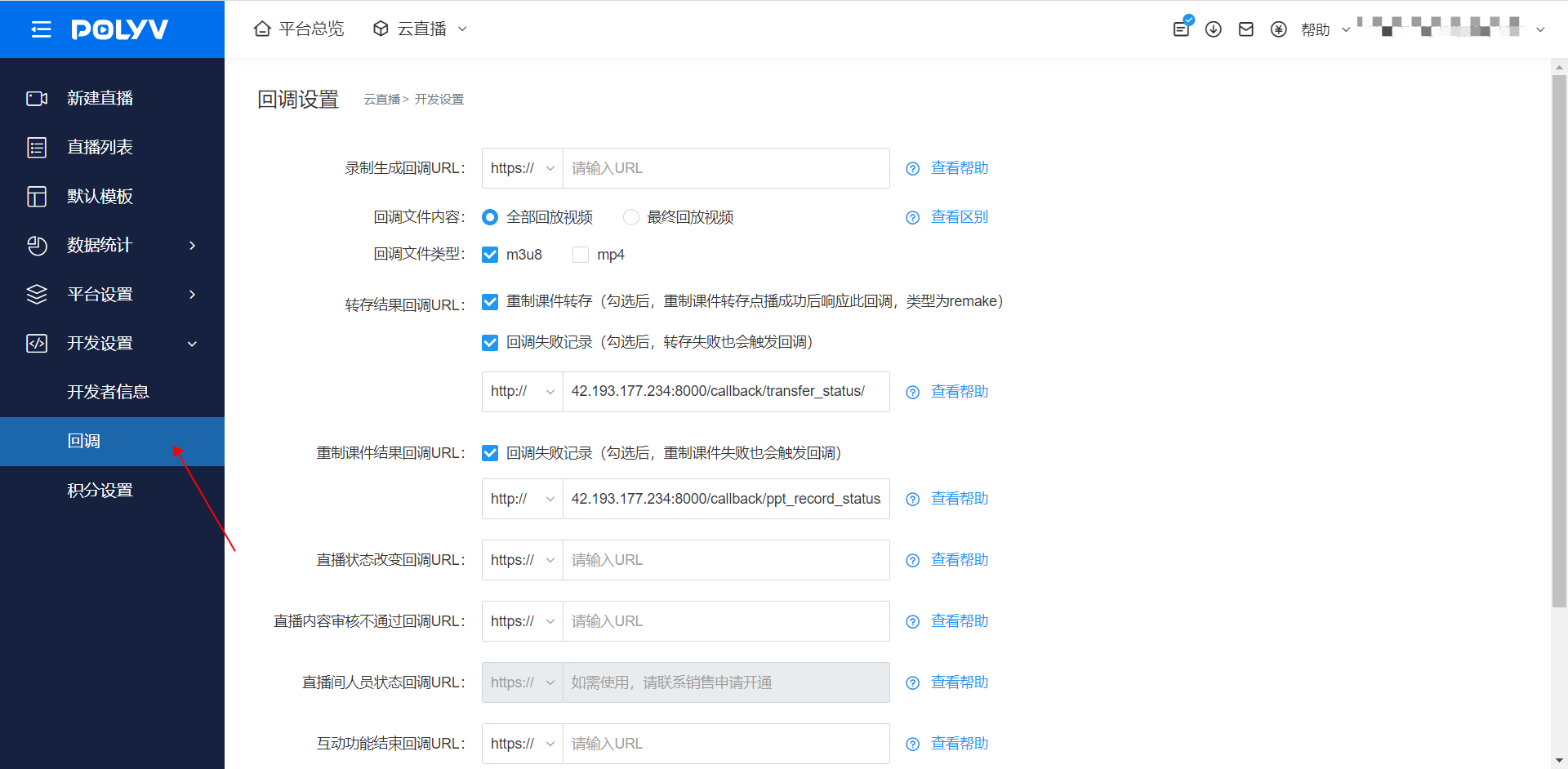
Log in to your account - Go to [Cloud Live Streaming] - Click [Developer Settings] - Click [Callback Settings] - Transfer Result Callback URL
Note: The "Callback Failure Records" checkbox, if checked, will also trigger a callback notification on transfer failure.
Note: The submitted interface address must start with http:// or https://.
Backend Configuration Reference Images
New backend configuration:
Old backend configuration:
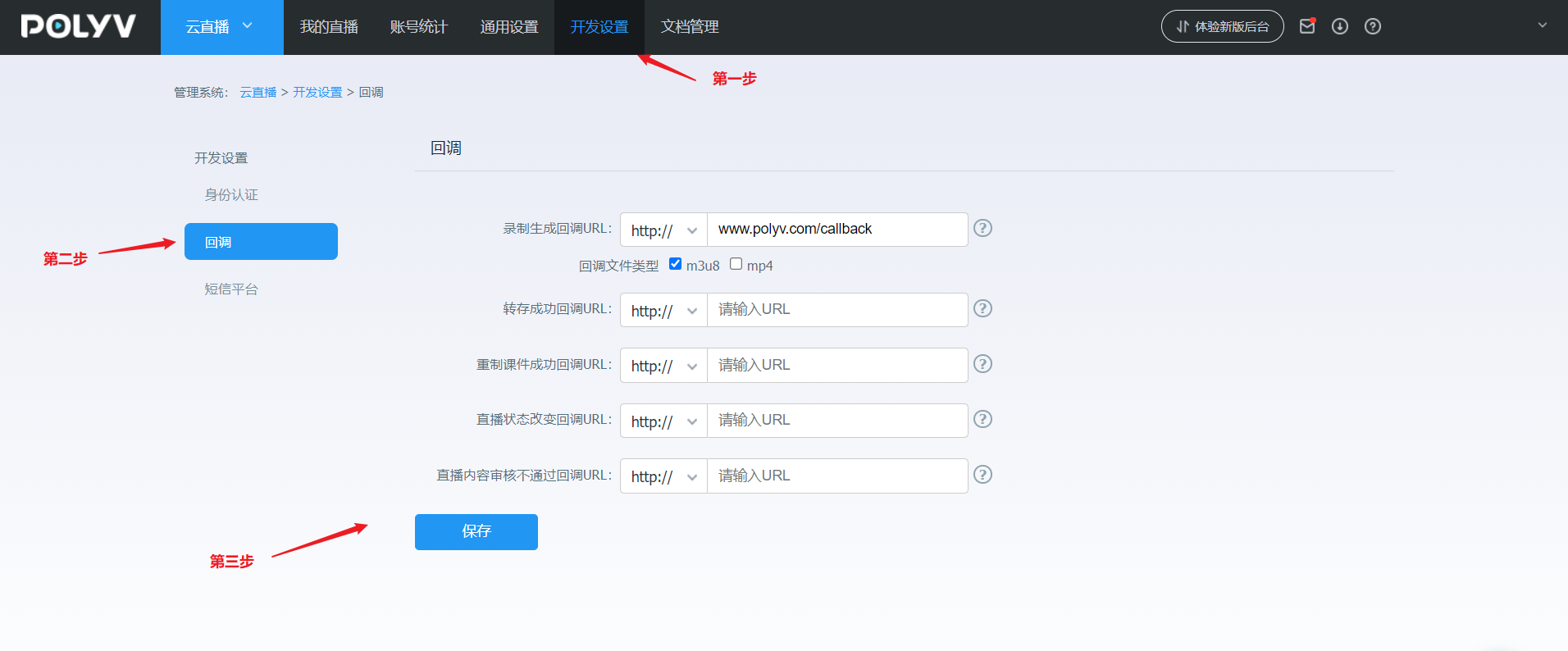
If you cannot find the corresponding setting, it may be due to insufficient account permissions. For assistance, please contact the online customer service in the bottom right corner.
