


Live Status Change Callback Notification
Purpose
When the live status of a channel under your account changes, a callback notification will be sent to the configured interface URL.
Details
After setting the interface URL, if a channel under your account undergoes push or disconnect operations that cause a change in its live status, the live streaming system will submit the following parameters via GET to the user-defined callback interface for notification: channelId (channel ID) and status (live status: live indicates streaming started, end indicates streaming ended). For example:
Callback Parameter Description
| Parameter | Type | Description |
|---|---|---|
| channelId | String | Channel ID |
| status | String | Live channel statuslive: Currently streamingend: Streaming endedplayback: Playback mode (requires activation)waiting: Waiting mode (requires activation)seminar_live: Seminar channel, streaming startedseminar_end: Seminar channel, streaming ended |
| timestamp | Long | 13-digit timestamp |
| sign | String | Encrypted string for verification, generated using the rule md5(AppSecret + timestamp), where AppSecret is the secret key of the live streaming system |
| sessionId | String | Live session ID |
| startTime | Long | Live start time, 13-digit timestamp |
| endTime | Long | Live end time, 13-digit timestamp (present when status=end, empty when status=live) |
| liveType | String | Live modelive: Real live modetest: Test mode |
| pushClient | String | Push client. Possible values:windows / mac: Windows or Mac clientweb: Web broadcastingAndroidSDK / iOSSDK: Android or iOS SDKdisk_push / realDiskVideo: Simulated live streamingpull: Pull streaming |
| pushClientVersion | String | Push client version, only has a value when pushClient=windows/mac, e.g., 4.10.0 |
How to Configure
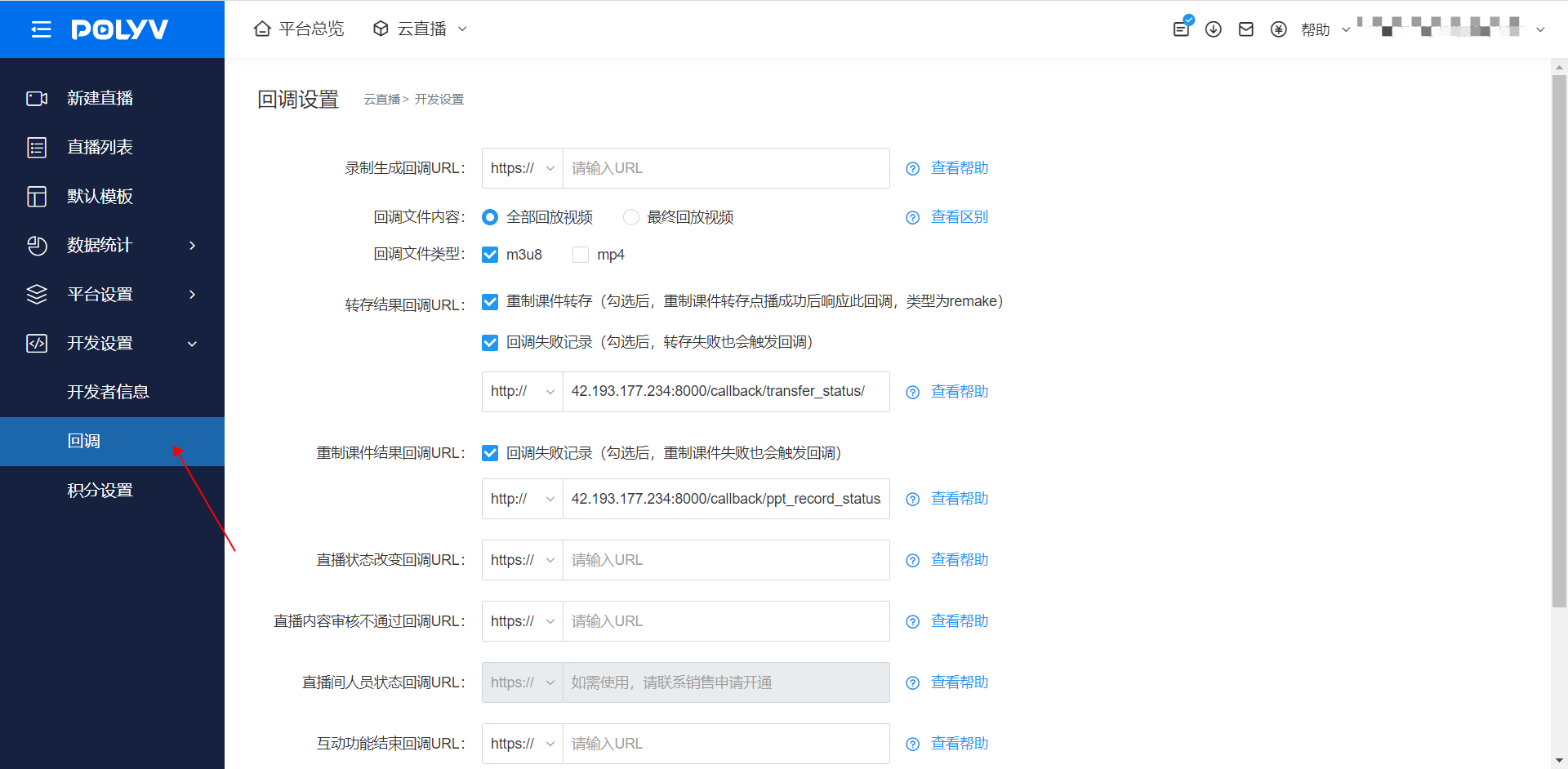
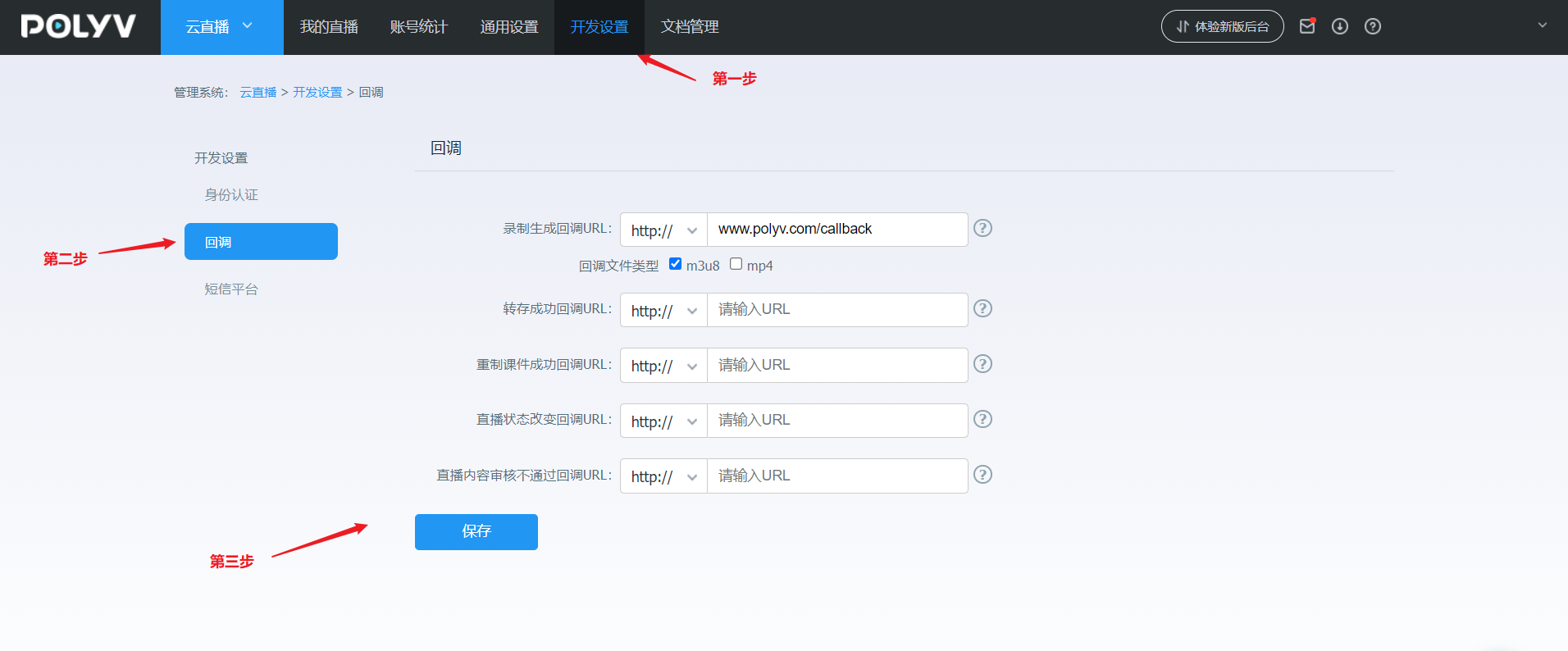
Configure via the backend:
Log in to your account - Go to [Cloud Live] - Click [Development Settings] - Click [Callback Settings] - Live Status Change Callback URL
Note: The submitted interface URL must start with http:// or https://.
Backend Configuration Reference Images
New backend configuration:
Old backend configuration:
If you cannot find the corresponding setting, it may be due to insufficient account permissions. For assistance, please contact the online customer service in the bottom right corner.
