


以下是第三方依赖库,若需使用Demo源码且您项目中未引入,需添加
- 1 Preparation
- 2 Environment Requirements
- 3 Directory Structure
- 4 Scene Module Integration
- 5 Project Configuration
- 6 Initialize SDK
- 7 Login to Live/Playback and Enter Different Scenes
1 Preparation
Download the Polyv Multi-Scene Demo in advance. Please download the Demo first.
Prepare a Polyv account. Logging into a live stream in the Demo requires the appId (Application ID), appSecret (Application Secret), userId (Account ID), and channelId (Channel ID) from the live streaming system. Logging into a playback additionally requires the videoId (Playback Video ID) from the corresponding channel's playback list.
2 Environment Requirements
| Name | Requirement |
|---|---|
| iOS System | iOS 12.0+ |
| CocoaPods | 1.7.0+ |
| IDE | Xcode 11.0+ |
3 Directory Structure
| Folder | Content |
|---|---|
| Demo | Demonstrates how to initialize the SDK and log in to different scenes |
| PolyvLiveCloudClassScene | Cloud Classroom scene module, includes playback, chat, mic connection, interaction, etc. |
| PolyvLiveEcommerceScene | Live E-commerce scene module, includes playback, chat, products, tipping, etc. |
| PolyvLiveStreamerScene | Mobile Streaming scene module, includes streaming, mic connection, chat, documents, etc. |
| PolyvLiveCommonModule | Common module, provides base libraries, utility classes, etc., required by each scene |
4 Scene Module Integration
The Multi-Scene Demo integrates multiple scene layers (folders PolyvLiveCloudClassScene, PolyvLiveEcommerceScene, PolyvLiveStreamerScene) plus a common logic layer (folder PolyvLiveCommonModule). As shown below:
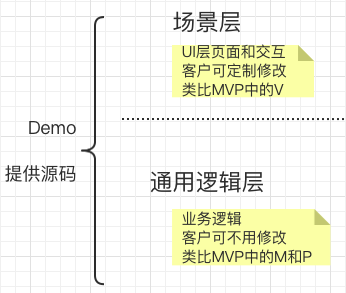
The common logic layer, also called the Common layer, is essentially open-source code that wraps the Polyv Multi-Scene SDK. It aims to provide customers with more user-friendly and unified APIs and implement more complete business functions. Like the Multi-Scene SDK, all code uses the PLV prefix. For more information about the Common layer, see documents 5-1 to 5-7.
The scene layer, also called the Scene layer, allows customers to integrate specific scenes as needed. The code in the Scene layer uses different prefixes depending on the scene. For example, the Cloud Classroom scene code uses the PLVLC prefix, the Live E-commerce scene code uses the PLVEC prefix, and the Mobile Streaming scene code uses the PLVLS prefix.
4.1 Import Common Module (Required)
Copy the PolyvLiveCommonModule folder from the project to the root directory of your project.
4.2 Cloud Classroom Scene Module Integration (Optional)
Copy the PolyvLiveCloudClassScene folder from the project to the root directory of your project.
4.3 Live E-commerce Scene Module Integration (Optional)
Copy the PolyvLiveEcommerceScene folder from the project to the root directory of your project.
4.4 Mobile Streaming Scene Module Integration (Optional)
Copy the PolyvLiveStreamerScene folder from the project to the root directory of your project.
5 Project Configuration
5.1 Configure Supported System Version
Open the project's TARGETS - General - Deployment Info and set the iOS system to 9.0 or higher.
5.2 Configure App Transport Security (ATS)
Open the project's info.plist file and add the following content:
<key>NSAppTransportSecurity</key>
<dict>
    <key>NSAllowsArbitraryLoads</key>
    <true/>
</dict>
5.3 Configure Bitcode
Open the project's TARGETS - Build Settings, search for Enable Bitcode, and set it to NO.
5.4 Configure Privacy Permissions
Using the mic connection and chat room requires access to the user device's microphone, camera, and photo album.
Open the project's info.plist file and add the following content:
<key>NSCameraUsageDescription</key>
<string>请允许我们访问您的摄像头,以便您使用连麦、拍照功能</string>
<key>NSMicrophoneUsageDescription</key>
<string>请允许我们访问您的麦克风,以便您使用连麦功能</string>
<key>NSPhotoLibraryAddUsageDescription</key>
<string>请允许我们访问您的相册,以便您保存图片到相册中</string>
<key>NSPhotoLibraryUsageDescription</key>
<string>请允许我们访问您的相册,以便您使用发送图片消息、保存图片到相册的功能</string>
5.5 Configure Device Rotation
The player supports full-screen playback. In TARGETS - General - Deployment Info, check the supported landscape rotation directions.
5.6 Configure Podfile
Add the following content to the Podfile:
use_frameworks!
pod 'PLVLiveScenesSDK', '~> 1.0.0' # polyv 多场景 SDK
pod 'PLVImagePickerController', '~> 0.1.2' # 若不使用Demo源码,不需要添加

# 以下是第三方依赖库,若需使用Demo源码且您项目中未引入,需添加
pod 'SDWebImage', '4.4.0'
pod 'MJRefresh', '~> 3.5.0'
pod 'SVGAPlayer', '~> 2.3'
Note:
- We strongly recommend specifying a version number to avoid automatic upgrades.
- We recommend using the latest SDK version.
- Do not omit
use_frameworks!.
6 Initialize SDK
Open the project's AppDelegate file and configure the SDK functionality in the -application:didFinishLaunchingWithOptions: method:
- (BOOL)application:(UIApplication *)application didFinishLaunchingWithOptions:(NSDictionary *)launchOptions {
      // HttpDNS默认开启,如需关闭,解开注释
//    [PLVLiveVideoConfig sharedInstance].enableHttpDNS = NO;
      // 如需启用IPV6,解开注释,启用IPV6之后,将自动选择IP,取消HttpDNS
//    [PLVLiveVideoConfig sharedInstance].enableIPV6 = YES;
    return YES;
}
7 Login to Live/Playback and Enter Different Scenes
7.1 Viewer Side (Cloud Classroom Scene / Live E-commerce Scene)
Before entering the viewing page of a different scene, you need to call the login live/playback method for verification. The purpose of login verification is to check if the parameters are correct and to save information obtained from the login interface internally in the SDK. The project's common module provides PLVRoomLoginClient for logging in and out of live/playback. The interface definition is as follows:
/// 登录直播间
/// @param channelType 频道类型,若支持多种类型,可对多个频道类型枚举值使用 | 进行位或
/// @param channelId 频道号
/// @param userId 用户id
/// @param appId 应用id
/// @param appSecret 应用secret
/// @param roomUserHandler 返回带有默认值的观看用户实例对象,可在block中配置viewerId、viewerName、viewerAvatar属性
/// @param completion 登录成功,带上自定义参数对象,用户可在回调里面设置后台统计所需的自定义参数
/// @param failure 登录失败
+ (void)loginLiveRoomWithChannelType:(PLVChannelType)channelType
                           channelId:(NSString *)channelId
                              userId:(NSString *)userId
                               appId:(NSString *)appId
                           appSecret:(NSString *)appSecret
                            roomUser:(void(^ _Nullable)(PLVRoomUser *roomUser))roomUserHandler
                          completion:(void (^)(PLVViewLogCustomParam *customParam))completion
                             failure:(void (^)(NSString *errorMessage))failure;

/// 登录回放直播间
/// @param channelType 频道类型,若支持多种类型,可对多个频道类型枚举值使用 | 进行位或
/// @param channelId 频道号
/// @param vodList 是否请求点播列表视频,默认NO
/// @param vid 视频id(可不填,不填时加载回放/点播列表)
/// @param userId 用户id
/// @param appId 应用id
/// @param appSecret 应用secret
/// @param roomUserHandler 返回带有默认值的观看用户实例对象,可在block中配置viewerId、viewerName、viewerAvatar属性
/// @param completion 登录成功,带上自定义参数对象,用户可在回调里面设置后台统计所需的自定义参数
/// @param failure 登录失败
+ (void)loginPlaybackRoomWithChannelType:(PLVChannelType)channelType
                               channelId:(NSString *)channelId
                                 vodList:(BOOL)vodList
                                     vid:(NSString * _Nullable)vid
                                  userId:(NSString *)userId
                                   appId:(NSString *)appId
                               appSecret:(NSString *)appSecret
                                roomUser:(void(^ _Nullable)(PLVRoomUser *roomUser))roomUserHandler
                              completion:(void (^)(PLVViewLogCustomParam *customParam))completion
                                 failure:(void (^)(NSString *errorMessage))failure;

/// 离开直播间时调用
+ (void)logout;
During the login process, the viewer's related information can be configured via the callback roomUserHandler. The login result (success or failure) is returned via a block callback. You can choose to enter the required scene page in the login success callback. The following example shows how to log in and enter the live room page of the Cloud Classroom scene. The code is as follows:
//登录直播
__weak typeof(self)weakSelf = self;
[PLVRoomLoginClient loginLiveRoomWithChannelType:PLVChannelTypePPT | PLVChannelTypeAlone
                                       channelId:channelId
                                          userId:userId
                                           appId:appId
                                       appSecret:appSecret
                                        roomUser:^(PLVRoomUser * _Nonnull roomUser) {
        // 可在此处配置自定义的登录用户ID、昵称、头像,不配则均使用默认值
//        roomUser.viewerId = @"用户ID";
//        roomUser.viewerName = @"用户昵称";
//        roomUser.viewerAvatar = @"用户头像";
} completion:^(PLVViewLogCustomParam * _Nonnull customParam) {
    // 登录成功,进入云课堂直播间
    PLVLCCloudClassViewController *cloudClassVC = [[PLVLCCloudClassViewController alloc] init];
    [weakSelf.navigationController pushViewController:cloudClassVC animated:YES];
} failure:^(NSString * _Nonnull errorMessage) {
    // 登录失败
}];
Specific use cases for the above method can be found in the PLVLoginViewController class in the project's Demo folder.
7.2 Streaming Side (Mobile Streaming Scene)
Before entering the mobile streaming page, you need to call the login channel method for verification. The purpose of login verification is to check if the parameters are correct and to save information obtained from the login interface. The project's common module provides PLVRoomLoginClient for logging into a channel for streaming. The interface definition is as follows:
/// 登录三分屏开播直播间
/// @param channelType 频道类型,目前只支持 PLVChannelTypeAlone 或者 PLVChannelTypePPT
/// @param channelId 频道号
/// @param password 频道密码
/// @param completion 登录成功
/// @param failure 登录失败
+ (void)loginStreamerRoomWithChannelType:(PLVChannelType)channelType
                               channelId:(NSString *)channelId
                                password:(NSString *)password
                              completion:(void (^)(void))completion
                                 failure:(void (^)(NSString *errorMessage))failure;
The login verification result is returned via the completion or failure block callback. You can enter the mobile streaming scene in the login success callback. The following example shows how to log into a channel and enter the mobile streaming scene. The code is as follows:
//登录手机开播
__weak typeof(self)weakSelf = self;
[PLVRoomLoginClient loginStreamerRoomWithChannelType:PLVChannelTypePPT
                                            channelId:channelId
                                             password:passwordString
                                           completion:^{
    // 登录成功,进入云课堂直播间
    PLVLSStreamerViewController *vctrl = [[PLVLSStreamerViewController alloc] init];
    vctrl.modalPresentationStyle = UIModalPresentationFullScreen;
    [weakSelf presentViewController:vctrl animated:YES completion:nil];
} failure:^(NSString * _Nonnull errorMessage) {
    // 登录失败
}];
Specific use cases for the above method can be found in the PLVLSLoginViewController class in the project's Demo folder.
