Small Class Web-Based Class Operations
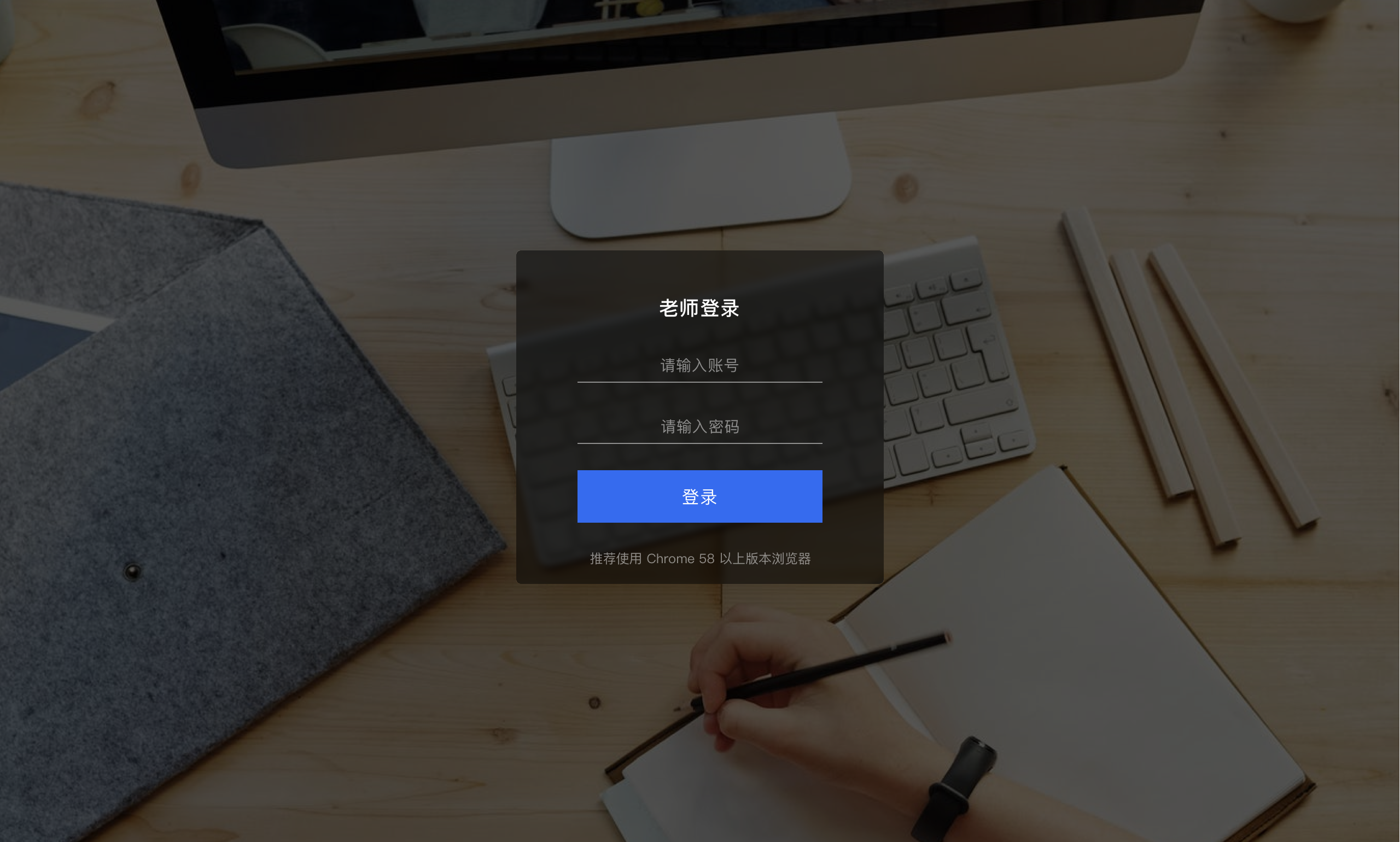
Teacher Login
Obtain the teacher account and password from the Polyv backend to log in.
Student Login
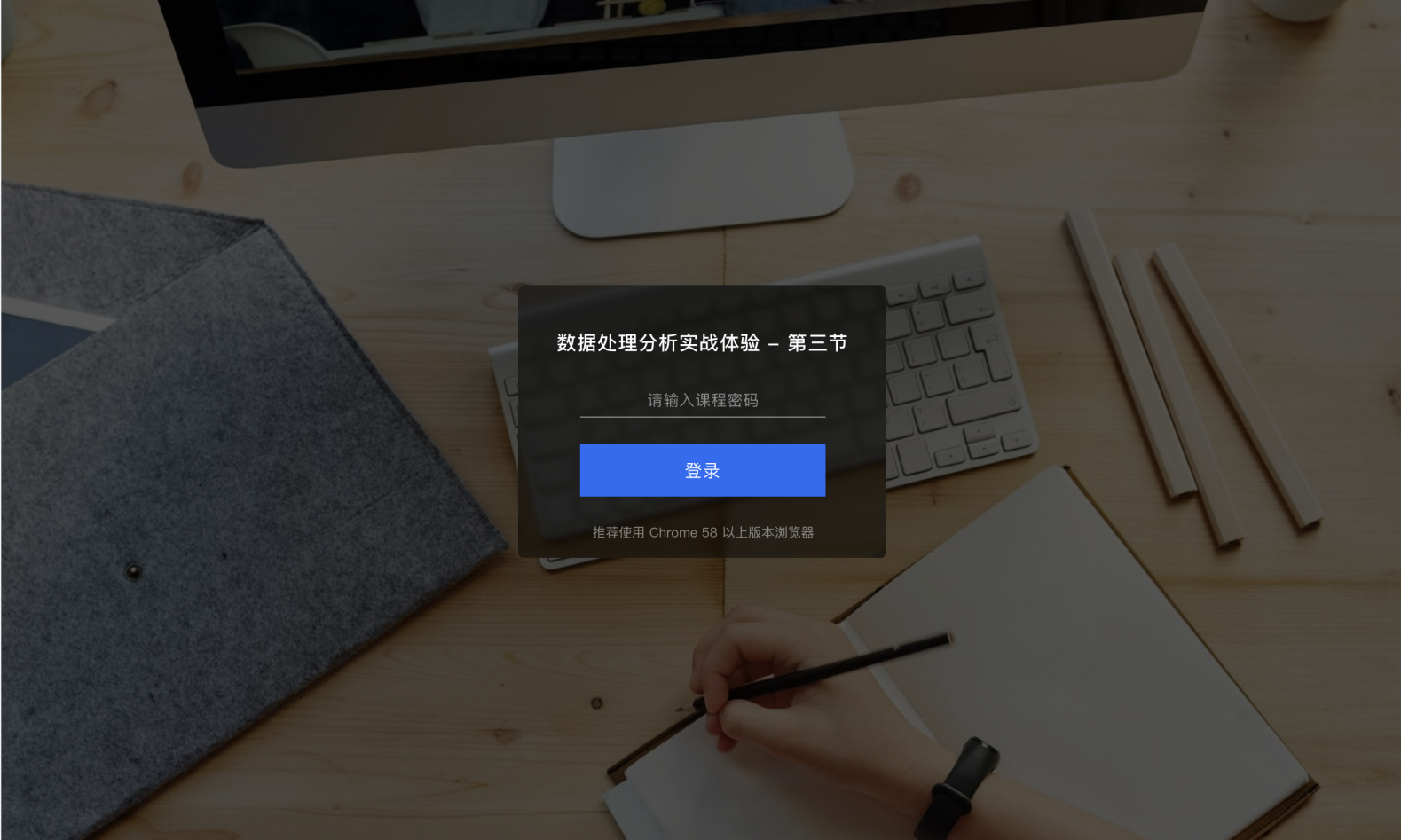
Students enter the class page by logging in based on viewing conditions.
Selecting a Lesson
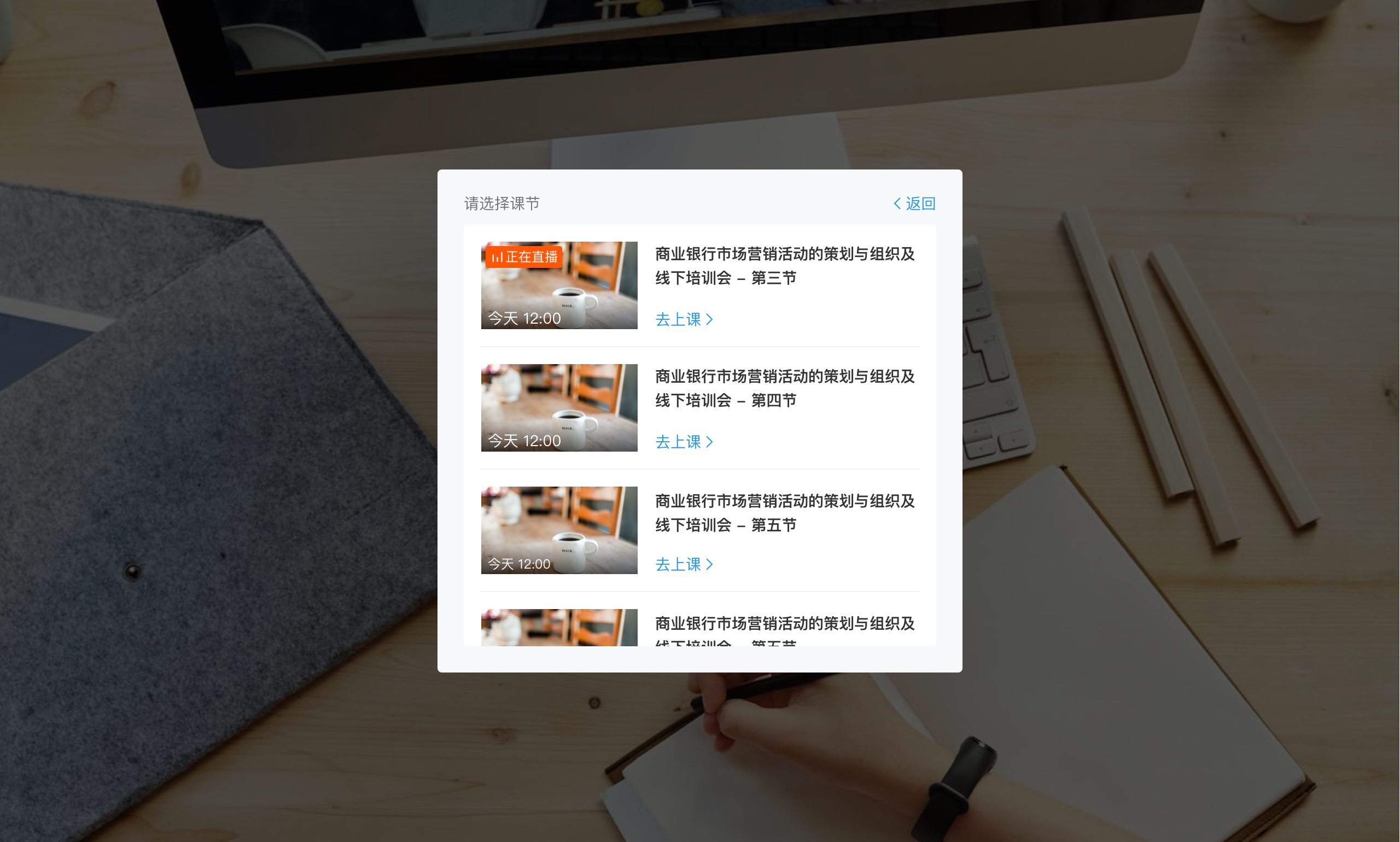
After successful login, select the corresponding lesson to attend. (Note: Only lessons within 4 hours are displayed on the page.)
Teacher Starting/Ending Class
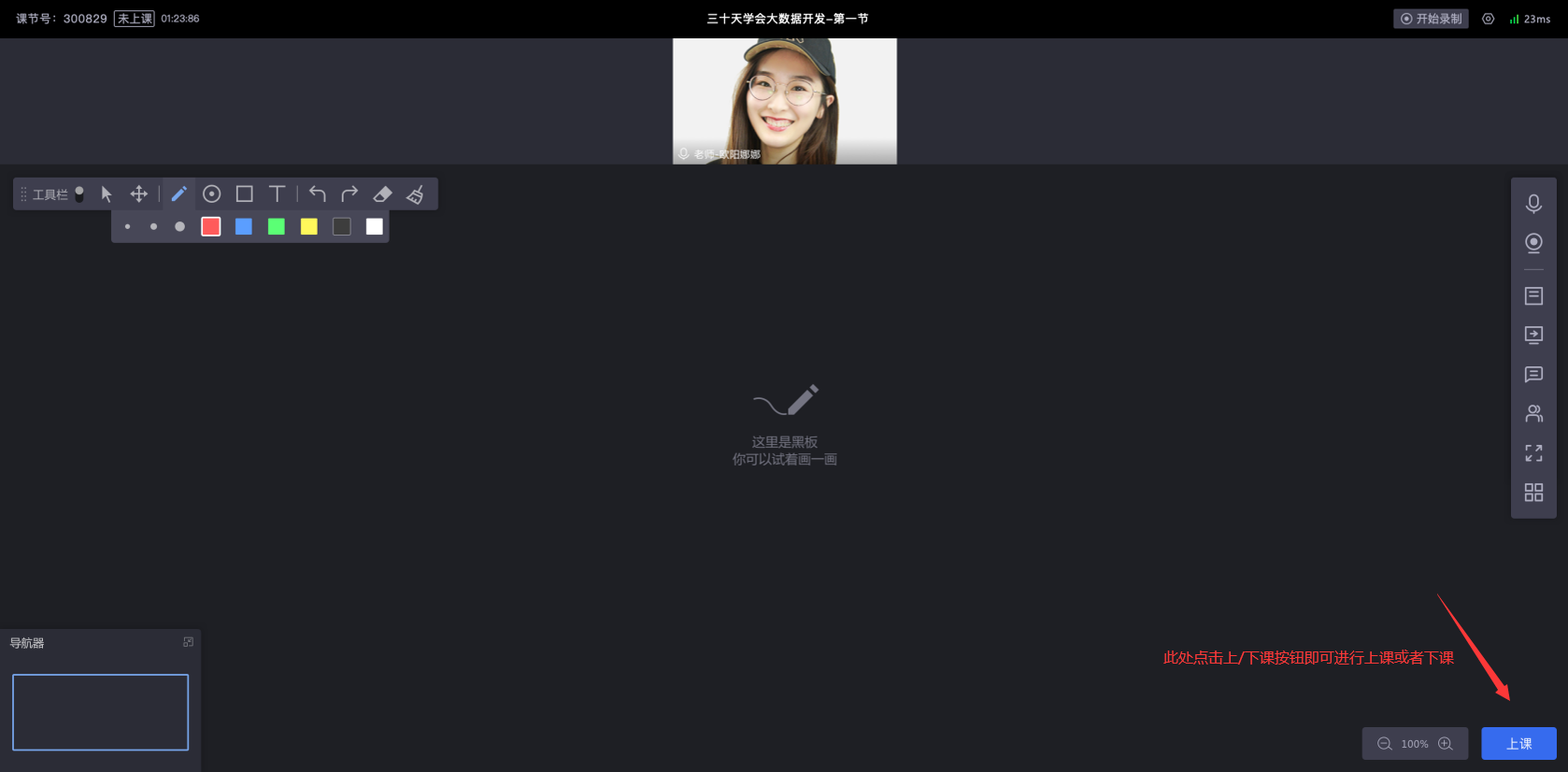
Click the "Start Class" / "End Class" button at the bottom right of the page to start or end the class.
Documents
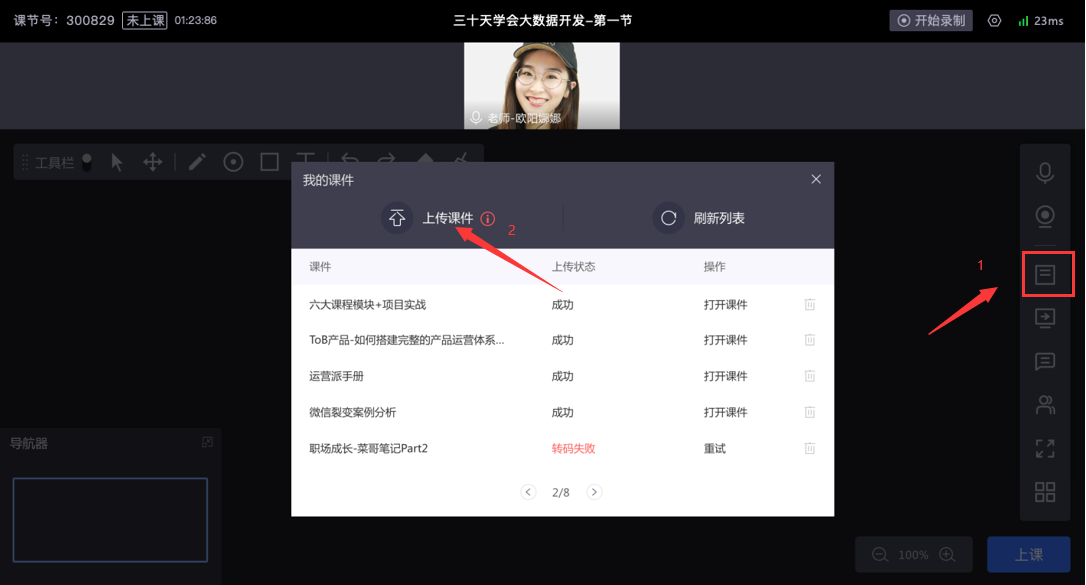
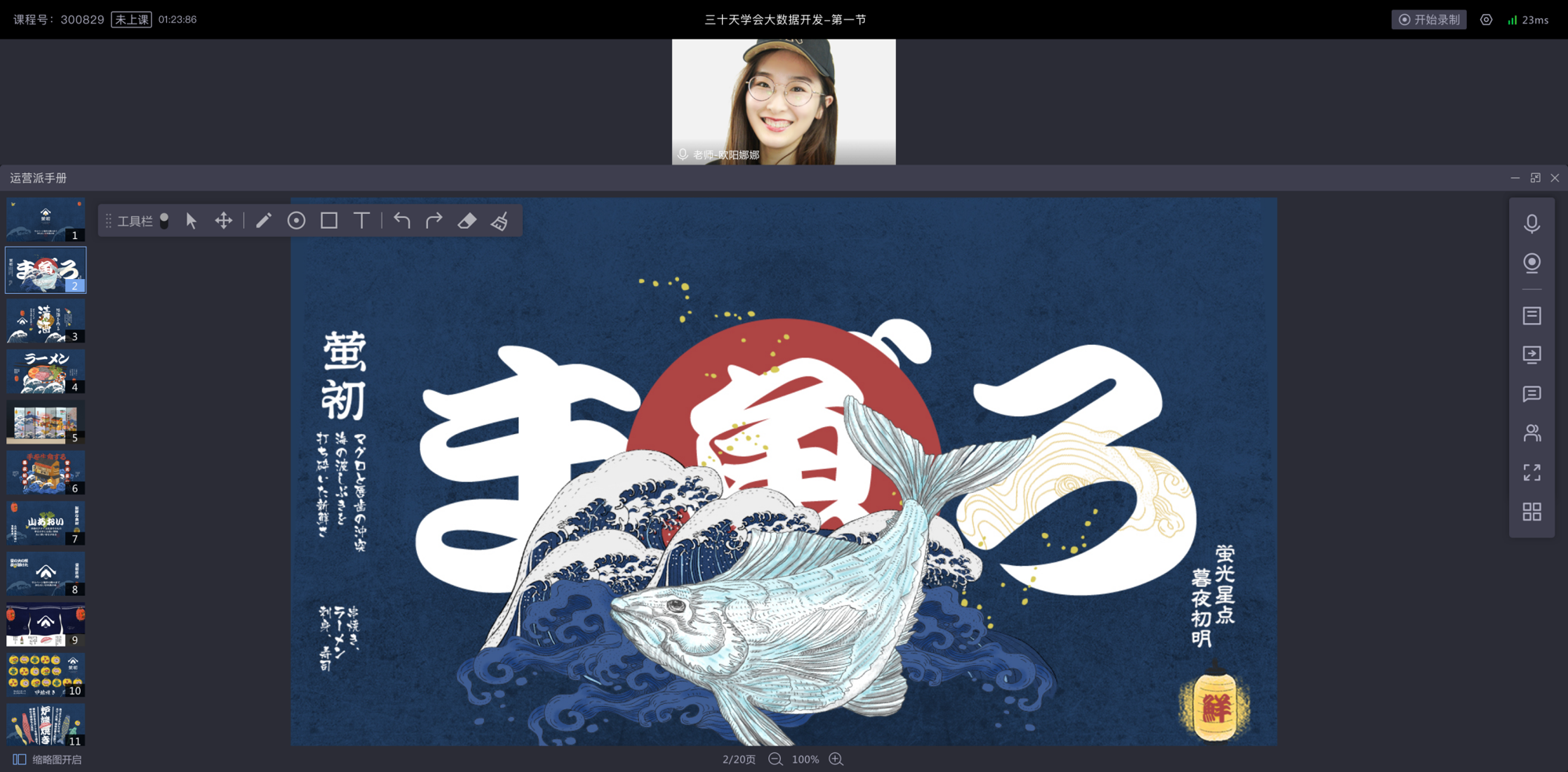
Click "Documents" to upload a document from your local device or select a document already uploaded in the backend. The opened document is displayed in the blackboard area, where you can move, zoom in, zoom out, and turn pages. Up to 5 documents can be opened simultaneously.
Interactive Blackboard
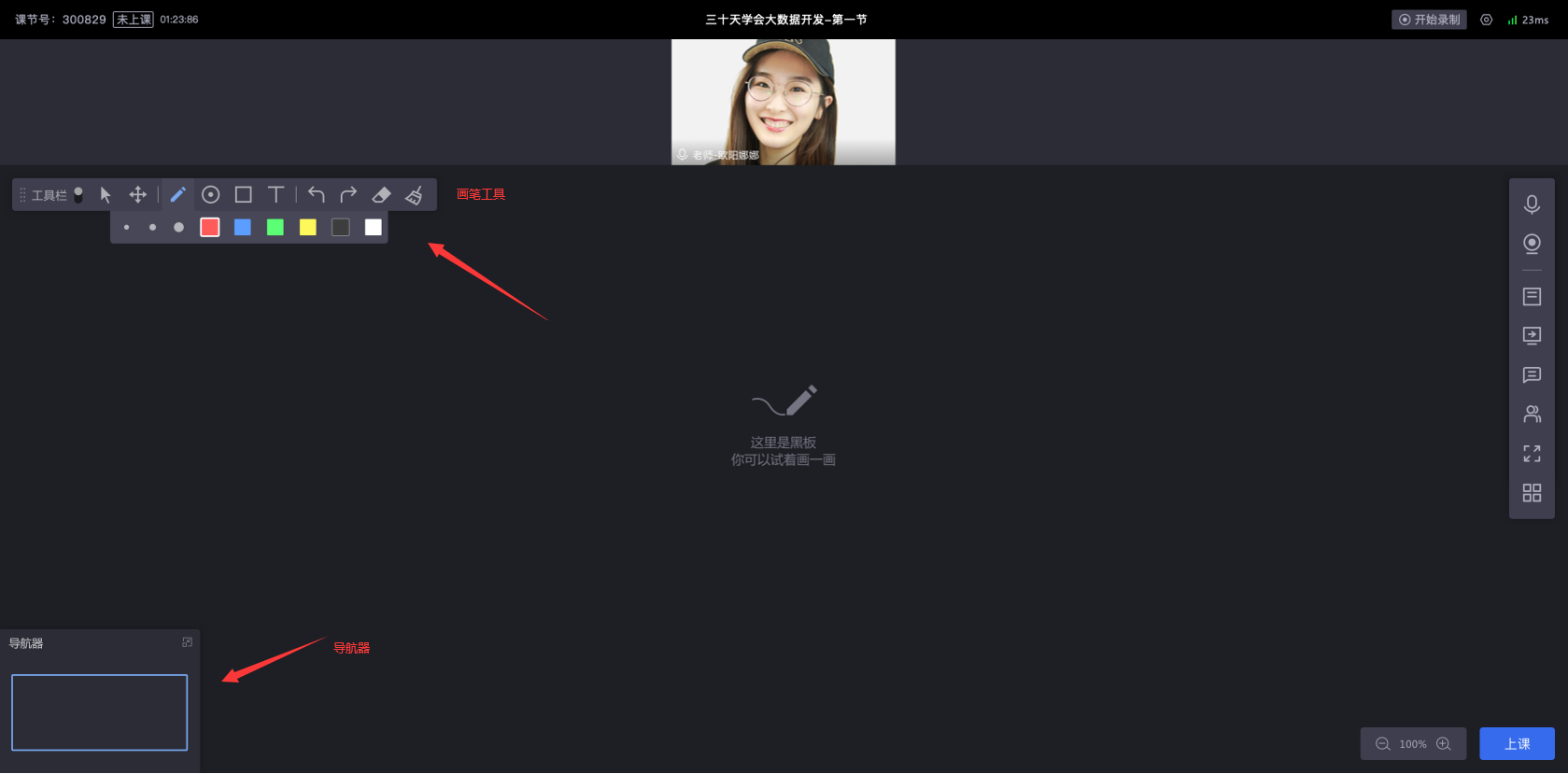
The blackboard is a vector-based board that can be zoomed in and out. Annotations made on the blackboard are synchronized and visible to all students.
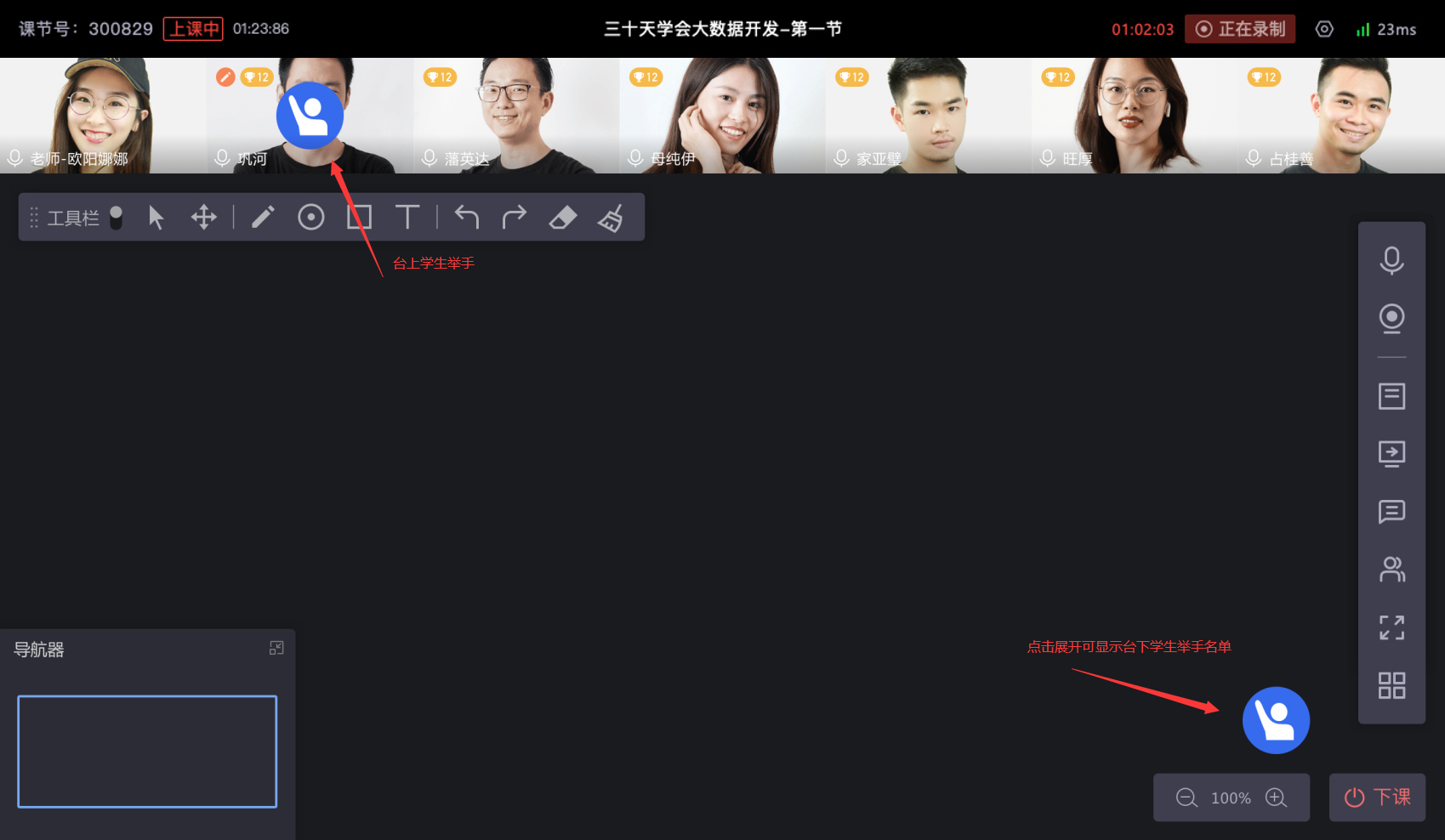
You can view the current position of the blackboard in the navigator.
Screen Sharing
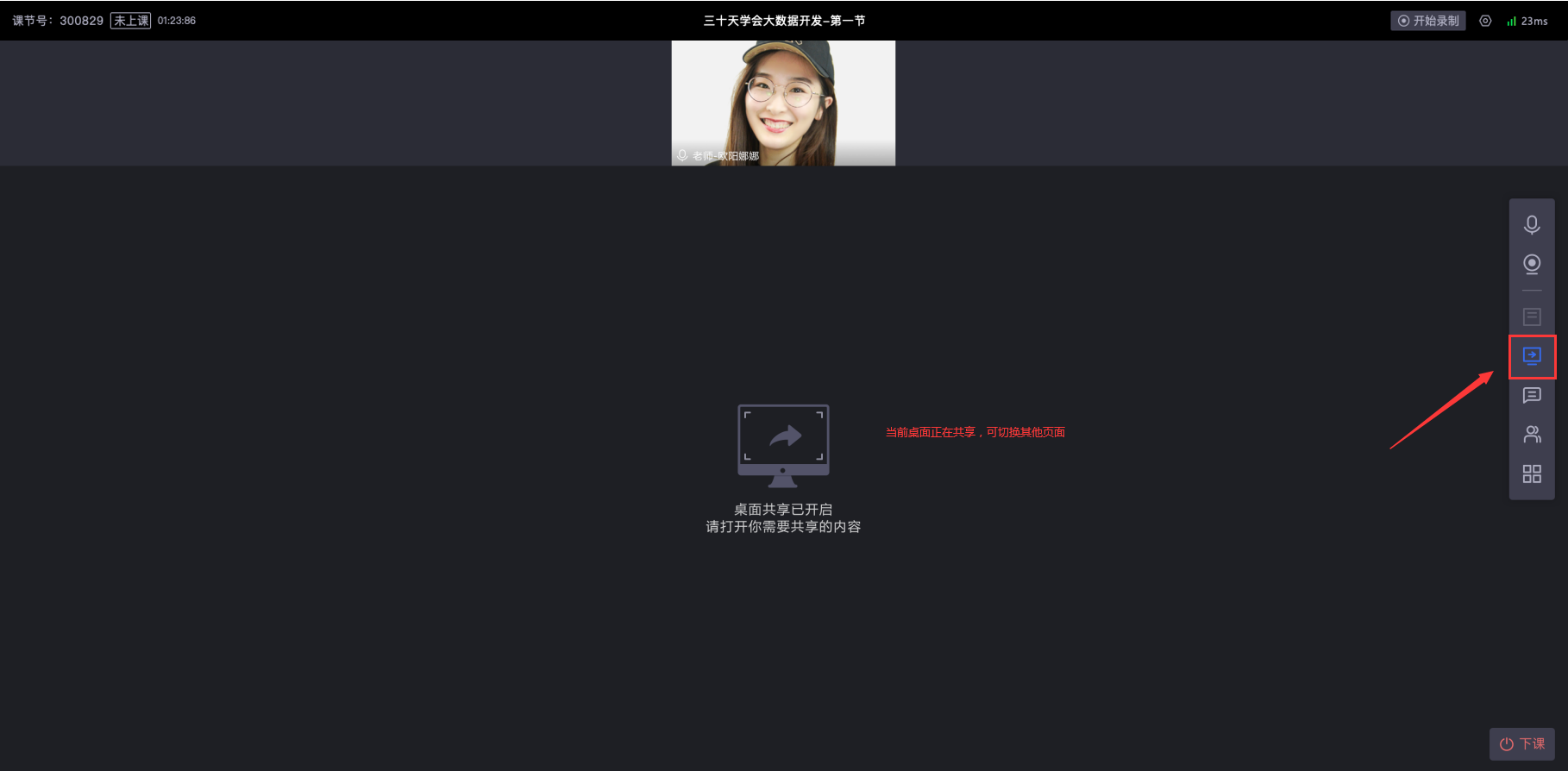
Enable screen sharing to stream the current screen content.
Co-Moderation (Live Connection)
Select Auto Invite to Stage: When the teacher clicks "Start Class," students will automatically be brought on stage.
Select Manual Invite to Stage: When the teacher clicks "Start Class," students will not automatically come on stage; the teacher needs to manually invite students to the stage.
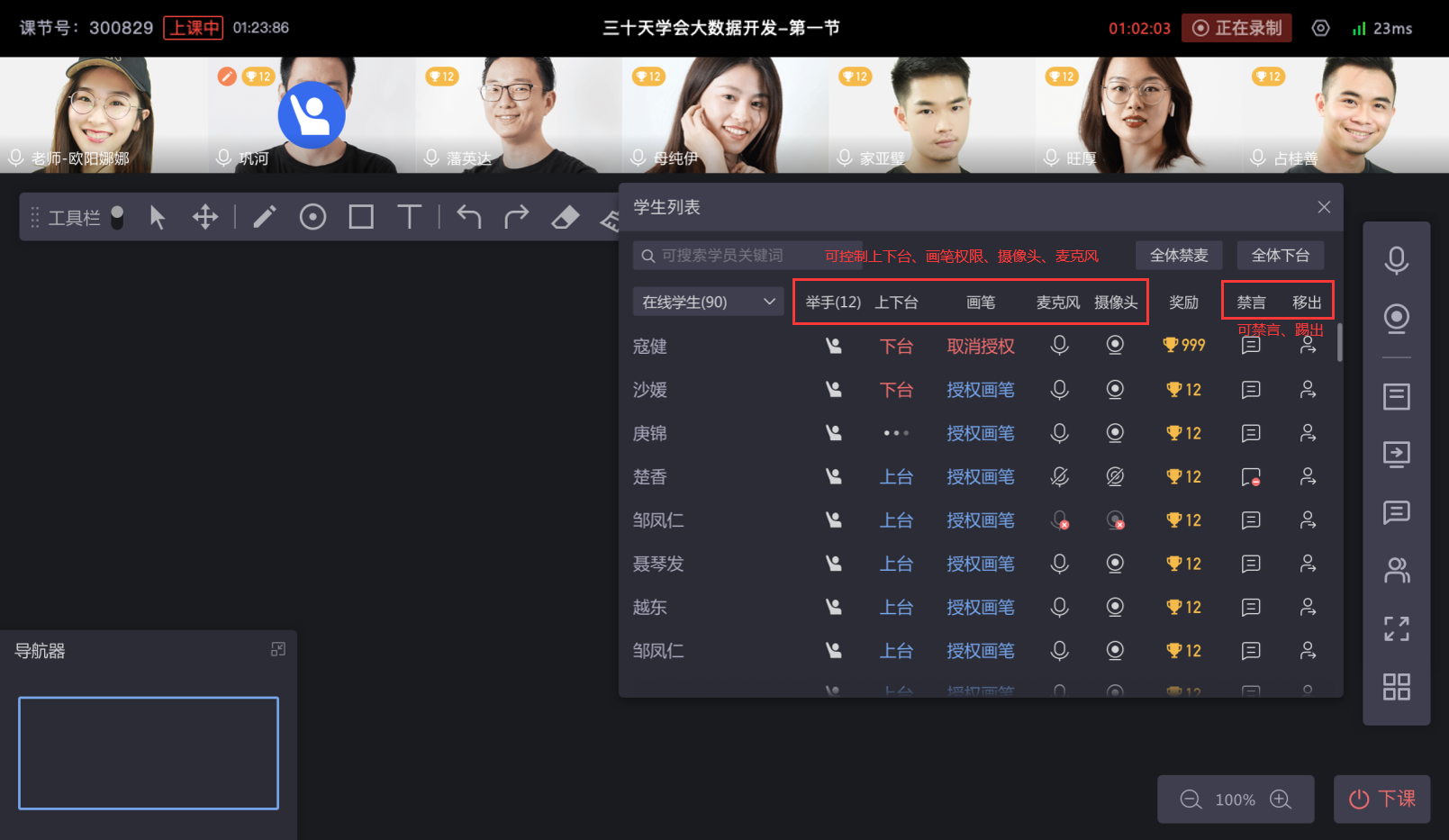
In the student list, the teacher can perform actions such as inviting/removing students from the stage, granting drawing permissions, controlling microphones/cameras, kicking out, and muting.
Whether on stage or off stage, if a student raises their hand, the teacher can see the hand-raising indicator.
Interactive Features
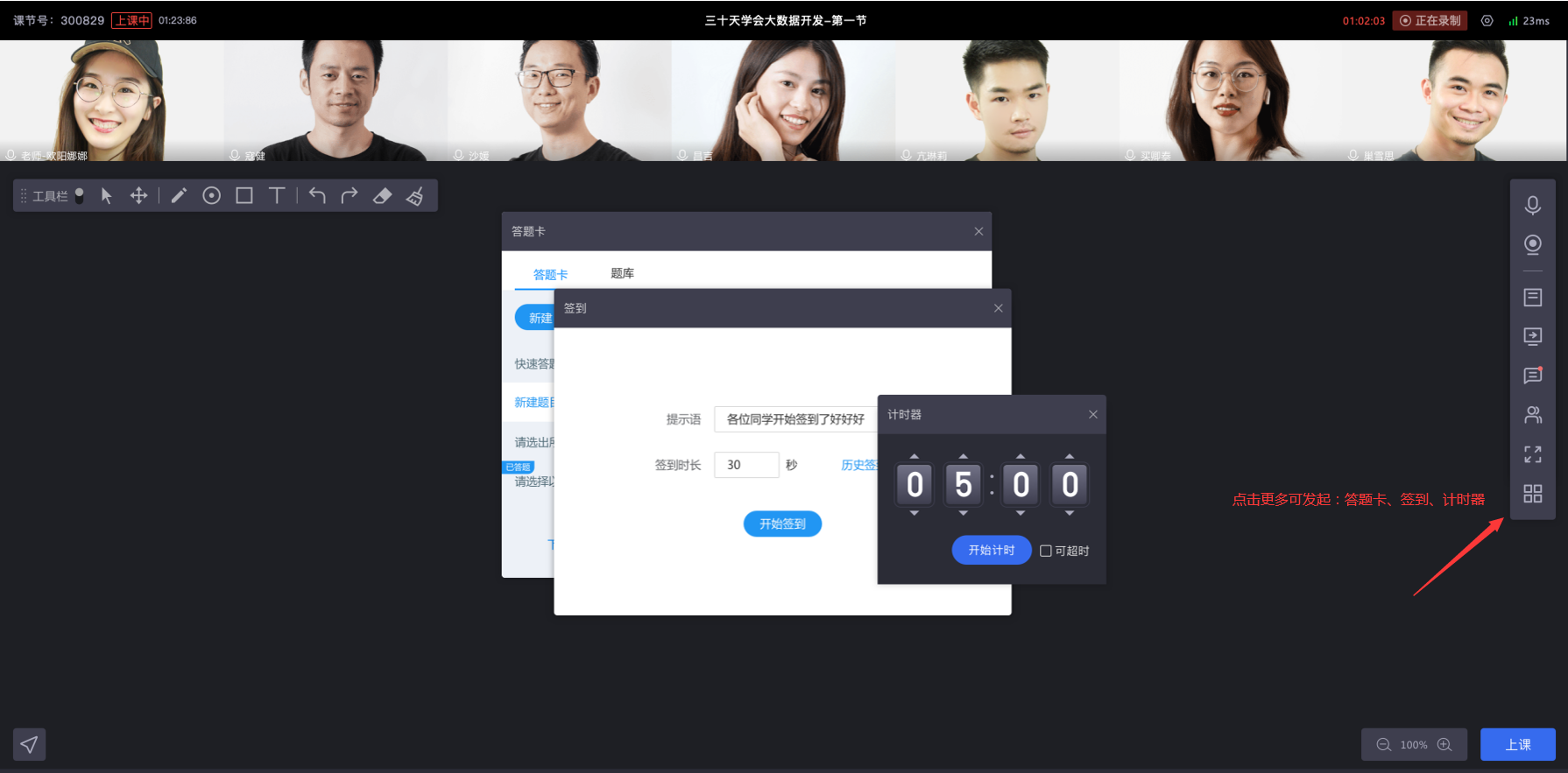
Interactive features include: Answer Cards, Attendance Check-in, and Timer.
Student Operations During Class
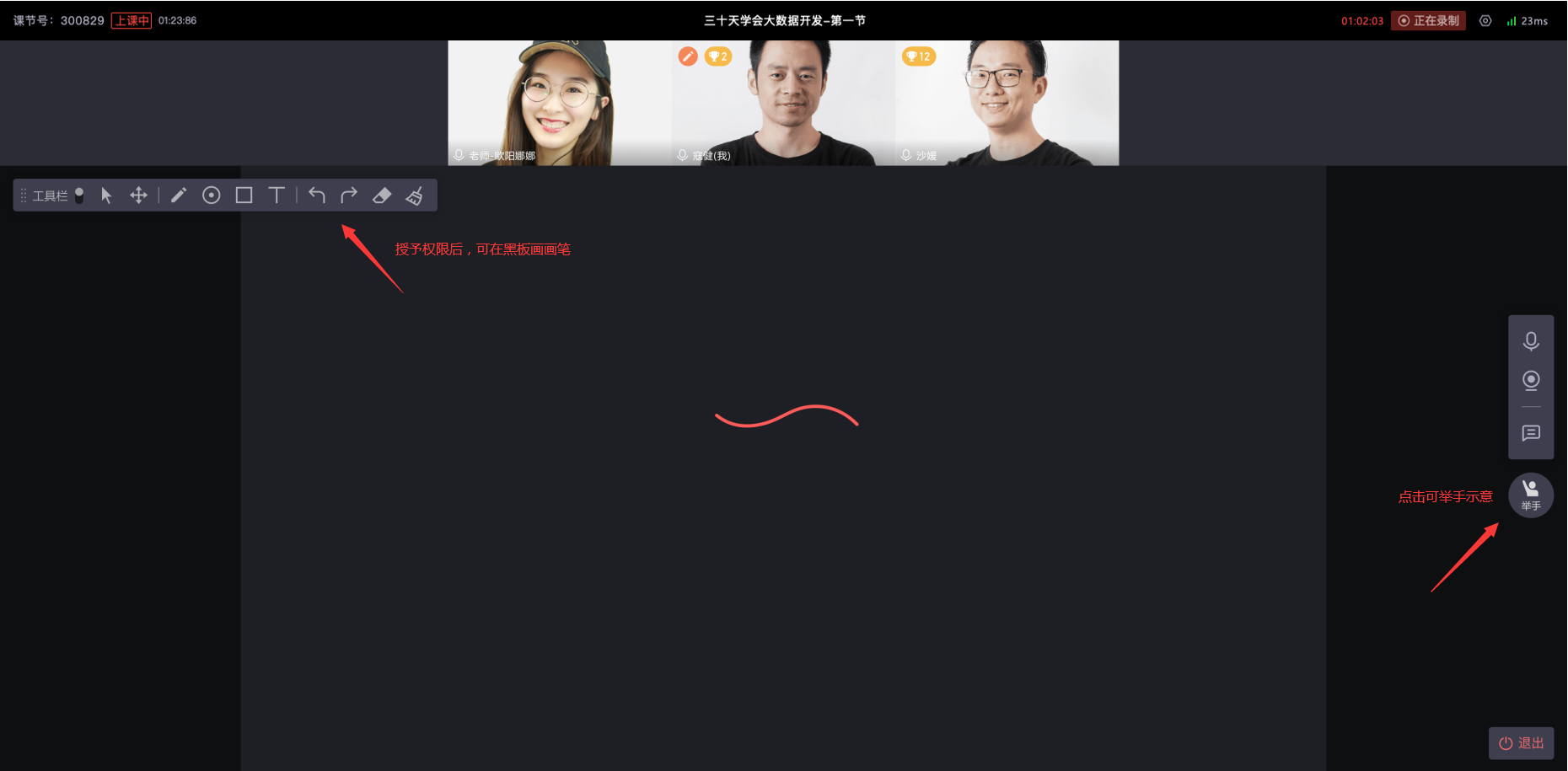
During class, if the teacher grants drawing permissions, the student can draw on the blackboard area.
If a student is on stage, they can click the "Raise Hand" button to signal.
If a student is off stage, they can click the "Raise Hand" button to request to come on stage.