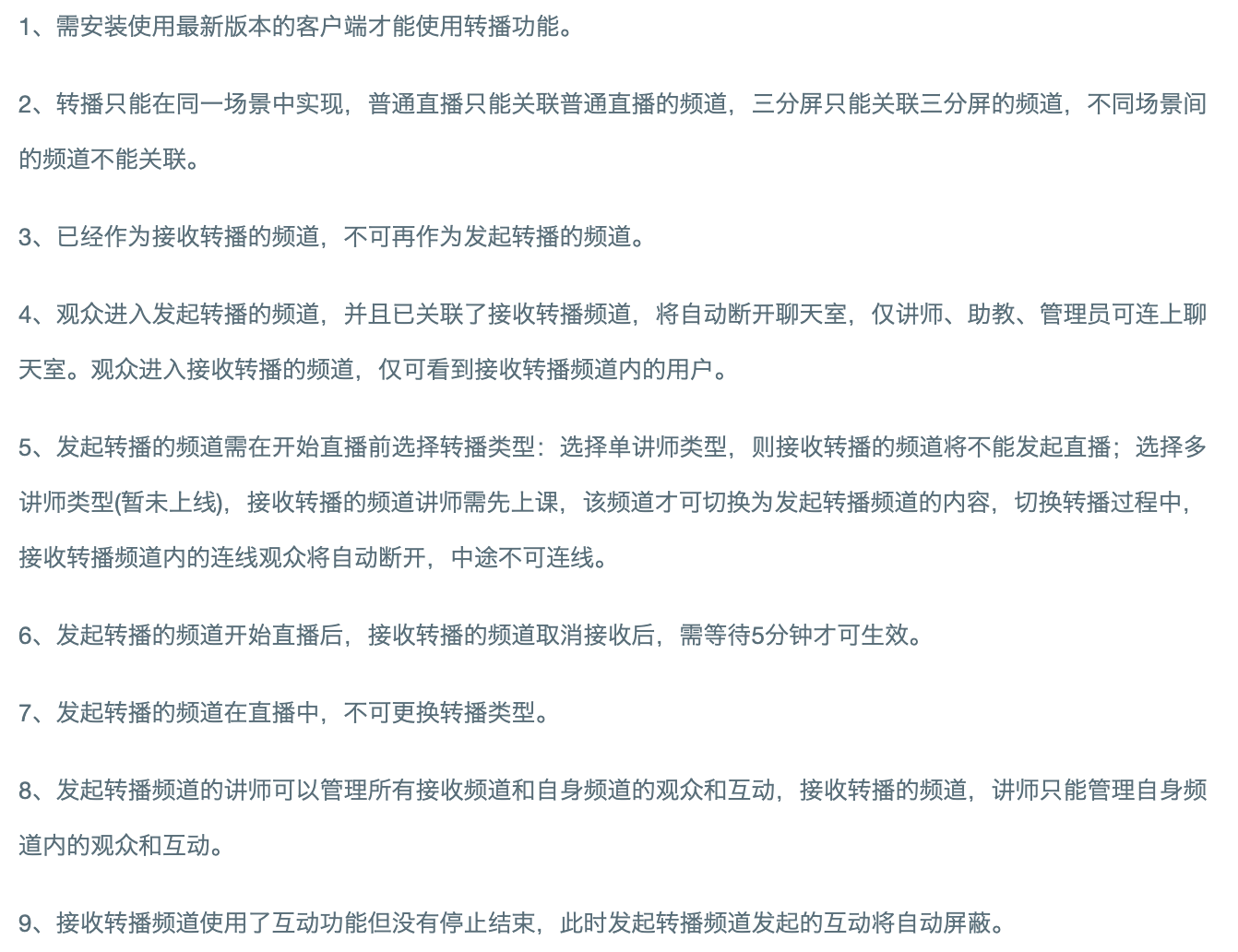
Relay Broadcast Feature Overview
1. What is Relay Broadcast
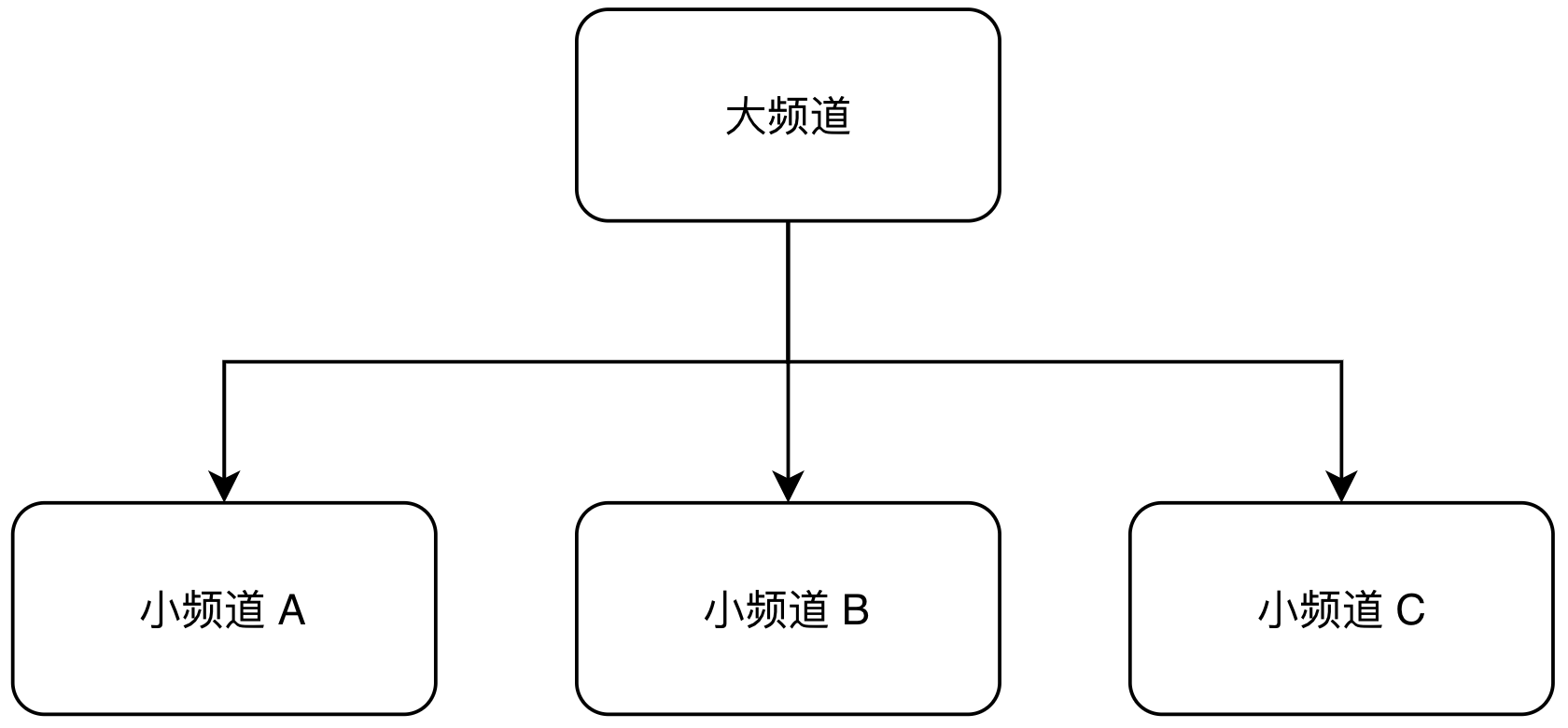
Relay broadcast is a content distribution feature that simultaneously distributes live content from a main channel to multiple sub-channels.
2. Applicable Scenarios
One Instructor, Multiple Channels: The instructor teaches in the main channel, while audiences from different sources use different sub-channels without interfering with each other.
Channel Analytics: Distribute different sub-channels to business personnel, with content output by the main channel, allowing flexible tracking of traffic generation effects for each business personnel or channel.
3. Features of Relay Broadcast
The main channel can view chat content from all sub-channels, manage all audiences centrally, and launch interactive applications (currently supports check-in and announcements) to all sub-channels.
Chat rooms in sub-channels are independent; audiences can only see chat content from their own channel. Sub-channel teaching assistants can assist the main channel in managing their channel and can launch interactive features such as answer sheets, surveys, and lucky draws, which only take effect in their own channel.
4. How to Use
Contact your account manager to enable the relay broadcast feature.
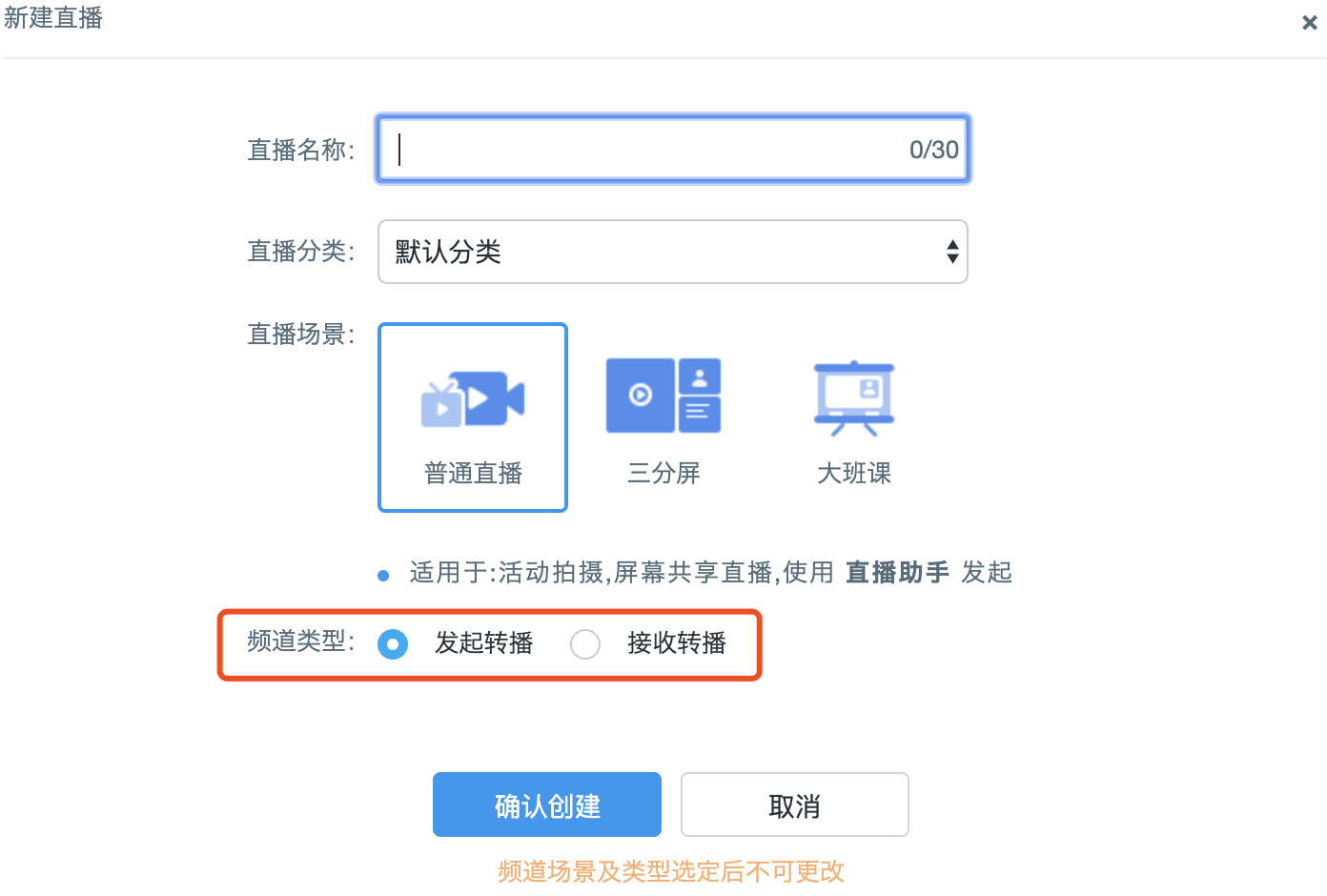
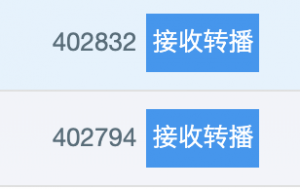
Create a new live channel. The "Channel Type" defaults to "Initiate Relay Broadcast" (main channel). For a sub-channel, select "Receive Relay Broadcast". Sub-channels will have a "Receive Relay Broadcast" label.
- After creation, go to "Main Channel > Channel Backend > Live Room Management > Live Room > Channel Relay > Associate Receive Relay Channels" and select the sub-channels to relay.
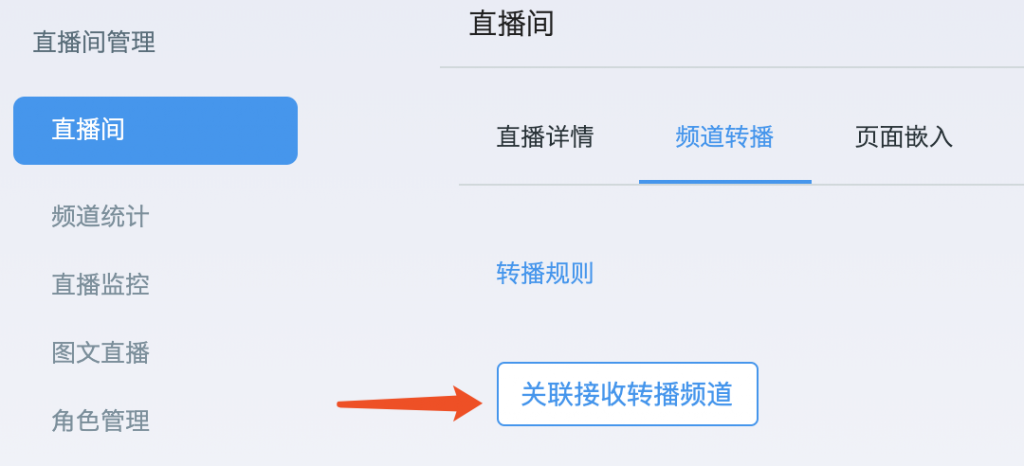
New associations or disassociations take effect after 5 minutes. Refresh the viewing page and restart the client.
Log in to the client (currently only supports client, not web broadcasting) on the main channel and start a live broadcast. Associated sub-channels will synchronously play the live content.
Cloud recording files are saved under the main channel.
It is recommended to read "Channel Backend > Live Room Management > Live Room > Channel Relay > Relay Rules" in detail.