


SMS Verification Process (Tencent Cloud)
1. Activating Tencent Cloud SMS Service
a. Click to go to the Tencent Cloud SMS Service Platform, and click "Free Activation";
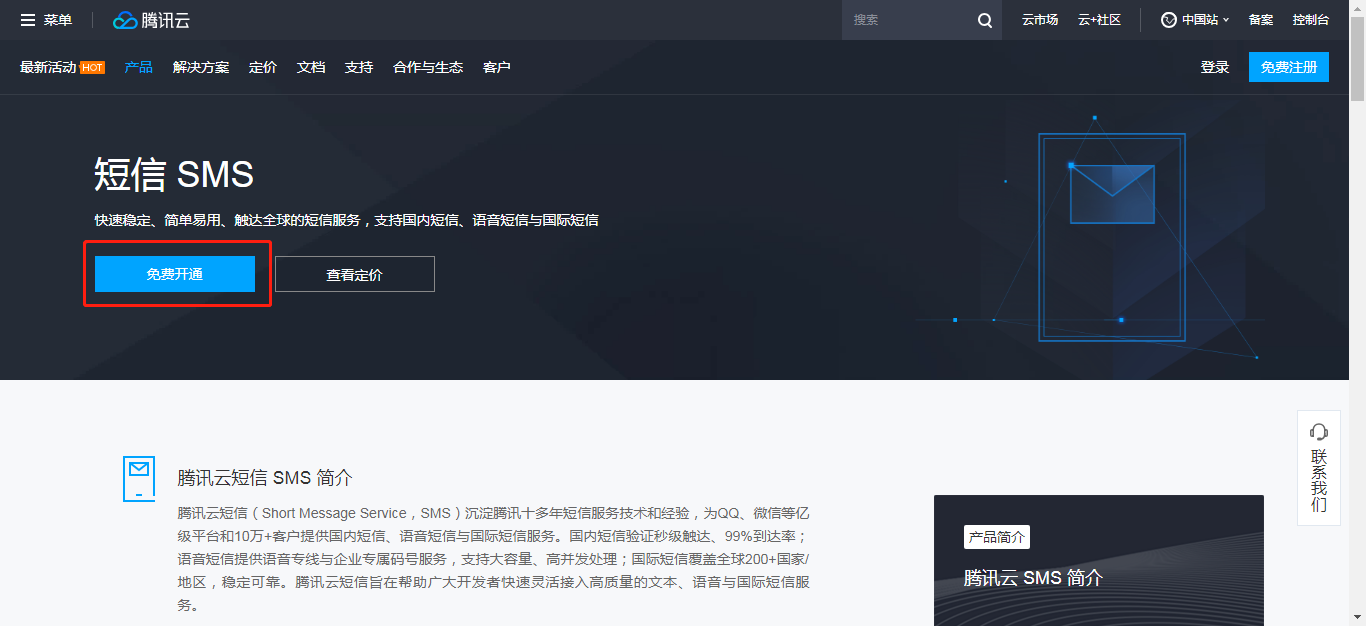 b. Follow the on-screen instructions to complete login;
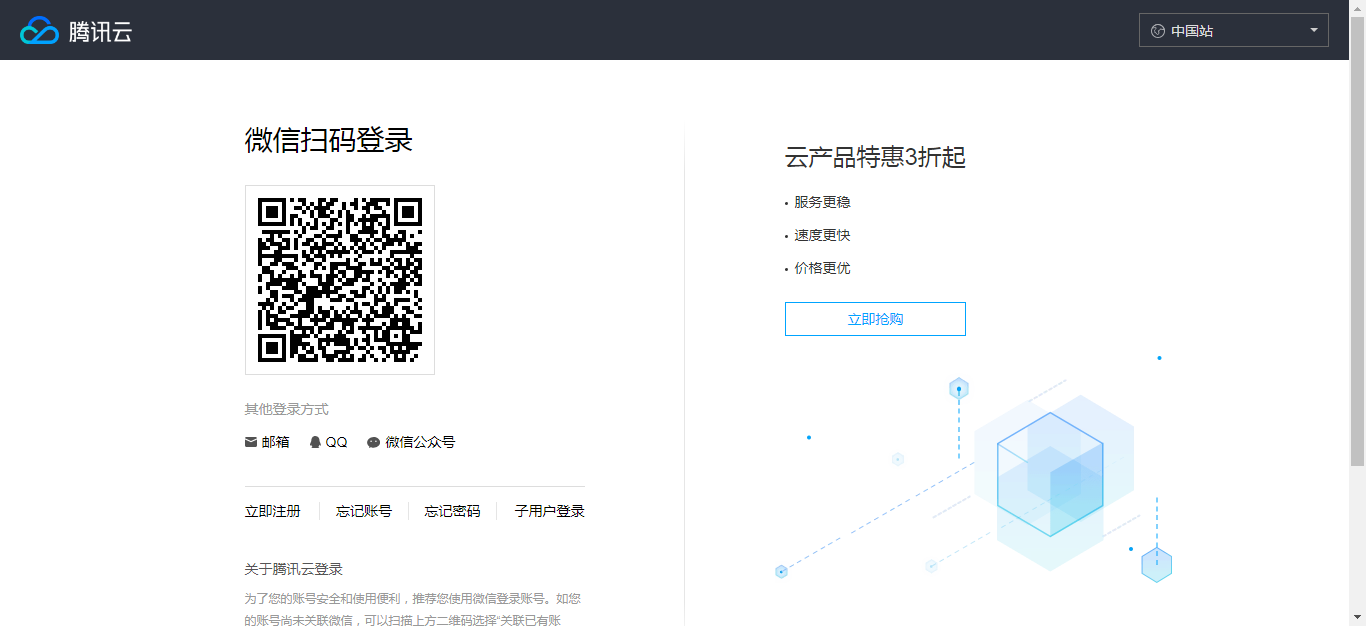 c. Select the authentication type according to your needs;
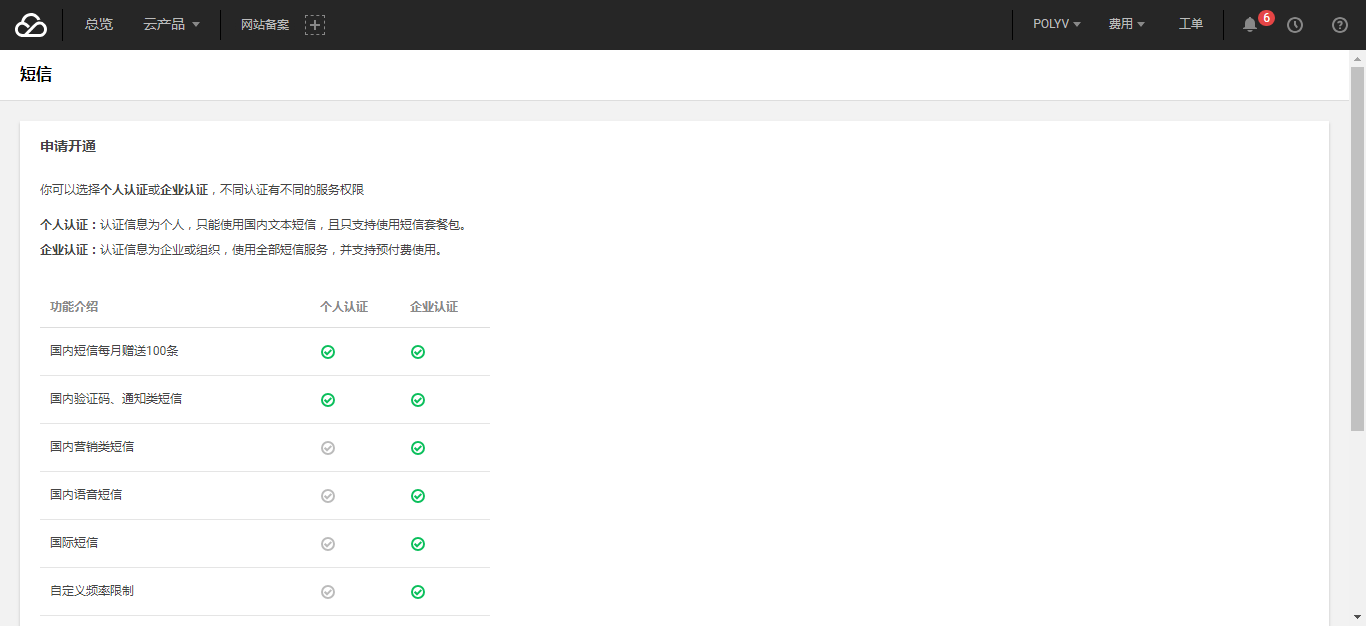 Note: ①Individual & Enterprise Authentication Guide; ②After completing authentication, the authentication type can still be changed in Account Info -> Account Center.
d. After completing authentication, you will be automatically redirected to the Tencent Cloud SMS Console. Click "Add Application".
Note: ①Individual & Enterprise Authentication Guide; ②After completing authentication, the authentication type can still be changed in Account Info -> Account Center.
d. After completing authentication, you will be automatically redirected to the Tencent Cloud SMS Console. Click "Add Application".
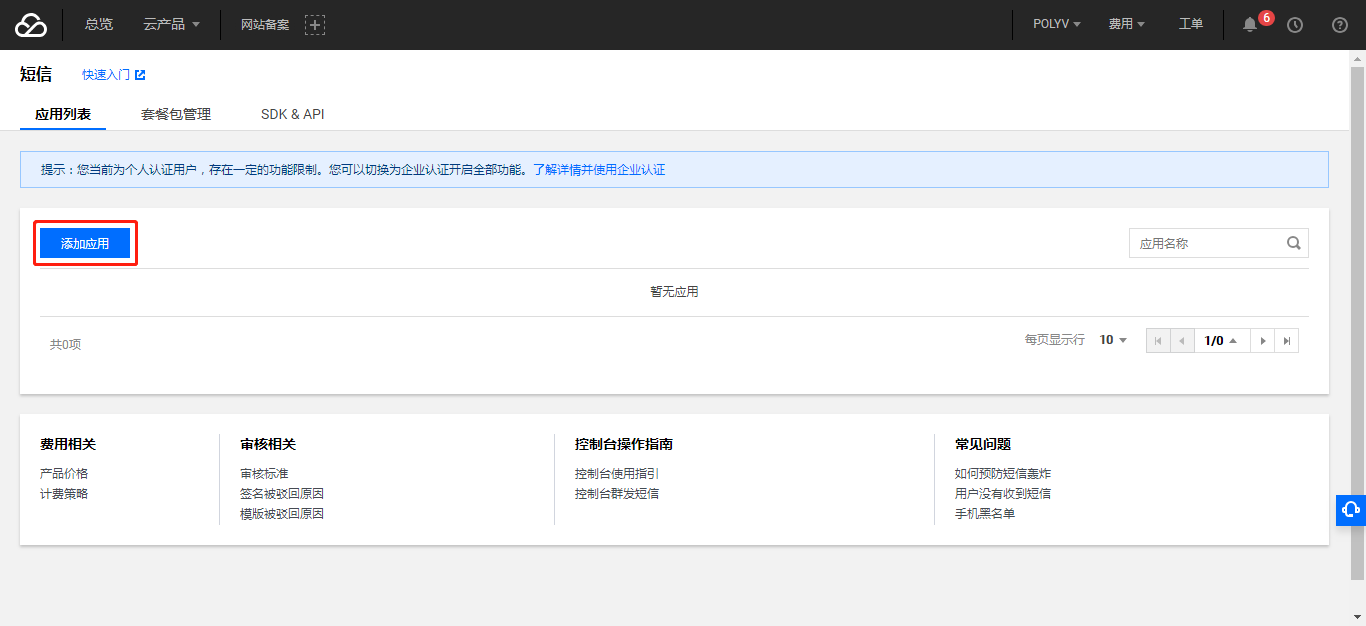 e. Enter the application name and application description, then complete the application creation.
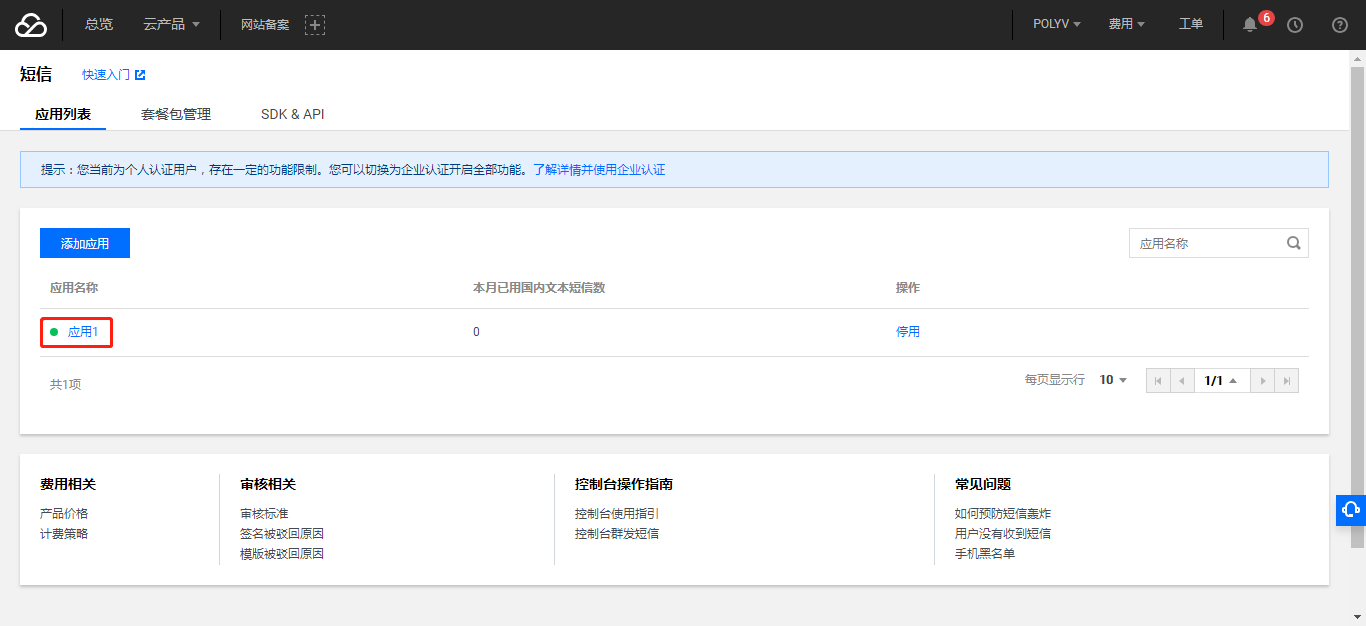
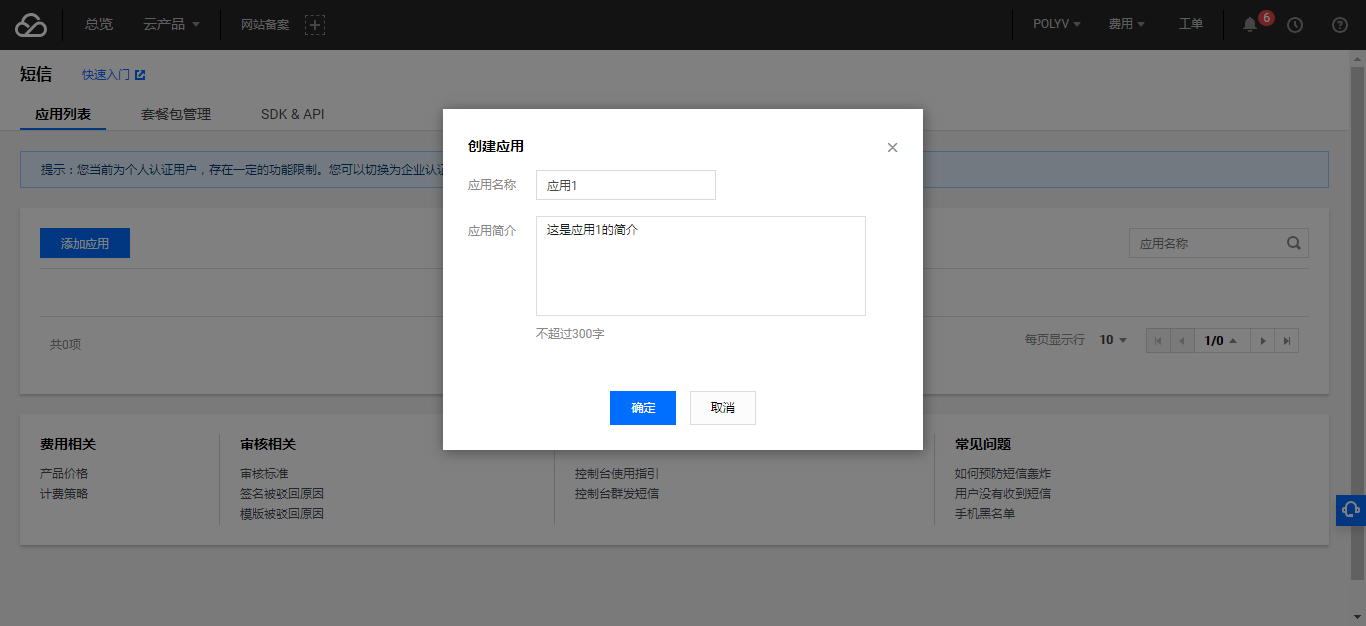 f. After creation, click the application name to enter the SMS application configuration interface.
 g. Follow the instructions in the image below to copy the SDK AppID and App Key;
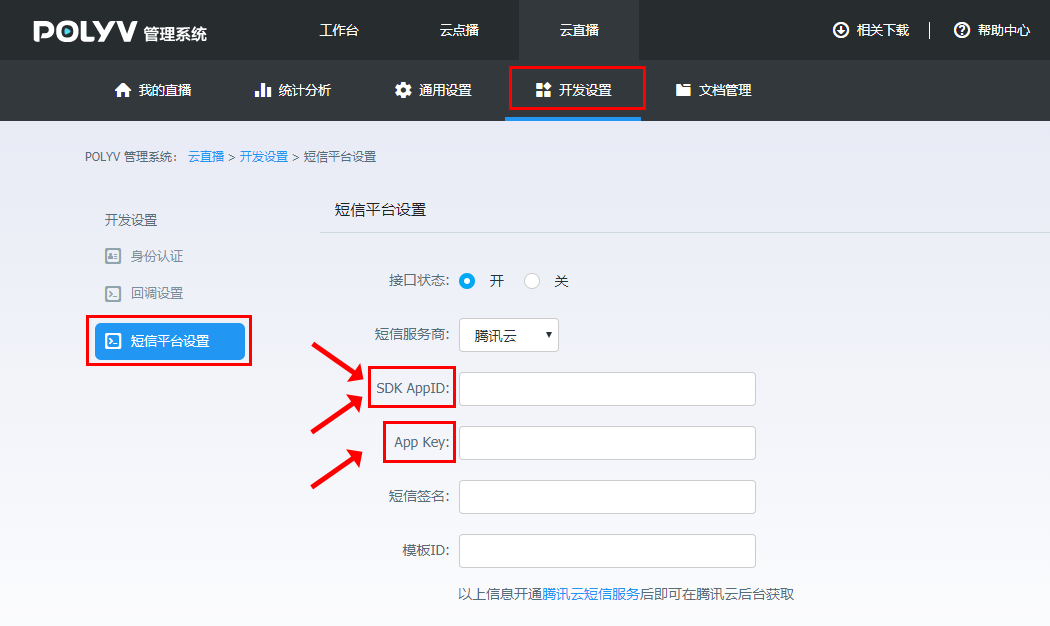
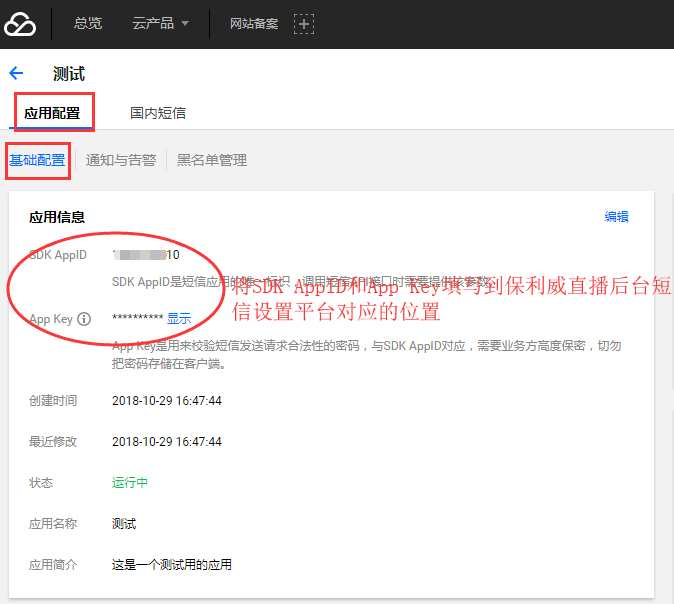 Fill them into the "SDK AppID" and "App Key" fields in the live streaming backend respectively.
Path: Development Settings -> SMS Platform Settings.
Fill them into the "SDK AppID" and "App Key" fields in the live streaming backend respectively.
Path: Development Settings -> SMS Platform Settings.
2. Creating SMS Signatures and SMS Body Templates
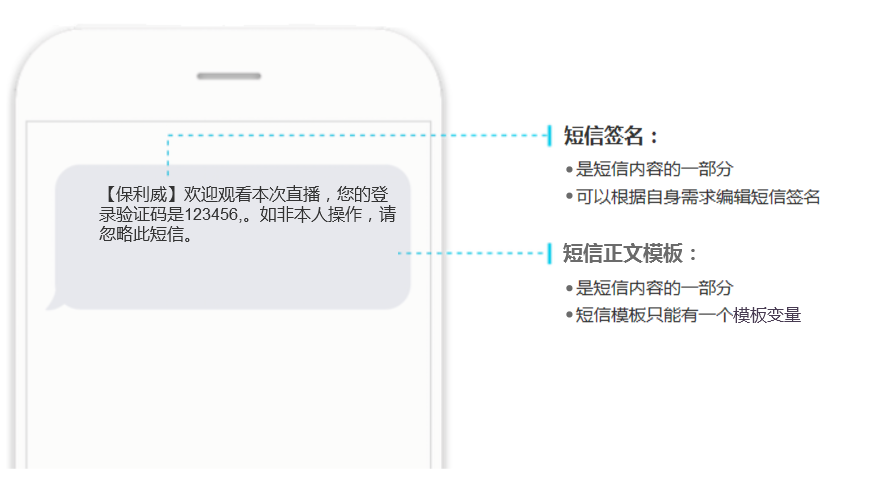
a. What are SMS signatures and SMS body templates?
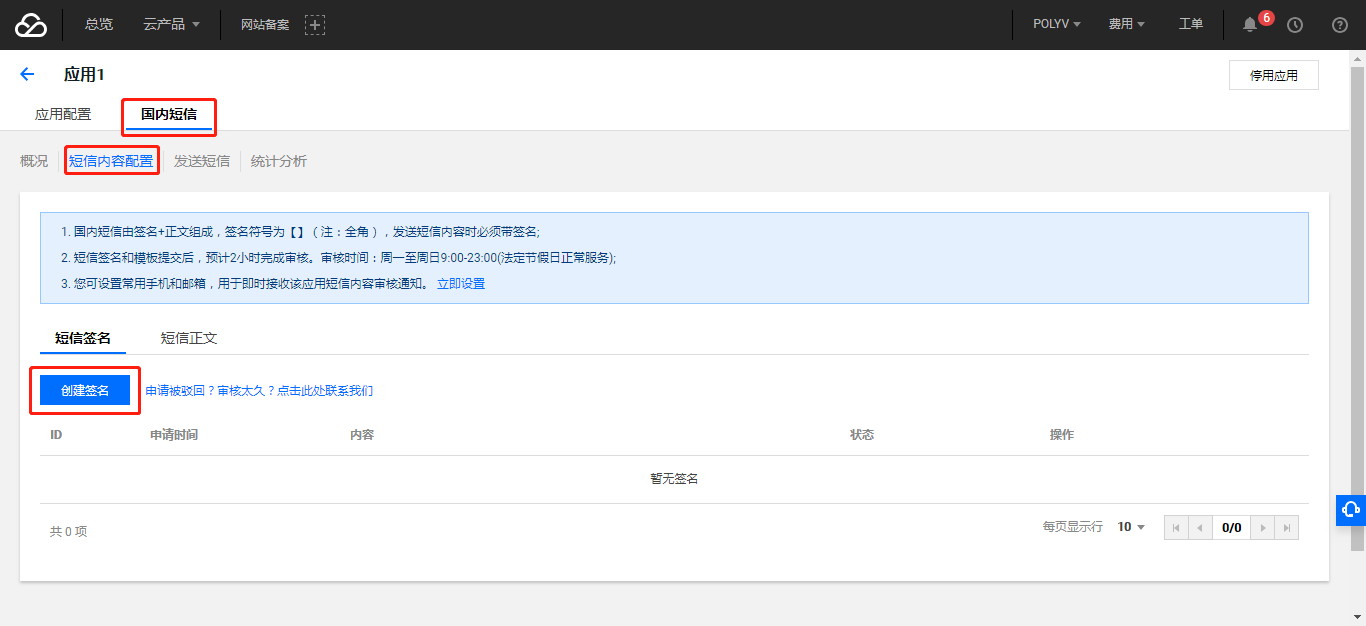
 b. Click "Domestic SMS" -> "SMS Content Configuration" -> "Create Signature" in sequence.
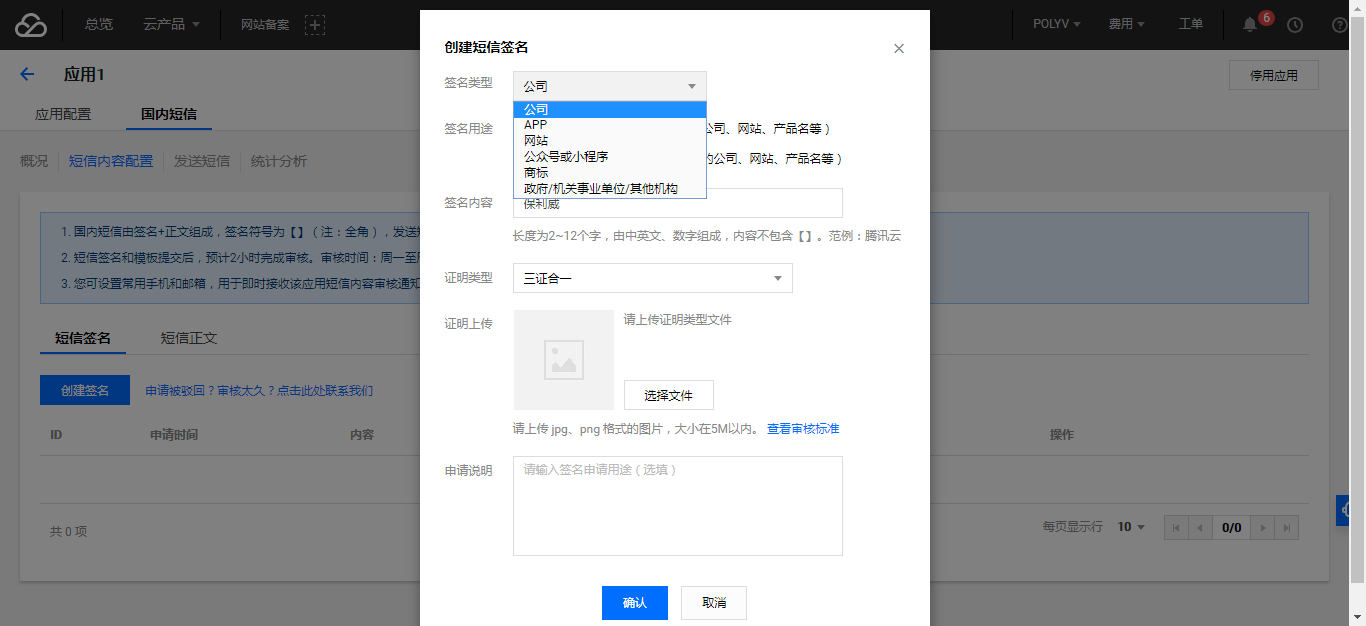
 c. Select the signature type and fill in the remaining content as required by the system.
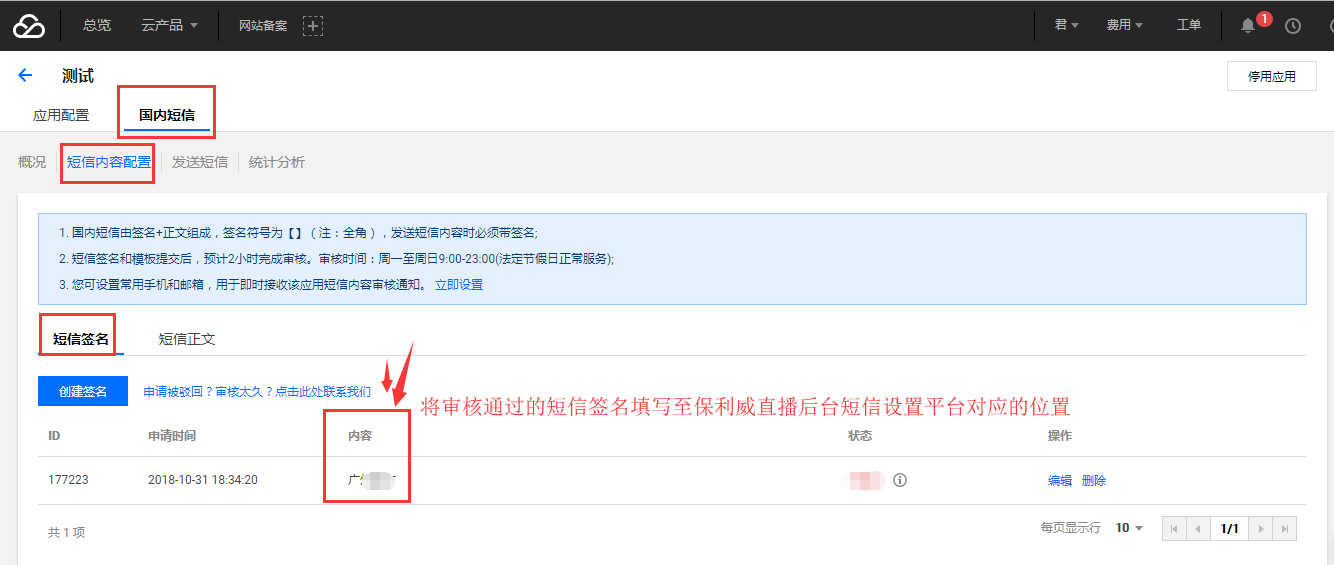
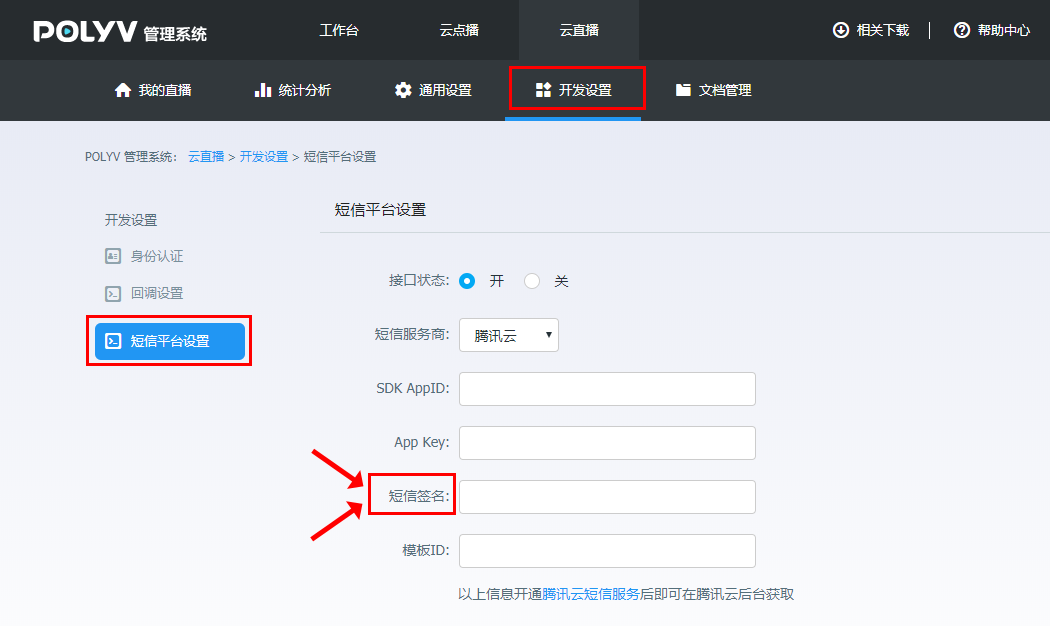
 d. After the signature is created, it will be reviewed within 2 hours. Once the signature review is approved, follow the instructions in the image below to copy the signature content and fill it into the "SMS Signature" field in the live streaming backend.
Path: Development Settings -> SMS Platform Settings.
d. After the signature is created, it will be reviewed within 2 hours. Once the signature review is approved, follow the instructions in the image below to copy the signature content and fill it into the "SMS Signature" field in the live streaming backend.
Path: Development Settings -> SMS Platform Settings.
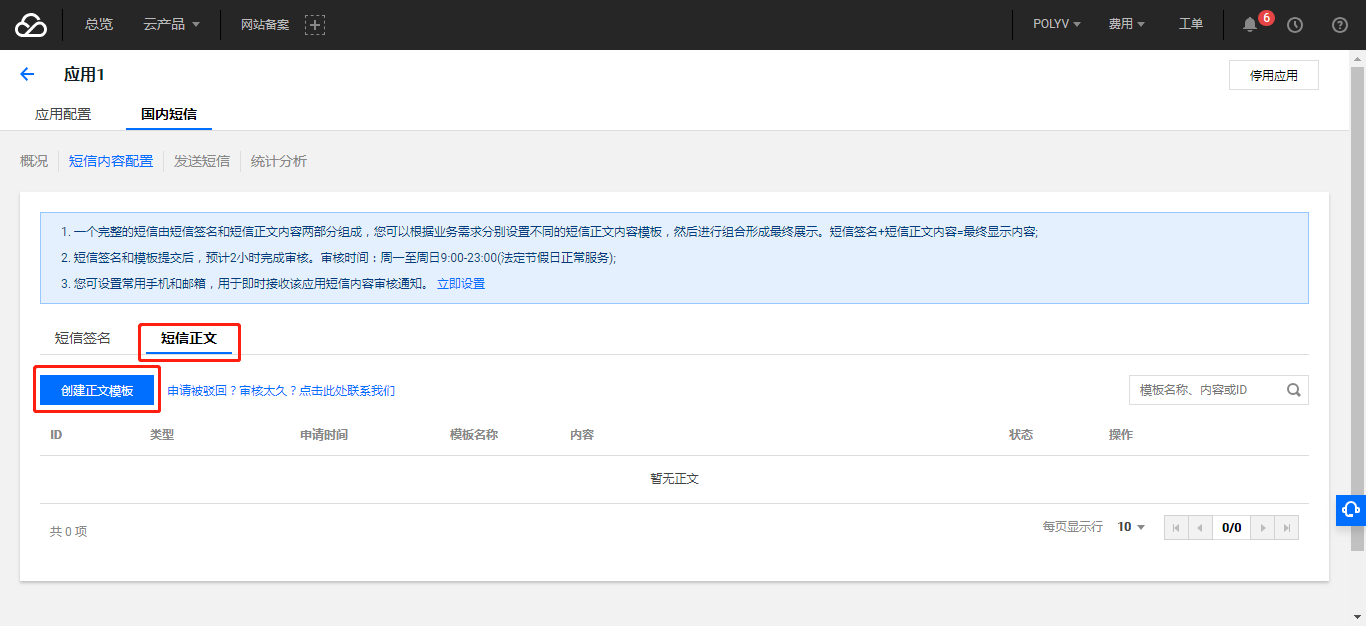
 e. Click "SMS Body" -> "Create SMS Template" in sequence.
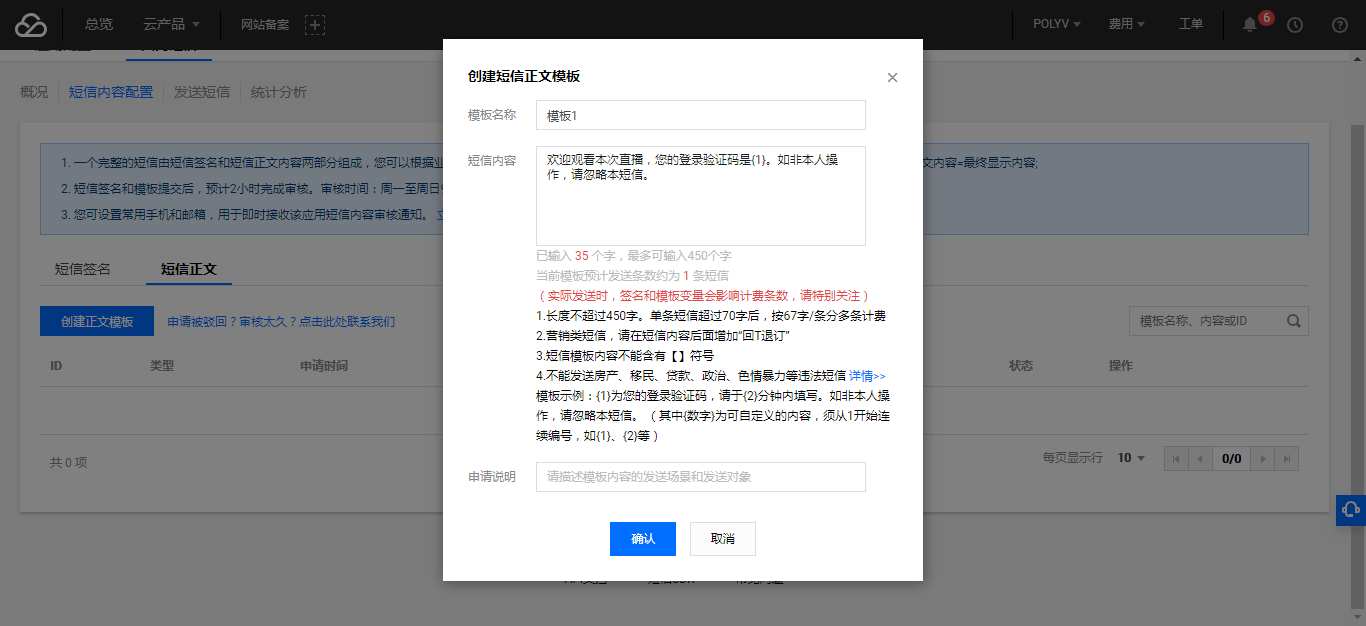
 f. Enter the template name and SMS content, then click "Confirm" to complete the body template creation.
 Note:
① The "SMS Content" can be set to: Welcome to this live stream. Your login verification code is {1}. If this was not you, please ignore this message.
② Currently, POLYV only supports one template variable in the SMS template. Do not enter multiple template variables.
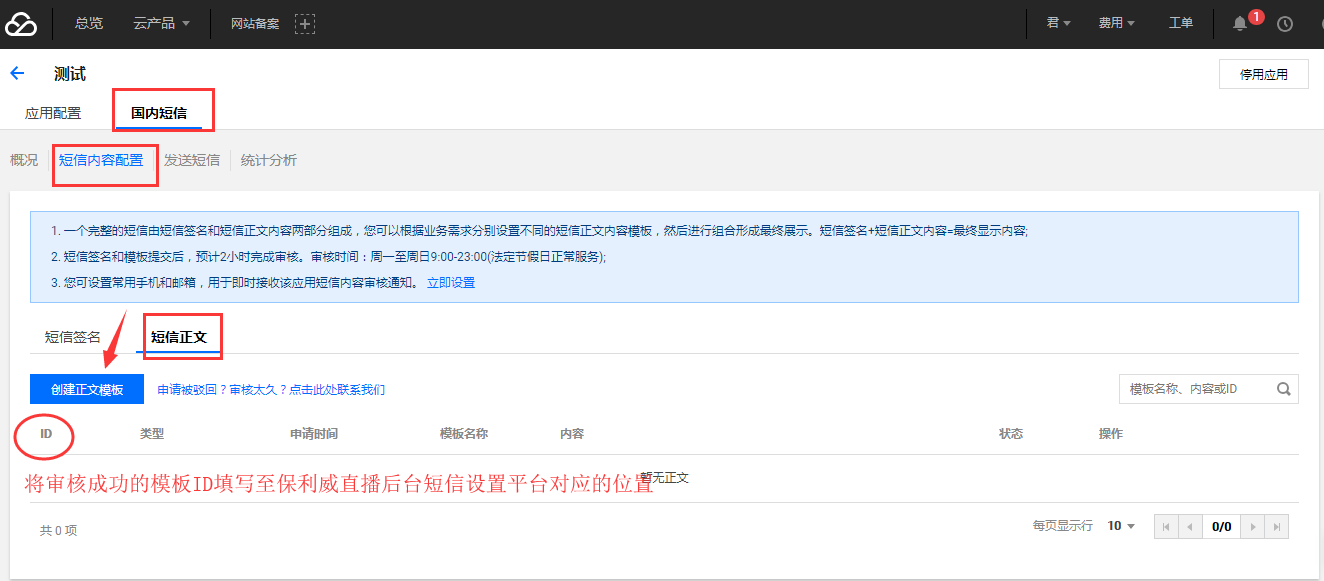
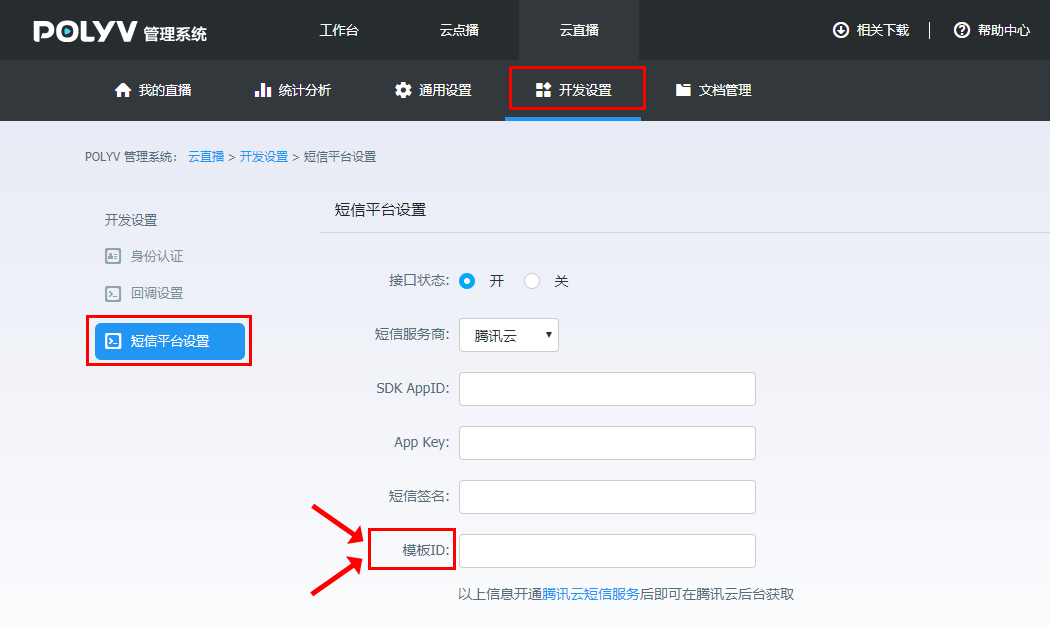
g. After the body template is created, it will be reviewed within 2 hours. Once the template review is approved, follow the instructions in the image below to copy the template ID content and fill it into the "Template ID" field in the live streaming backend.
Path: Development Settings -> SMS Platform Settings.
Note:
① The "SMS Content" can be set to: Welcome to this live stream. Your login verification code is {1}. If this was not you, please ignore this message.
② Currently, POLYV only supports one template variable in the SMS template. Do not enter multiple template variables.
g. After the body template is created, it will be reviewed within 2 hours. Once the template review is approved, follow the instructions in the image below to copy the template ID content and fill it into the "Template ID" field in the live streaming backend.
Path: Development Settings -> SMS Platform Settings.
3. SMS Balance Alert Binding
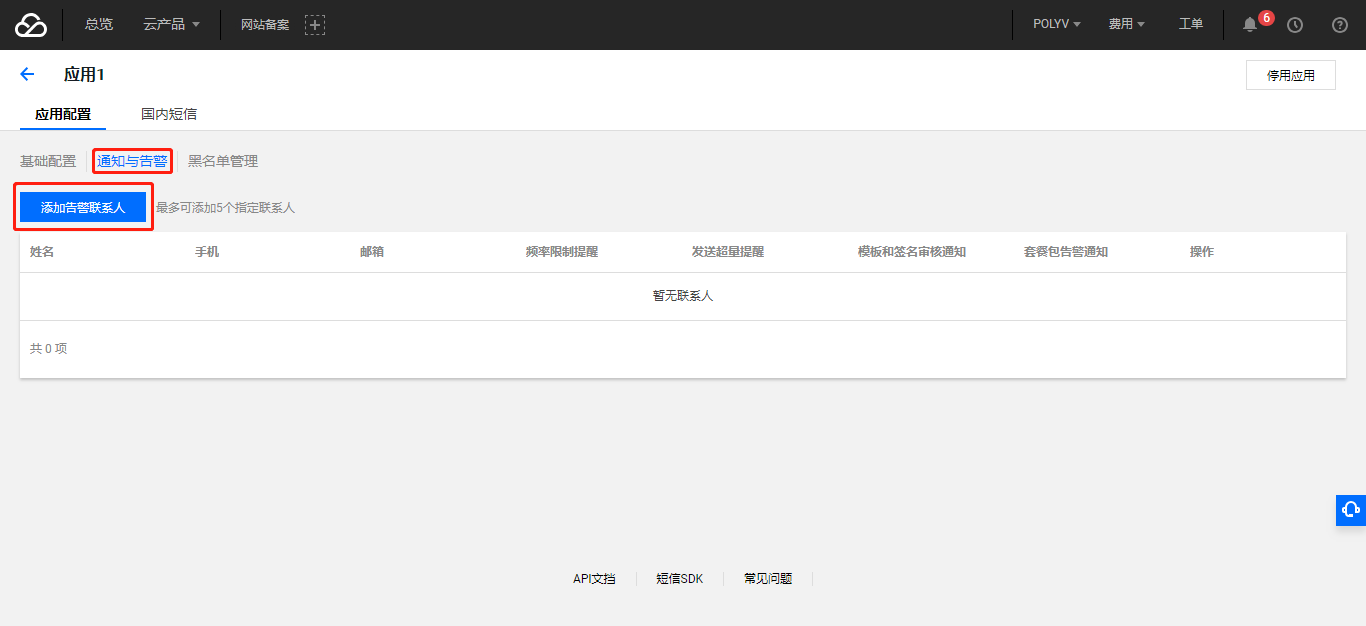
a. Click "Application Configuration" -> "Notifications & Alerts" -> "Add Alert Contact" in sequence.
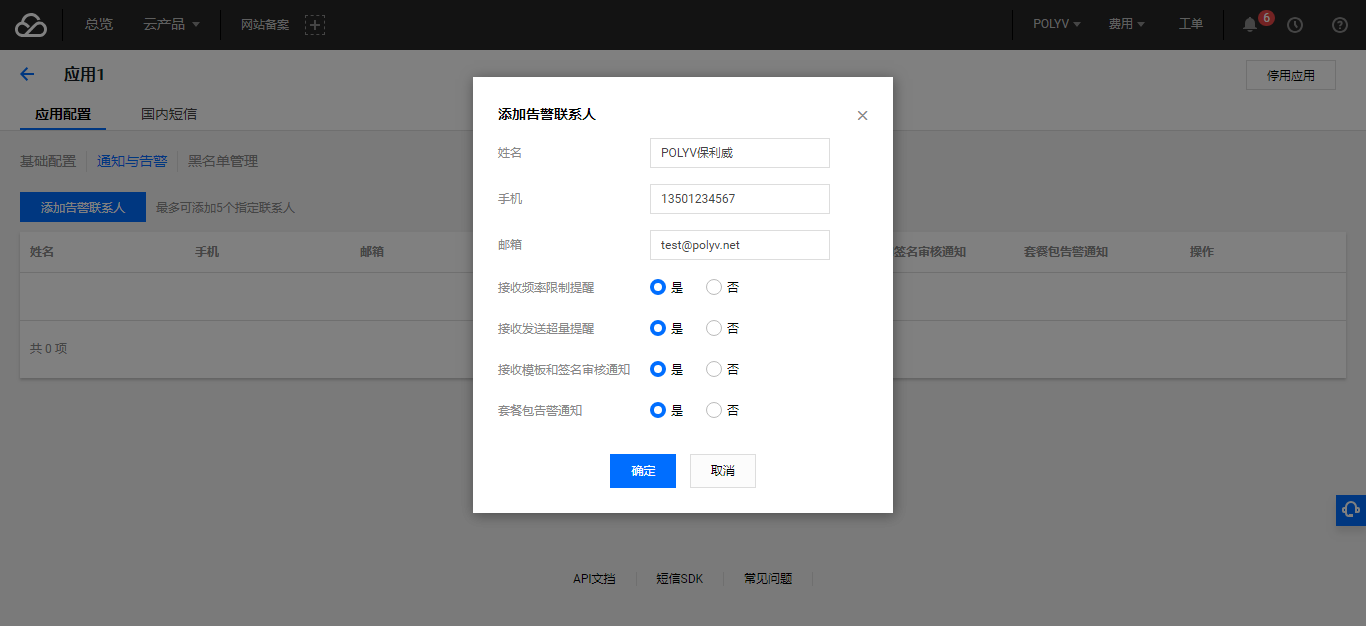
 b. Enter the contact name, phone number, and email, then click "Confirm".
 c. After the alert contact is added successfully, the contact will be able to receive timely alerts such as insufficient SMS balance.
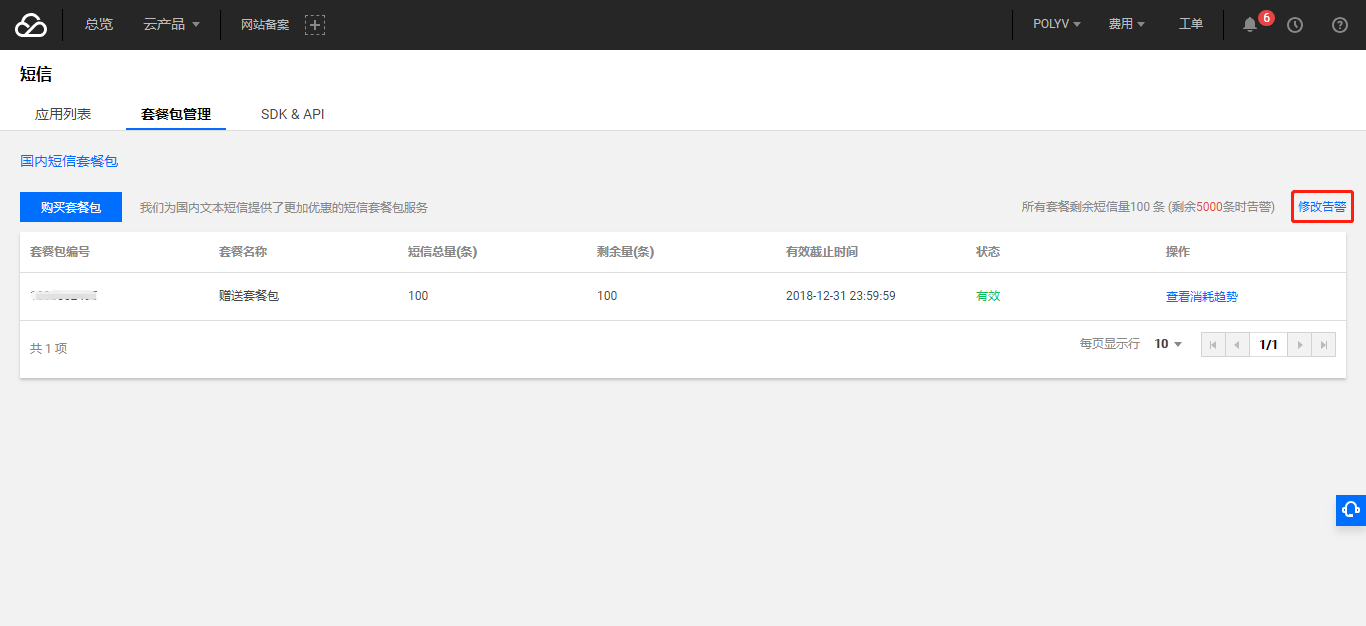
You can also set the SMS balance threshold for alerts in "Package Management" -> "Modify Alert".
c. After the alert contact is added successfully, the contact will be able to receive timely alerts such as insufficient SMS balance.
You can also set the SMS balance threshold for alerts in "Package Management" -> "Modify Alert".
 Through the above 3 steps, you can complete the SMS platform settings in the POLYV live streaming backend. After the setup is complete, you can enable the SMS verification toggle for phone numbers and test whether it works on the viewing page.
