


Live Assistant Chat Area
Updated: 2022-05-24 14:25:56
Chat Area: Displays channel chat messages, enables chat interaction and chat management.
The chat area includes channel information display and an interaction zone.
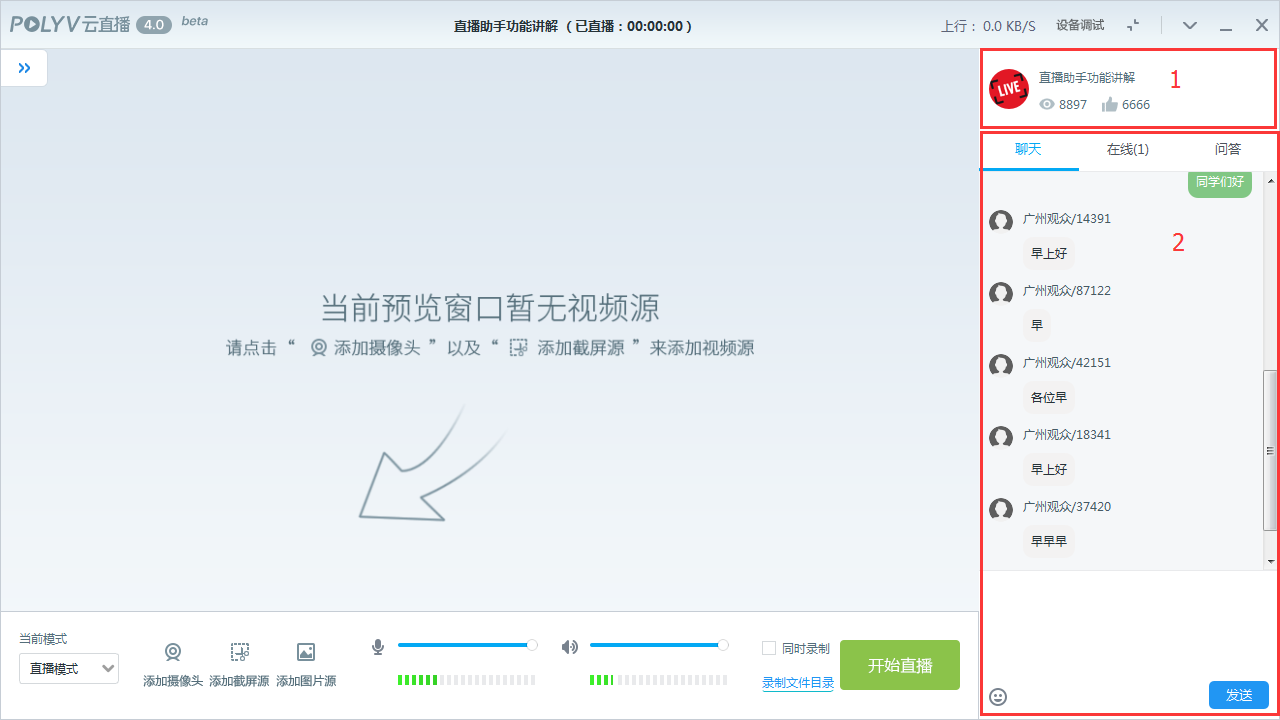
1. Channel Information Display Area
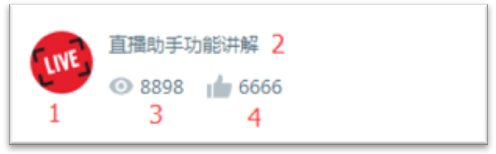
The content displayed in this area is configured from the backend.
- Channel icon
- Live channel name
- Total viewers
- Number of likes
2. Interaction Zone
The interaction zone is divided into the chat public screen, online user list, and Q&A functionality.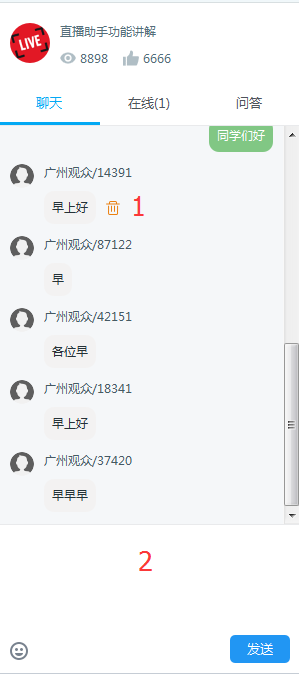
2.1 Chat Public Screen
1. Delete chat messages. When hovering over a chat message, a delete button appears behind it. Click it to delete that message. 2. Chat input box, where you can enter text and emojis to interact with the audience.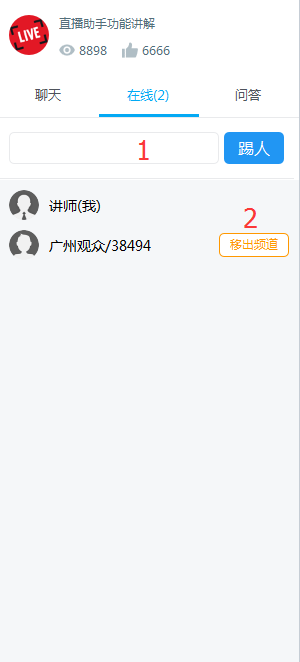
2.2 Online User List
1. You can enter a viewer's name and click "Kick" to remove them from the channel. After being kicked, they cannot rejoin for 24 hours. 2. You can also directly click "Remove from channel" next to a viewer's name to remove them. After removal, they cannot rejoin for 24 hours.2.3 Q&A Functionality
The host can interact with the audience using the Q&A feature. The interaction effect is shown below.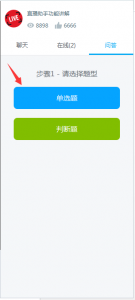
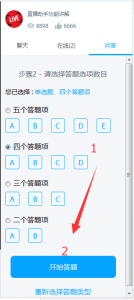
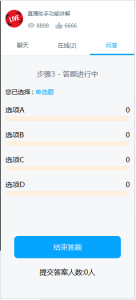
- 1. Select the Q&A type
- 2. Example: Choose single choice with four options
- 3. Collect audience answers

