


POLYV Live Assistant Quick Start
Updated: 2022-05-24 14:25:56
Quick Live Streaming (The Live Assistant client supports Windows 7 and above only) Steps: ① Create a live channel — ② Push stream via client — ③ Share and watch Live account registration: http://my.polyv.net/v2/register Live backend login: http://my.polyv.net/v2/login
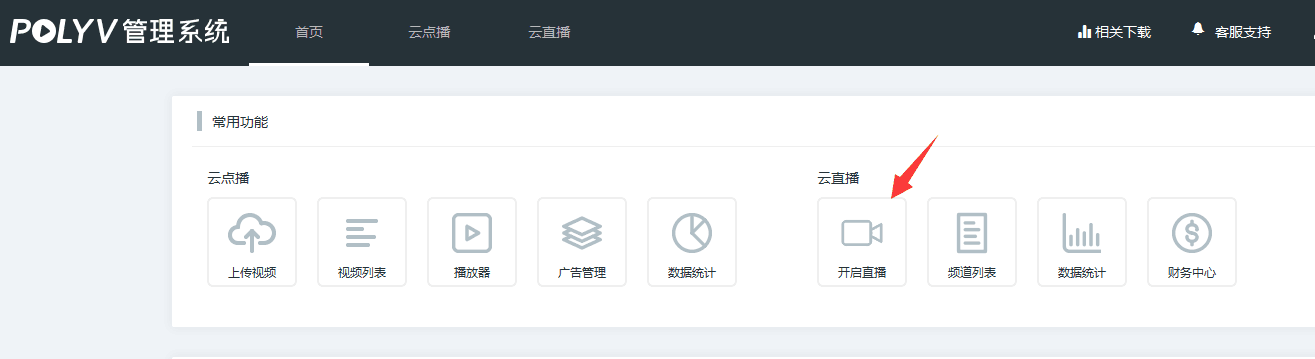
- Log in to the live streaming system backend, click "Start Live Streaming", and fill in the live activity name;
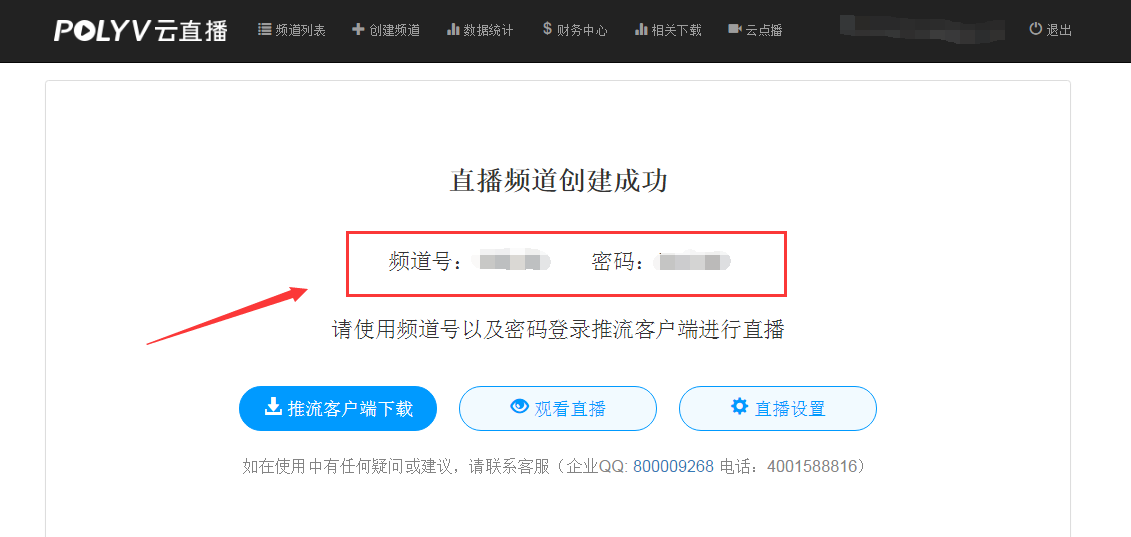
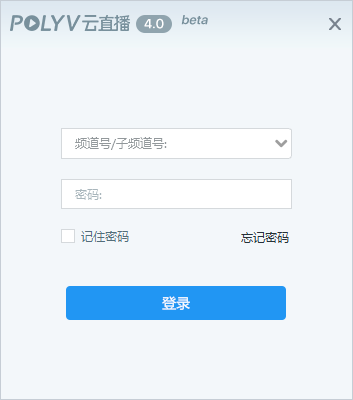
 2. The backend automatically generates a channel number and password. Download and install POLYV Live Assistant, then log in using the channel number and password;

If you encounter an MSVCP120.dll error when installing the Live Assistant, please install the repair tool. Download link
- After logging in, follow the prompts to add a camera source or screen capture source;
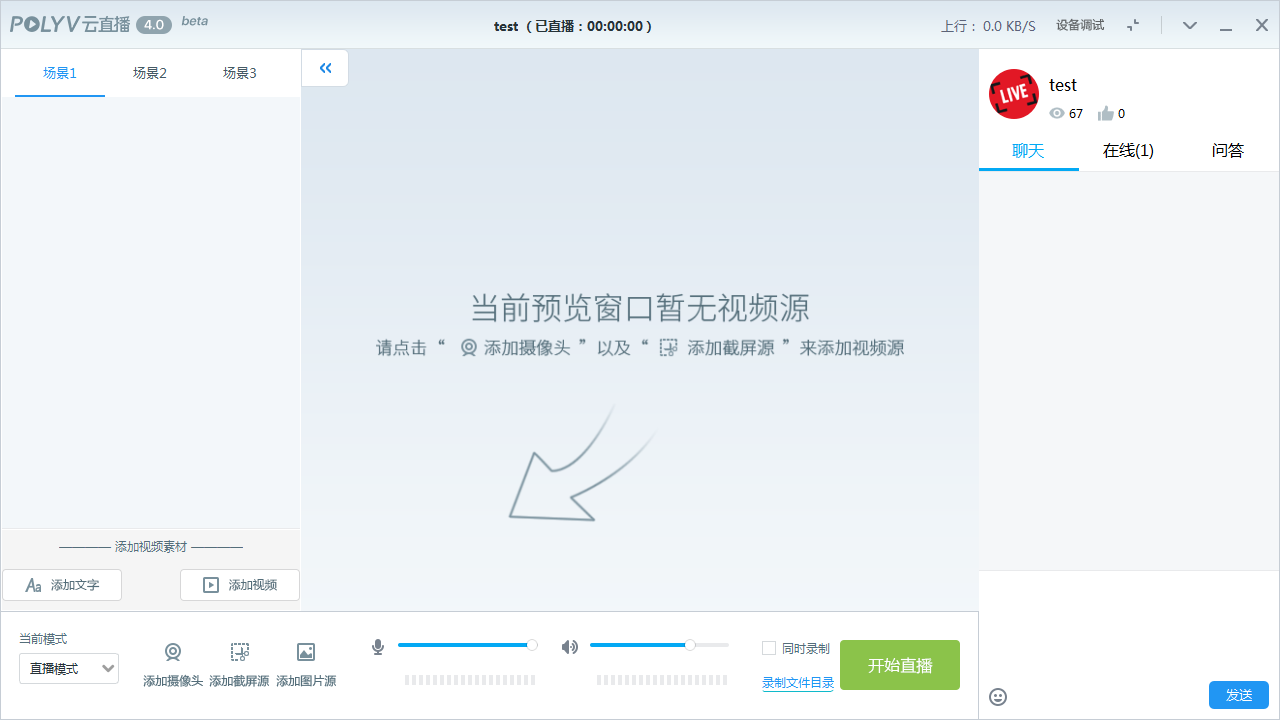
- When you click on a live source, a red editing frame appears around it. Drag the four corners of the frame to adjust the position and size of the video source. Right-click to quickly arrange the layout;
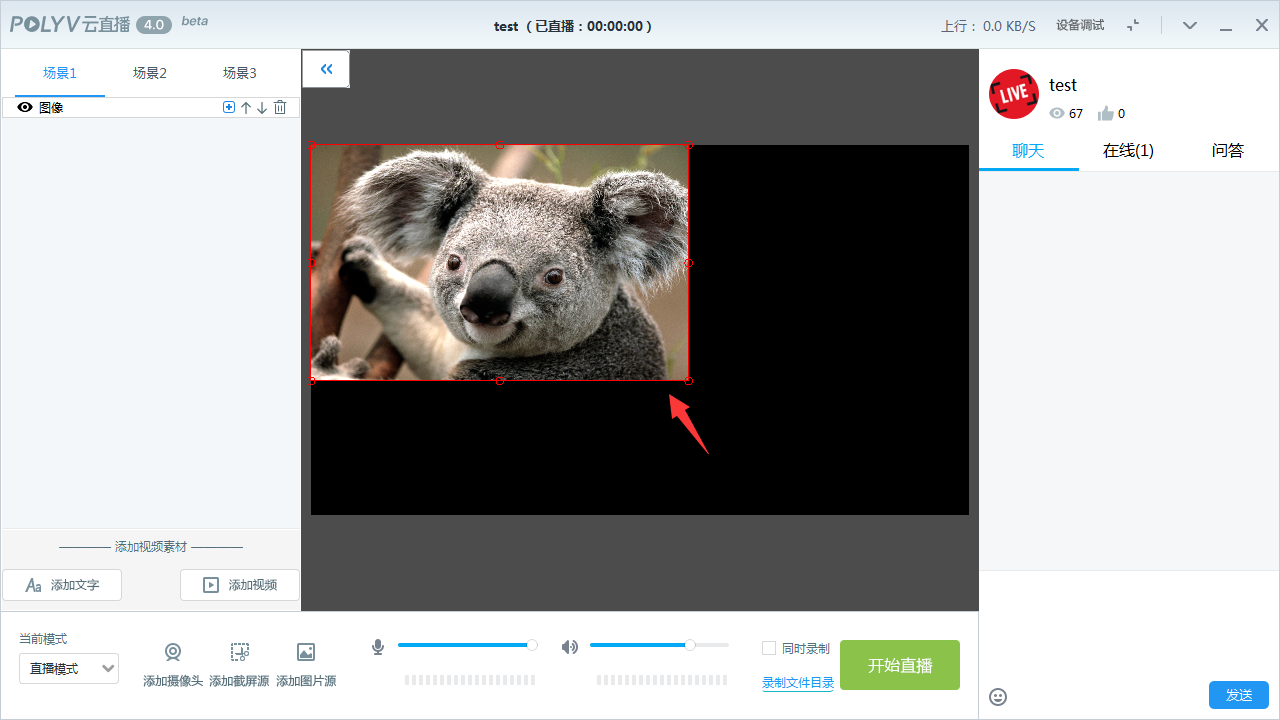
- Click "Start Live Streaming" to broadcast the current screen from the client;

- Click the inverted triangle button in the upper right corner, select "View Watch Page" to watch the live stream, or go to the POLYV live streaming system backend and select "Live Share Link" to watch. Note: Turn off the sound on the watch page to avoid echo;


- Click "End Live Streaming" to stop the broadcast.
