


OBS Usage Steps
Updated: 2025-04-17 18:17:26
Quick Steps for Using OBS Live Streaming Software
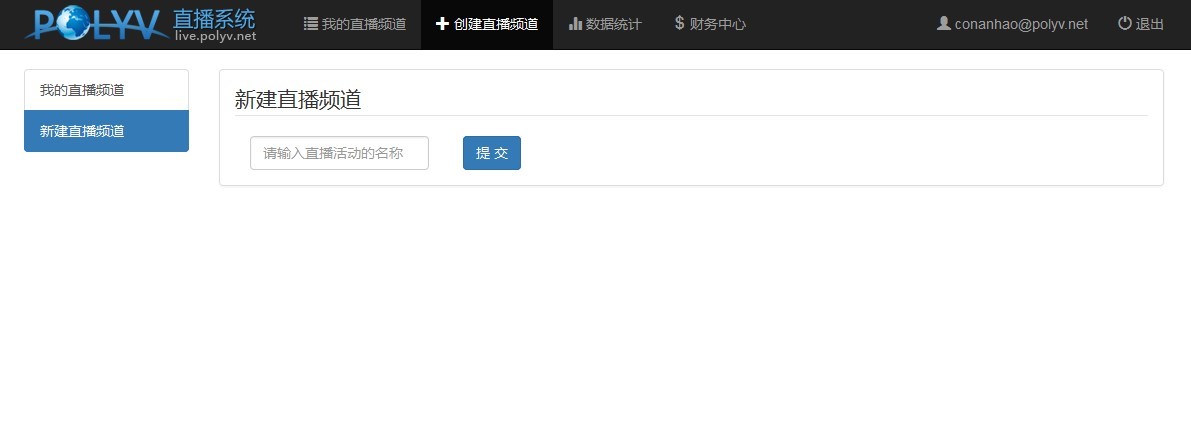
1. Log in to the Polyv Live Streaming Backend Backend login link: http://live.polyv.net/teacher.html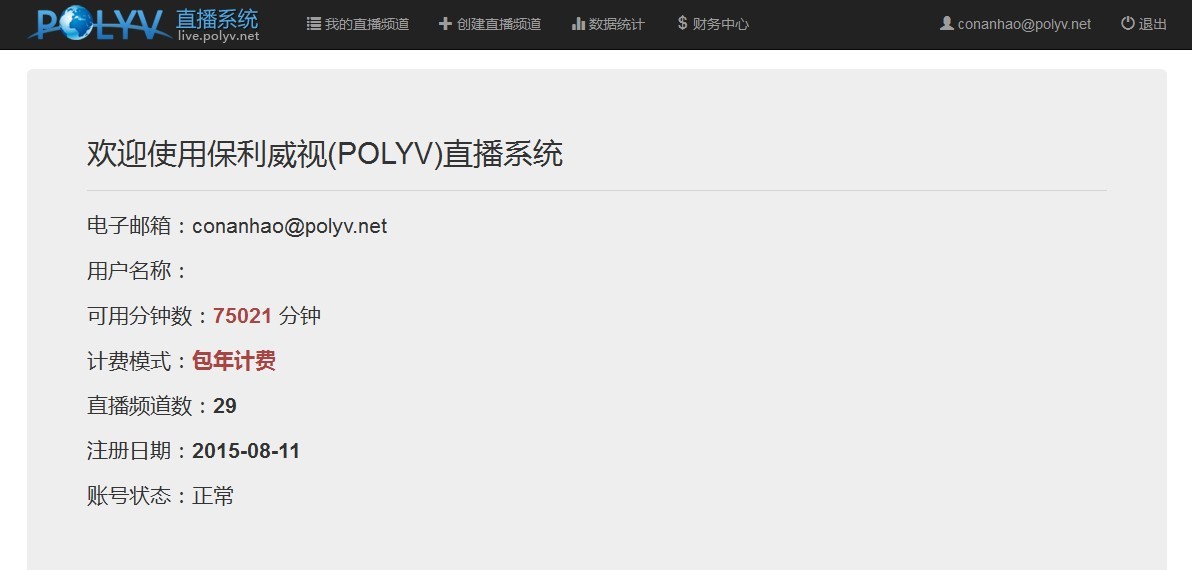 2. Create a New Live Channel ID
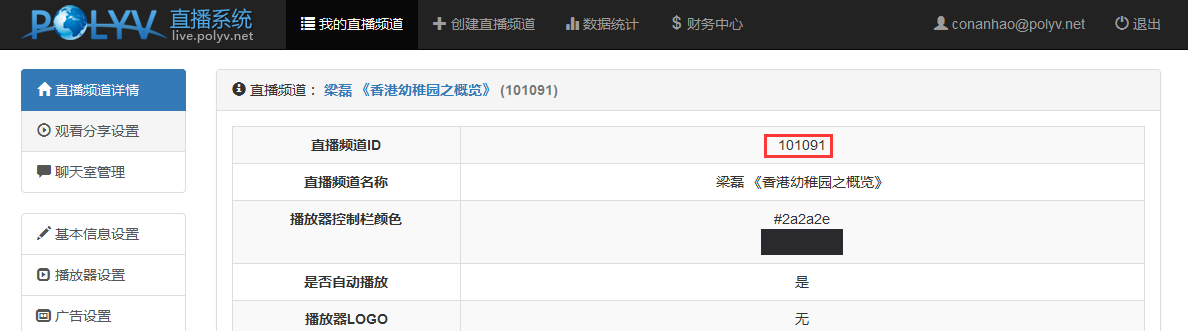
 3. Obtain the Corresponding RTMP URL Based on the Channel ID
 4. Open the OBS Software and Click [Settings]
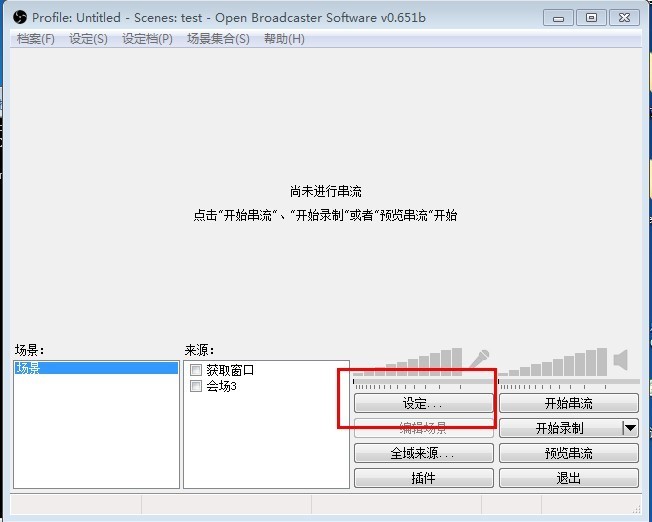 5. Under [Broadcast Settings], Enter the Push URL in [FMS URL] and the Stream Key Corresponding to the Channel ID in [Stream Key]
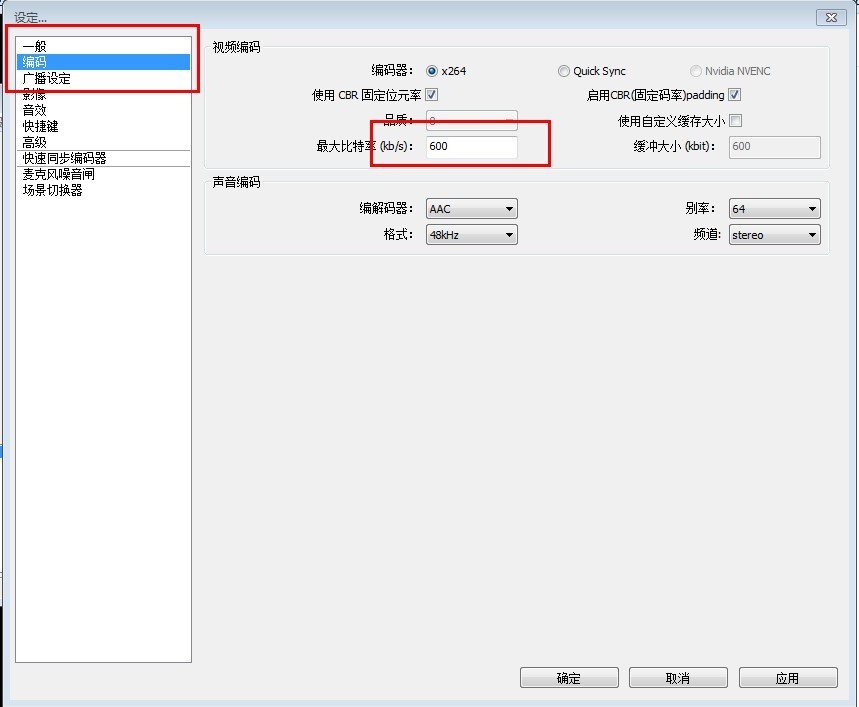
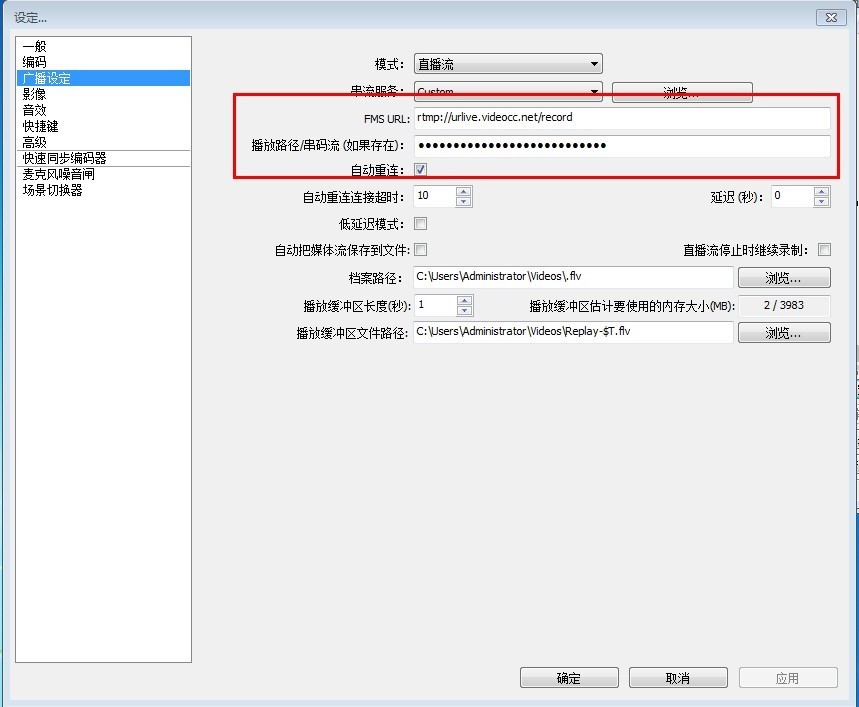 6. Under [Encoding], Change the Bitrate to 600
7. Under [Advanced], Set the Keyframe Interval to 2s and Uncheck CFR
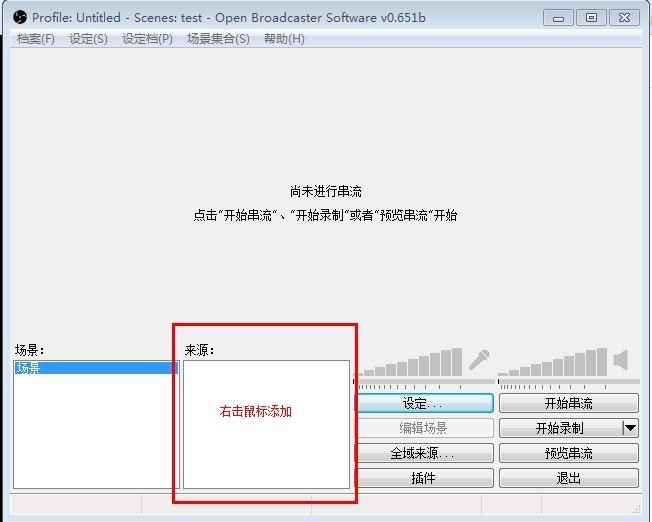
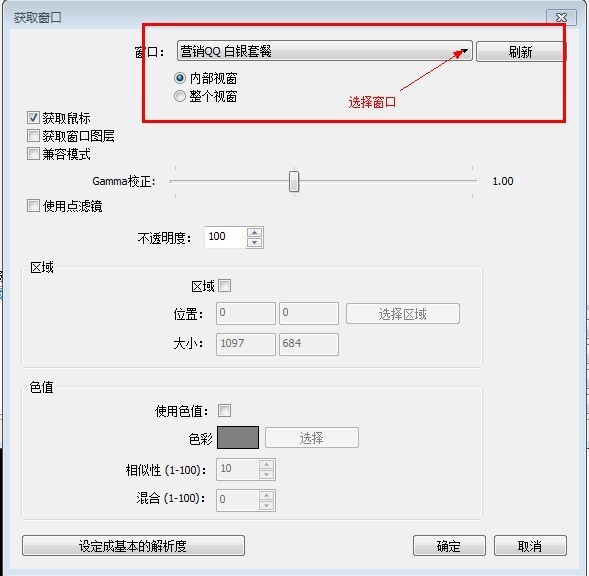
 8. Return to the Main Interface, Right-Click in the [Sources] Area, and Add a Live Source. For Example, Use Window Capture (Effect: Stream a Specific Software Window)
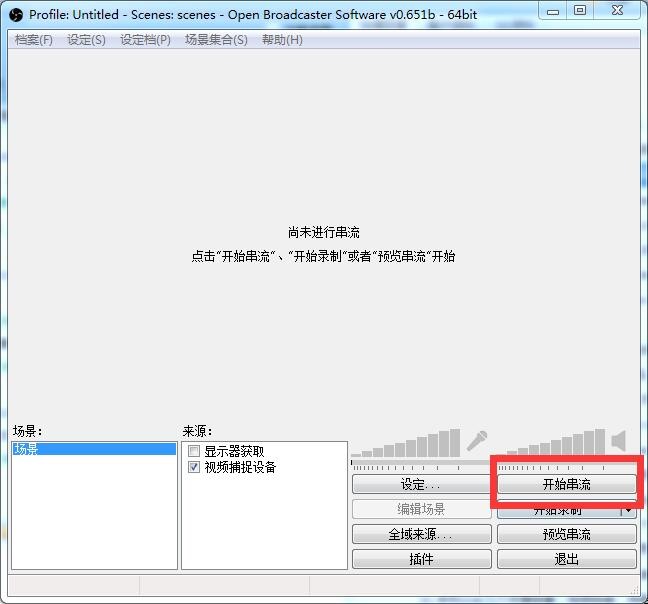
 9. Click [Start Streaming] on the Main Interface to Begin the Live Broadcast from the Client
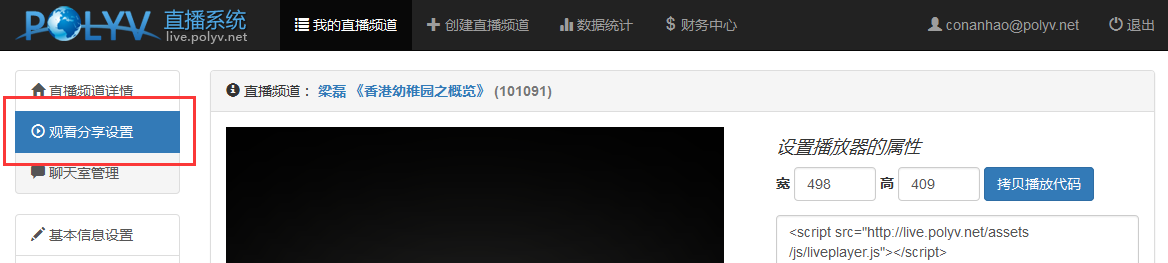
 10. Log in to the Polyv Live Streaming Web Backend and Check the Live Effect Under [Viewing & Sharing Settings]
If you have any questions during use, please contact Polyv Live Streaming QQ 800009268 TEL 400-638-8883 Get Help
