Short Videos: A New Form of Online Education Video (Introduction to POLYV Sub-Video Feature)

What is the most cost-effective way to produce online education videos?
Typically, how many people will watch an online video that is nearly an hour or even longer in its entirety?
In reality, very few people watch the entire video carefully. Most users skip through it aggressively using fast-forward. However, after skipping, many key points are ruthlessly overlooked. How can this problem be solved?
Suppose a student does watch a nearly hour-long online video attentively, but the knowledge they need is only contained in a 5-minute segment. Who pays for the wasted time of the student and the wasted bandwidth of the online education platform?
After a student finishes watching a video, have they grasped the key points? A targeted question about the key points is needed. How can this be achieved?
To prevent learners from missing key knowledge due to skipping, the knowledge points need to be extracted. To avoid wasting time and bandwidth, videos need to be shortened. To ensure the quality of learning, we can insert post-class quiz segments into the videos.
Shorten the videos, create video files based on knowledge points, and ensure each video file is within 5 minutes. Then, systematically categorize and organize the video files according to the knowledge points to form a complete knowledge tree for systematic learning. At the end of each video, the instructor can set a question related to that knowledge point, allowing students to quickly consolidate what they have learned after watching.
As the most professional video hosting provider in China, POLYV offers secure, high-definition, and smooth video hosting services for online educators. Additionally, POLYV's sub-video feature provides online educators with an excellent tool for segmenting videos, and the classroom quiz player effectively helps online educators implement post-class quiz video functionality.
POLYV Sub-Video Feature Setup Method:
After entering the POLYV management backend:
Click Video Management in the left function list, then click Latest Videos.
Scroll down in the right-side small window and find Sub-Video (as shown in Figure 1).
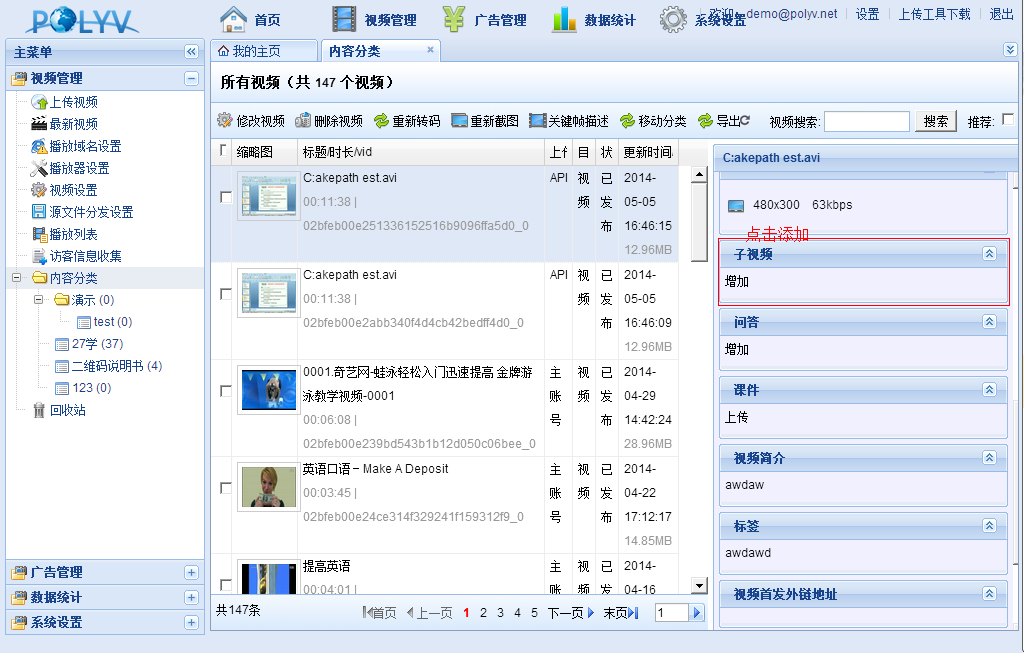
Click Add.
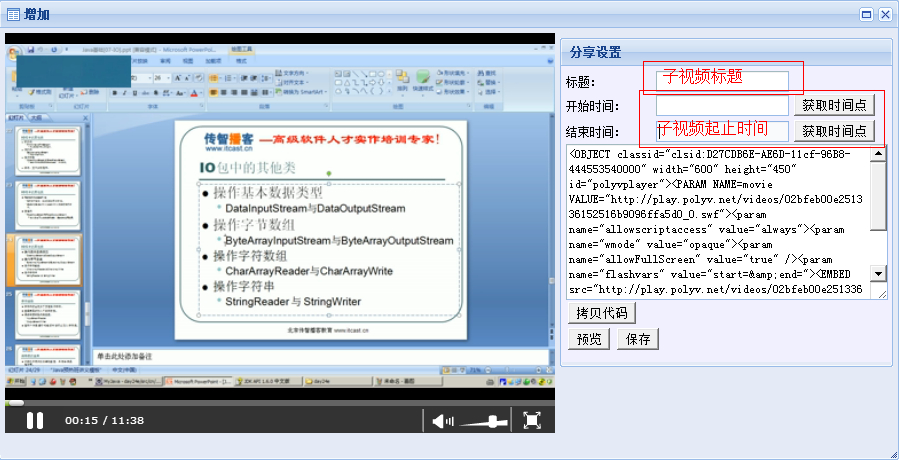
Enter the sub-video title, and obtain the start and end time points respectively (as shown in Figure 2), then click Save.