


End Screen Settings
Updated: 2022-05-24 14:25:56
End Screen Settings: Go to "Player" in the top function list — select an existing player to modify (or create a new player) — click "Modify", as shown below.

After clicking "Modify", the interface shown below appears. Find "End Screen Settings" to configure the content pushed after the video finishes playing.

Selecting "Related Videos" displays the effect as shown below:

Selecting "No End Screen" keeps the video on the last frame after playback ends;
Selecting "Return to Start" displays the beginning of the video after playback ends;
Selecting "Most Viewed Videos" shows the videos with the highest view count;
Selecting "Latest Videos" shows the most recently published videos from the backend;
Selecting "Recommended Videos" shows videos recommended by the user in the backend. The specific steps are as follows: Click "Video List" in the top function list to enter the "Video List" interface. In "All Videos" (or click a category under "Video Category Management"), select the video to be recommended, as shown below.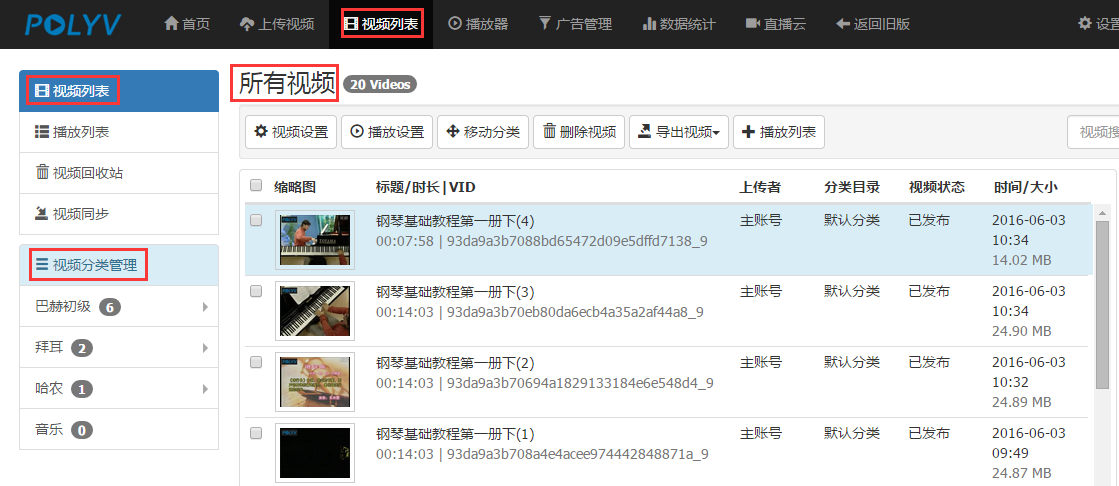

After selecting the video, find "Recommend" in the small window on the right, then click "Recommend", as shown below:

After clicking "Recommend", the effect is as shown below:

