


Video Watermark
Updated: 2022-05-24 14:25:56
Note: After setting the video watermark, it only applies to newly uploaded videos. Link redirection and transparency settings are not supported.
Access the "Video Watermark" settings interface:
Method 1: On the "Upload Video" interface in the top function list, click the  icon on the right to enter the "Video Watermark" operation interface, as shown below.
icon on the right to enter the "Video Watermark" operation interface, as shown below.
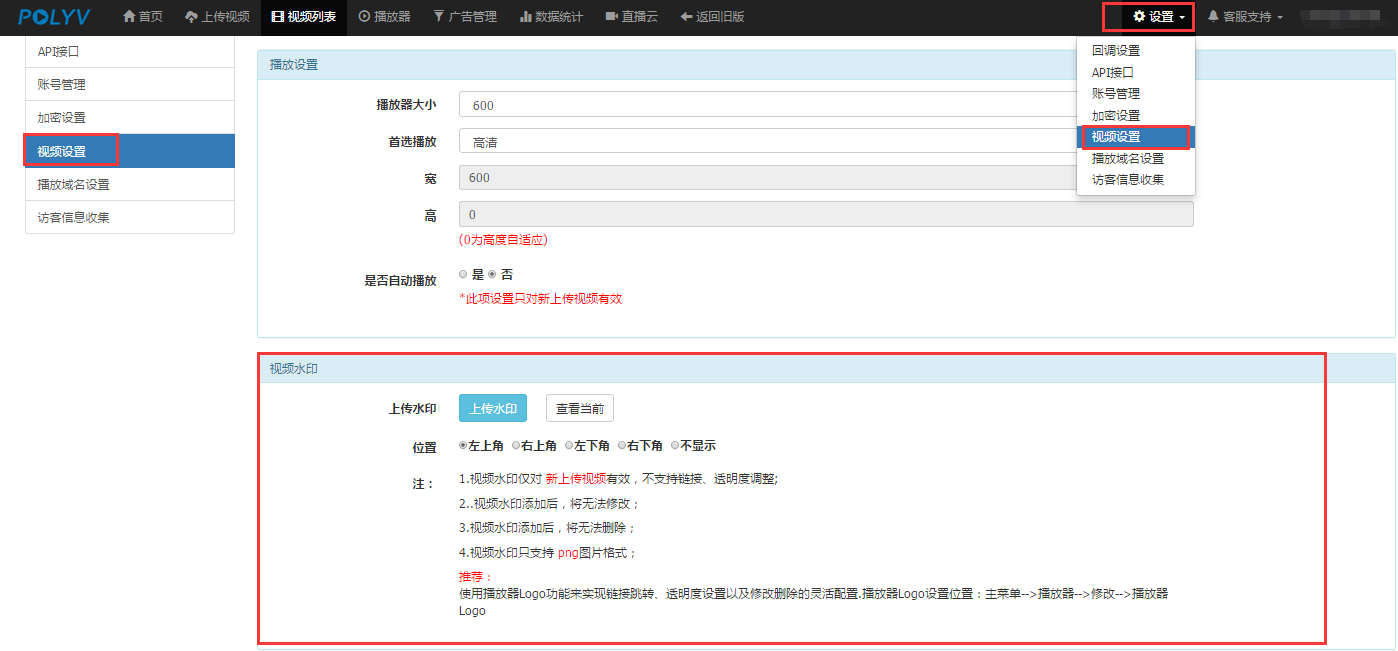
Set "Video Watermark": The "Video Watermark" operation interface is shown below. Click the "Upload Watermark" button to upload a video watermark and set its position.

During transcoding, the watermark is directly embedded into the video file. Therefore, even if the video file is downloaded, the watermark remains within the video, providing some copyright protection. Upload an image as the video watermark (watermark and logo can coexist), supporting custom watermark positions (top-left, bottom-left, top-right, bottom-right).
Click "Upload Watermark" (PNG format is recommended), then click "Submit" at the bottom. The result is shown below:
1. Watermark Size: Changes with the video dimensions. Choose an appropriate watermark size based on the playback window size.
2. Watermark Format: The system supports image formats such as JPEG, PNG, and GIF. For a transparent watermark effect, it is recommended to use PNG format images.
3. Watermark Effect: Video watermarks only apply to newly uploaded videos. Videos with an existing watermark cannot be modified; they must be deleted and re-uploaded.
